 5:46
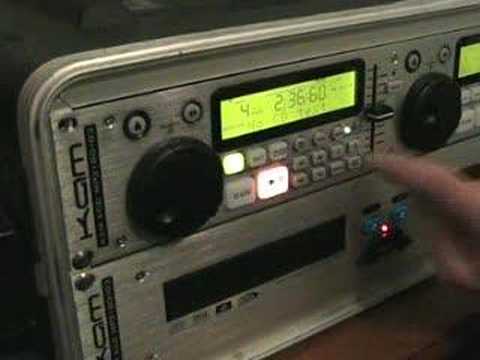
A look at the Kam KCD180MP3 iD3 twin CD player
Contents of the video
0:00 You've got to be able
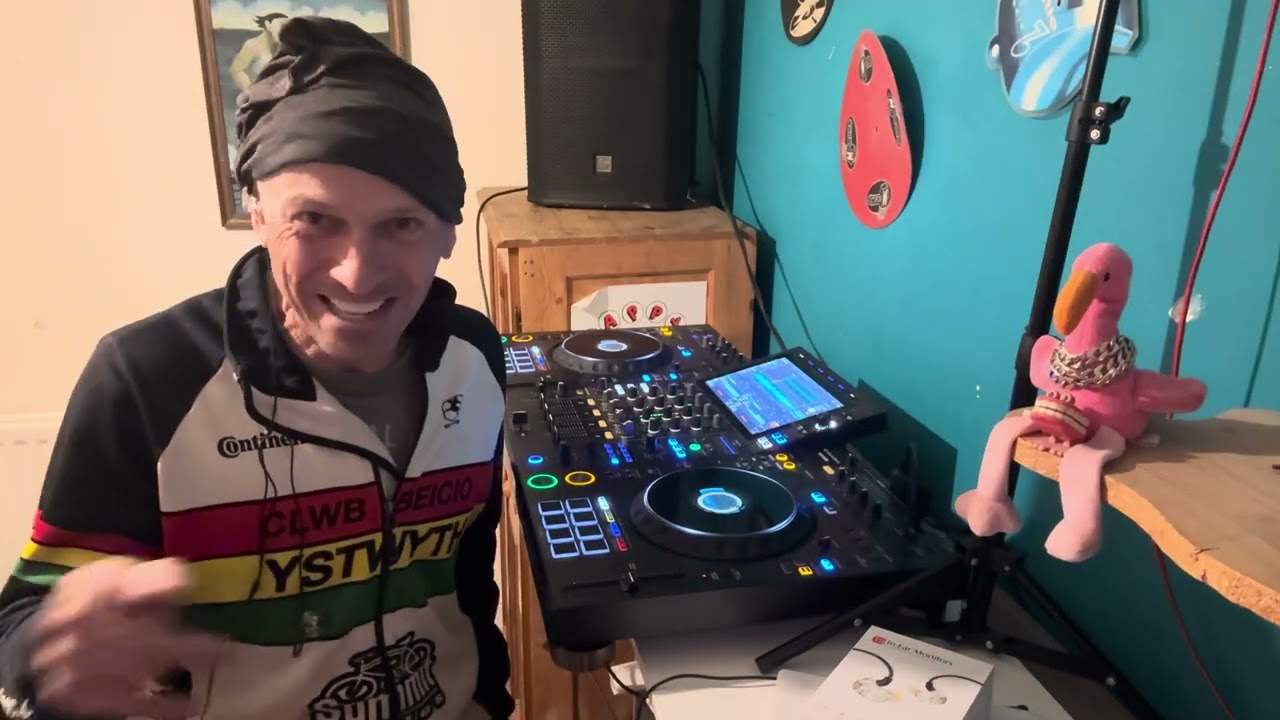
Alright folks, Jonathan here. About a year ago I did a gig log and I took a very cheap and cheerful twin CD player along with me. Now the reason I did that wasn't to prove a point that yeah you can do gigs with like cheap and cheerful CD players, it was a case of it's the only damn thing I had so I had another option but I did take an iPod with me as well and I highly recommend that if you do do functions even if you've got the best kit in the world always take a third entity because you never know if one goes wrong you've always got two and a DJ needs Two music sources. You've got to be able to go from one to the other. Now what I'm going to do now, I've got a Cam Twin C player here. I'm going to give you a basic sort of idea on what it can do. So we'll have a quip of a wang around like that. If you can hear noises in the background, it's because the kids are jumping all over the place, including the wife. Don't tell her I said that. Right, now first of all this guy here can play MP3s. So in other words, you could theoretically go to a function with like four CDs and play for about ten years. Well, maybe not ten years, but I'm sure you understand what I mean.
Right, cue, basically now, press cue, keep your finger on the cue button, the music will carry on playing. Take your finger off and guess what? It goes right back to the beginning and you can edit as well which is quite cool. So one thing I need to do now, if I want the music to continue playing while my finger is on the cue, press play pause and it'll carry on playing. Alternatively I can just press play pause, like so. Now one feature I do like, and that is, I'll show you now. The jog wheel, if we move the jog wheel clockwise it will speed up the music. Take my finger off the jog wheel, it'll go back to its original speed. Anti-clockwise it'll slow the music down, finger off, go back to its original speed. Pitch adjustment here, you've got plus or minus 4, plus or minus 8, plus or minus 16. Now watch this, if I go now and make sure the pitch icon is above the two zeros, we're on plus or minus 8. So have a listen, minus 8, plus 8.
1:59 16, make sure the pitch
If we go to 16, make sure the pitch is up there. Minus 16, plus 16. And then if we have all three of those lights shining, plus or minus 100. But also check this now. Because we're on plus or minus 100, watch what happens when I move the jog wheel. So basically the jog wheel will correspond to whatever the pitch is. So if you're at plus or minus 4... Jog wheel will be a nice smooth feature. It'll be very fine tuning. If you're at plus or minus 100, you can have some fun. Like so. Alright, so what we'll do, we'll pause that and we'll just go back say to plus 4 for the time being. And also you've got tap BPM. So in other words, if I tap to the music, I can get the rough guesstimate of the BPM, beats per minute of the track. I'll give you a demo of that. 3, 4, 1, 2...
Oh, by the way, sorry, very quickly. If you want the precise BPM, make sure the pitch control is dead centre. And if you're not sure, the best thing to do is just disengage the pitch so you haven't got the pitch above the two zeros. So there you go. So if I tap now, we're looking at roughly 125 BPM. So if I put a track in there... And I'm listening to this, sorry, that side and I'm listening to the headphones. I can tap that and I know roughly whereabouts the BPM will be on both of them. Also you've got loop as well, so in 2, 3, 4, out 2, 3, 4. So that's not bad, quite a nice tidy loop there. And then... OK, what else can it do? Basically you've got, as normal CD players, you've got track search.
4:09 You've got search through the track, you've got a countdown timer
You've got search through the track, you've got a countdown timer. You can basically, when you've got a track, you can either have the elapsed time or you can have the whole time there. So for example, you can have a countdown timer. If the track's three minutes, it'll do three, then it will do 2.59, 2.58, 2.57, which a lot of DJs like because you can look and think... Blinging out, I've got 20 seconds left. So you're diving around trying to find a CD, but of course you've got MP3s in there, it'll last indefinitely. Alternatively, again like I said, did I say? Never mind. You know, it will actually go through 1, 2, 3, 4, 5, but of course the trouble is then if you know the actual length of the track you're sorted, but if you don't know the length of the track, then what you can do there, you can look at these little icons and they'll basically say like watch out, because those will flash according to how much of the track is left or how much...
There's a basic sort of look at this twin CD player here from Cam and pretty nice piece of kit. Now what I will be doing, hello again, I'll be taking this on the road sometimes so I'll give you a demo of that and yes I've got nice equipment but at the end of the day I've got to prove a point. I did prove a point in a last gig whereby like I said I took a really cheap and cheerful CD player along. This one's a little bit more expensive. The irony is that the CD player I took was, I think it cost me about £100 and it lasted me over a year. So there you go. You can use cheap gear in functions. I hope this has been a help. Practice and enjoy. Thank you very much.
This transcript was produced automatically from the audio of the video and may contain mistakes.