 5:51
KAM DIGI MINI VIDEO 3 A look at the video mix function PC DJ
Contents of the video
0:01 Video 3 on the CamDigi Mini
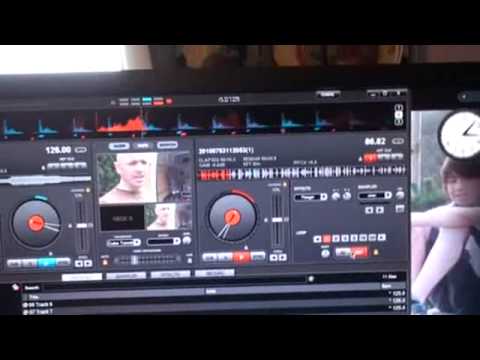
Alright guys, video 3 on the CamDigi Mini. Now that is the hardware and that there is the software. It comes with VirtualDJ so it is as simple as putting the CD in your PC, following a few steps and once you have the program on you're good to go. Of course you have to plug that guy in as well. On the left hand side of the program Virtual DJ, you will have computer desktop. In other words this is really the internal workings of your PC, the programs etc. Now the difference with this guy is that you can mix video as well as audio. Video 1 and 2 I showed you a basic rundown of this. Now bearing in mind These are sort of demonstrations more than tutorials, but there could be a few tips that you could learn from this. Or maybe you didn't know how to do one thing. By watching these videos, you may be enlightened. Now, what I've got at the moment, we're on... let's have a look. There's the scratch feature, mixer and video. Now this is where it gets really exciting. Not looking at me. Right, OK. So, let's say for example we're on mixer.
And let's say all these items here are your music files. Well, of course you would take your mouse, one way of doing it anyway, and left click, drag that over into that side, let it go, and the track loads up there. Well, it's exactly the same with video. I've got to my videos here, and I've got the files there, and I've dragged over one track, or video, sorry. To the left side, right, that's it, left, sorry. I'm less dystic and sometimes I don't know me right from me left stuff but there you go. Two, I've dragged another one over to the right side. Now this is where the fun begins. Check this out. Right, what I'll do, I'll press play on there. Alright guys, another gig log for you and I don't exactly know what time it... Pause it.
2:21 Mixer, video, bearing in mind on Decay now we've got music
That's cool. Okay, so we'll play. It's in the afternoon. Let's get a bit more interesting. Doing a wedding. Wedding. Wedding. Wedding. Wedding. Wedding. Wedding. Wedding. Wedding. Wedding. Wedding. So, mixer, alright. Put a track over there. Mixer, video, bearing in mind on Decay now we've got music. Let's pause that. You have to do this virtually every time unless you've got a secure place to keep your van. But you should, in a sense, take your stuff as soon as you get home out of the van, put it back in the house and then you start all over again. Next gig, you take it out, put it back in the van. Alright, enough of that. Okay, here we've got a small little icon and we can change how we move from one video to the other. So for example, default scratch zoom cube. The moment it's on cube,
And if we leave it on cube, it's pretty obvious what cube means because if I move the crossfade over there, you can see we've got a cube sort of in and out from one video to the next. Then if we go zoom, zoom's pretty good actually. There it is, the one into the other. And if we go to scratch, there we go, so scratch is... In a sense, it's a flick from one to the other, so there's no defined smooth transition. It's just straight from... Sorry, there. Sorry. I'm holding the camera and looking at the same time. Straight from one to the other. And then if we go back to default, which is almost like little blocks from the one video leading to the other one. So, right. So, so. Video number three. Again, these are just demonstrations but what you possibly need to do is spend a lot more time and take it to the next level. Alright, it's from a company called CAM. It's known as the Digi Mini and I will be doing, believe me, lots more of this. It looks fun. Practice and enjoy. Thank you very much.
This transcript was produced automatically from the audio of the video and may contain mistakes.