 4:12
NEXTBEAT The Instrument for creative DJ's.OVER VIEW
Contents of the video
0:01 A basic overview of this guy called the Nexbeat
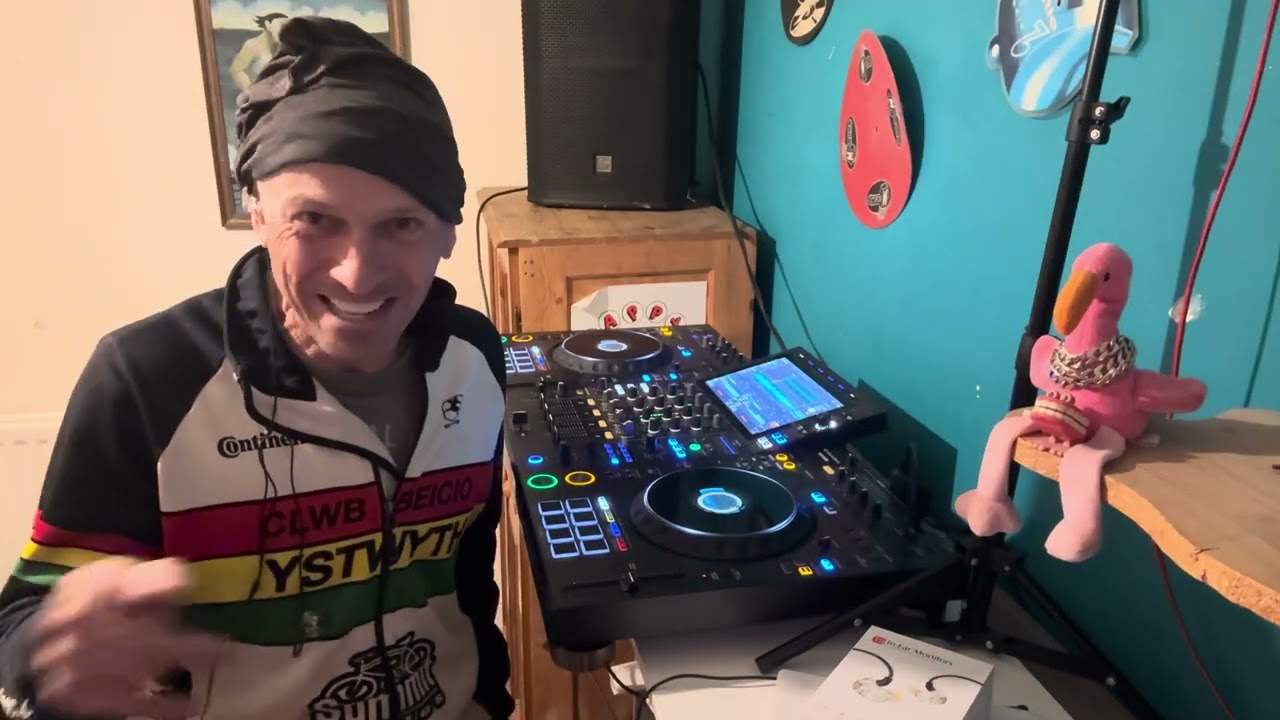
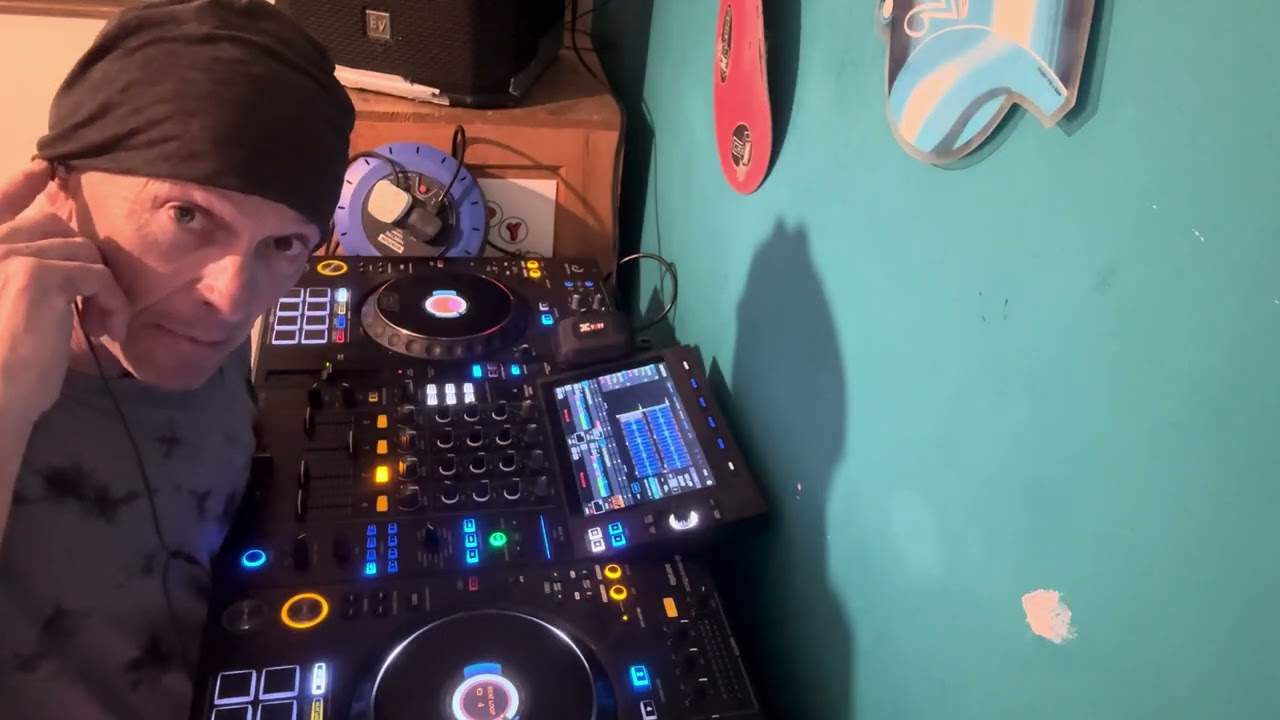
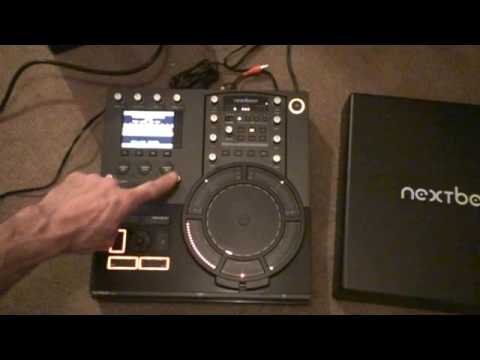
Right folks, here we go. A basic overview of this guy called the Nexbeat. That is the lid and that is the complete unit. Now in future videos we'll be going slightly more in depth with reference to the functionality. Also I'll be doing step-by-step tutorials. Now this is a complete DJ console and in a way the easiest way of explaining it is that area there. The DJ Tutor is the item that you will take out and that will enable you to, let's say, be a DJ on the move. In other words, there's loads of people out there who would love to walk around the crowd and do a bit of a mix where you can because this guy here is wireless. This area here, apart from doing a couple of other things, a way of explaining it is that's the way of transferring your music information from there to there. So if I press that, there you go, I can pull this out
1:34 On side A, hit B, I'll be able to do it on side B
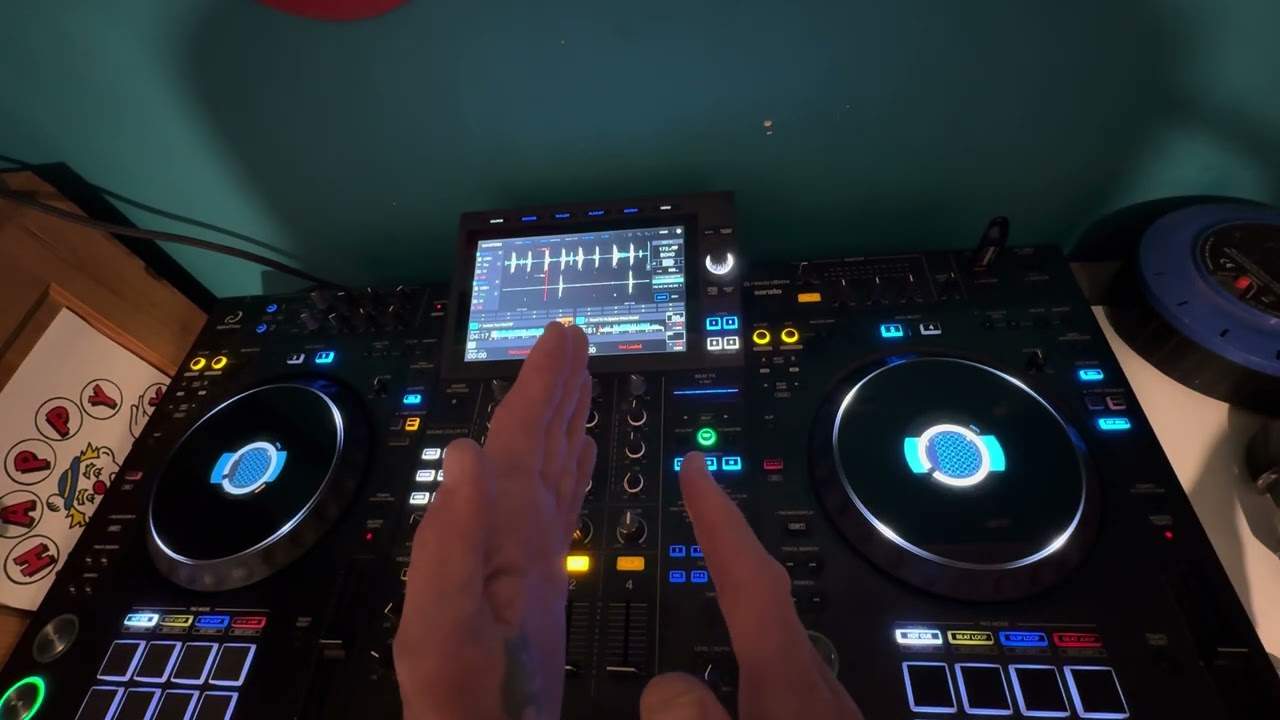
And I can now walk around the room and do a bit of a mix. So if I put that back there, like so, cue it up. Cue is exactly the same as some of the good quality CD players. You press cue, keep your finger on it, the music will carry on playing, take it off, and it stops. So you can do something like this. And if I press now while my fingers are on cue, play pause, the music will carry on playing. If I hit A, I'll be able to do play, cue, pause, etc. On side A, hit B, I'll be able to do it on side B. The centre area there is the effects. Low, mid, high and trim. Trim is more commonly known sometimes as game control. And you've got one of those for each of the channels. So in a sense, you've actually got three volume controls. You've got your master here, and you've got your trim for each channel. Now we can loop on this. We've got master tempo.
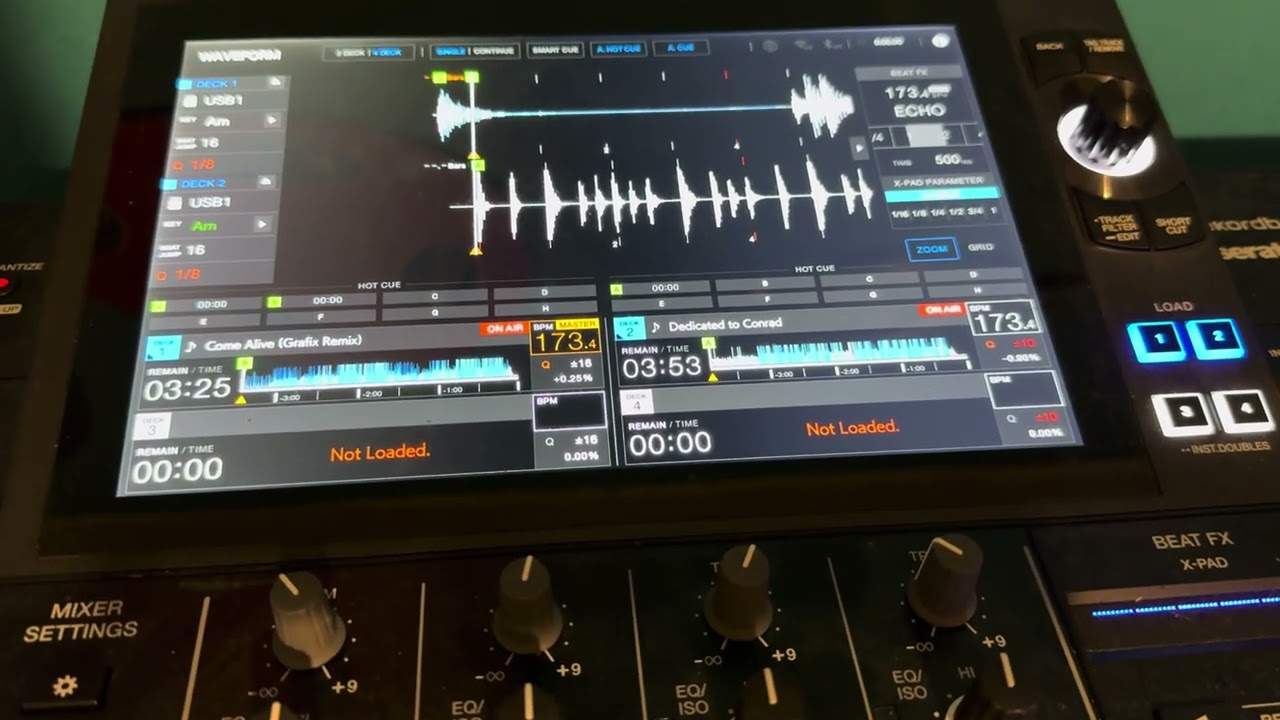
We have mic volume, cue master and microphone volume. This guy here, I like this a lot. Fantastic. Because basically what you can do, you can make a loop and if your loop's slightly out, you can adjust the in and adjust the out. So I'll show you. Now, not only with this, you can hear if it's slightly out, you can visually see there as well. And again, in a future video, we'll have a closer look at the screen.
2:52 One, two, three, four
What I can do as well, I can either hit any of these buttons now and at the moment I've got the count of four. One, two, three, four. So I can do this for a quarter. Okay, down here is where you'll transfer your music and this area here will enable you to scroll through your music files and what the unit comes with is a 2GB card that's in the back of it. At the moment I've got this plugged into a £1 speaker from the master out. You can of course logically have another powered speaker, so you've got stereo. Alternatively, you've got a digital out and there are two other outputs. One is for the right hand deck and the other one is for the left hand deck. So in other words, you've got an output for B and an output for A on the back as well. Alright, a small little, in a sense, a bit of a view showing you some of the functionality and like I said, in future videos we'll be going a lot more in depth with small little demos and tutorials on
Individual parts on this guy here. Practice and enjoy. And as well what I'll do, I'll put a lickable link in the description that will take you directly to the next big website. Ta!
This transcript was produced automatically from the audio of the video and may contain mistakes.