 7:27
Pioneer DDJ Ergo with Virtual DJ
Contents of the video
0:00 Short vid on the Pioneer Ergo
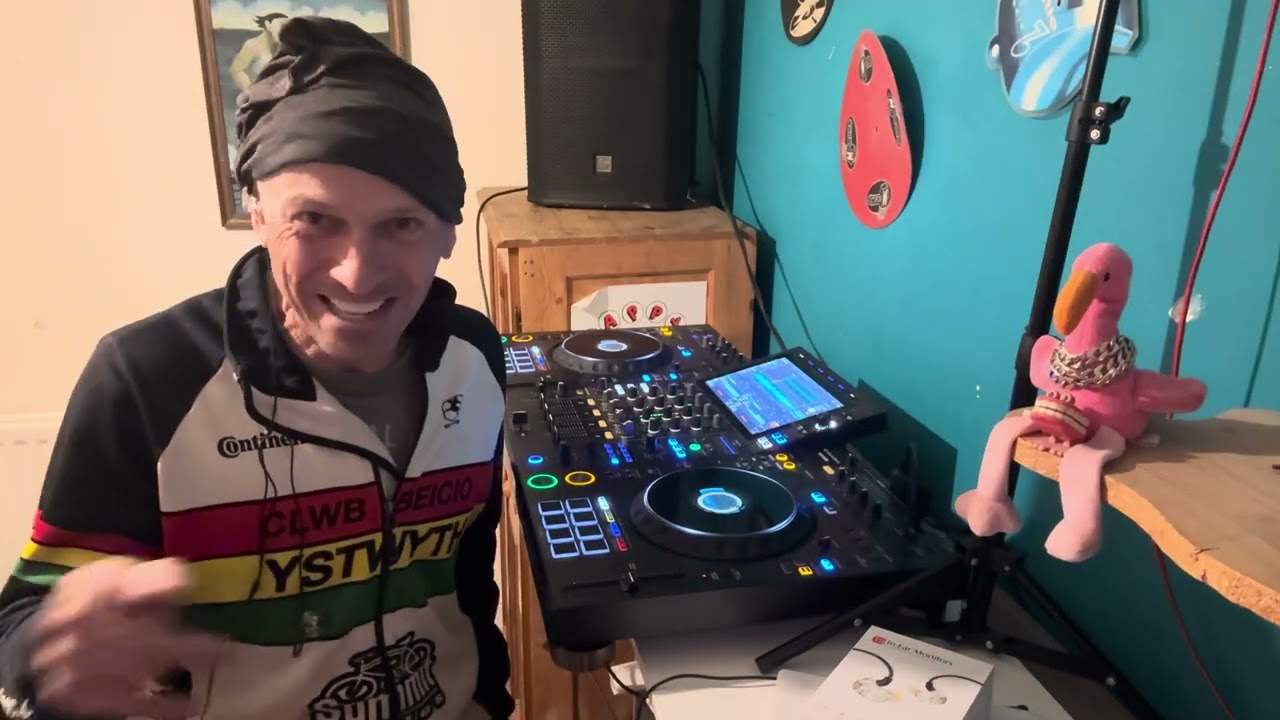
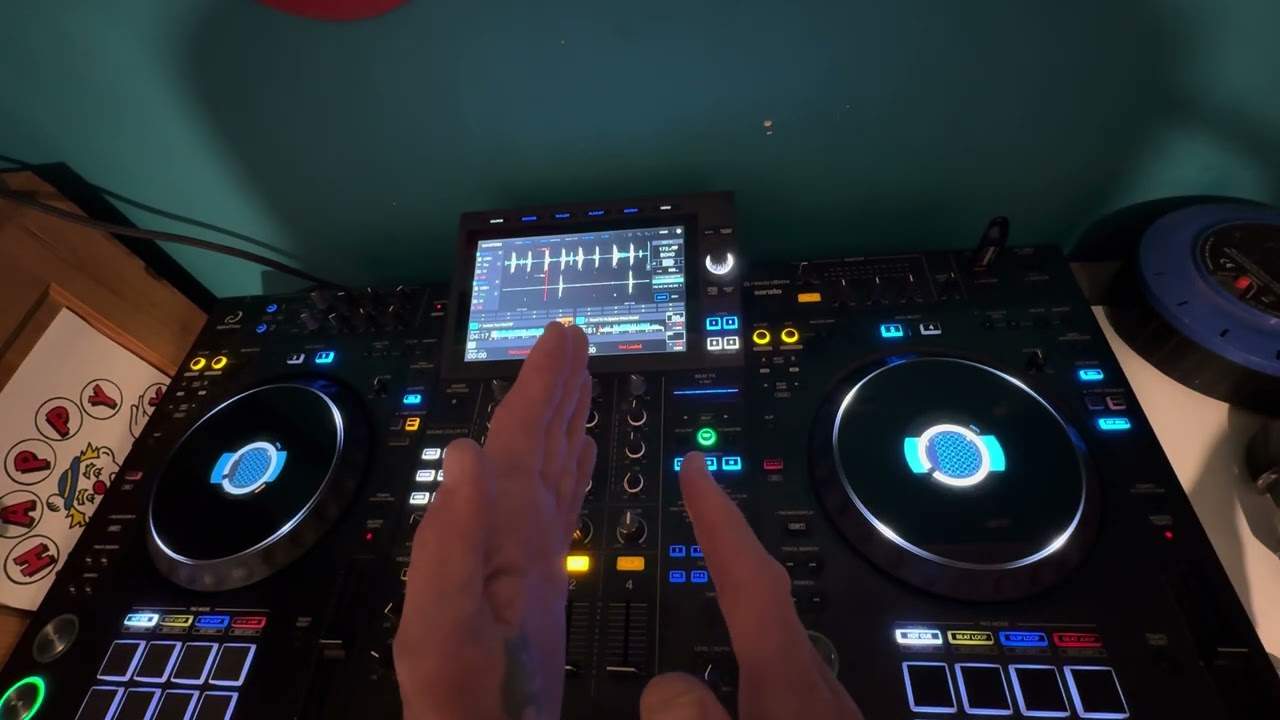
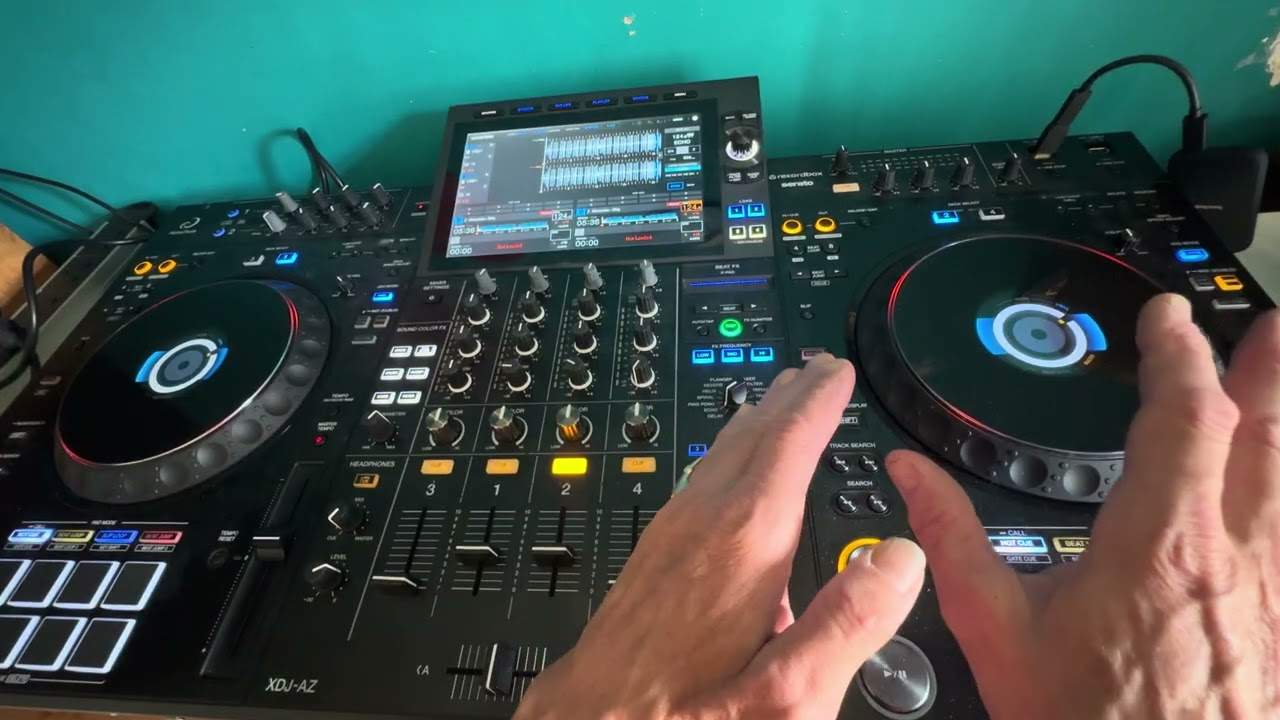
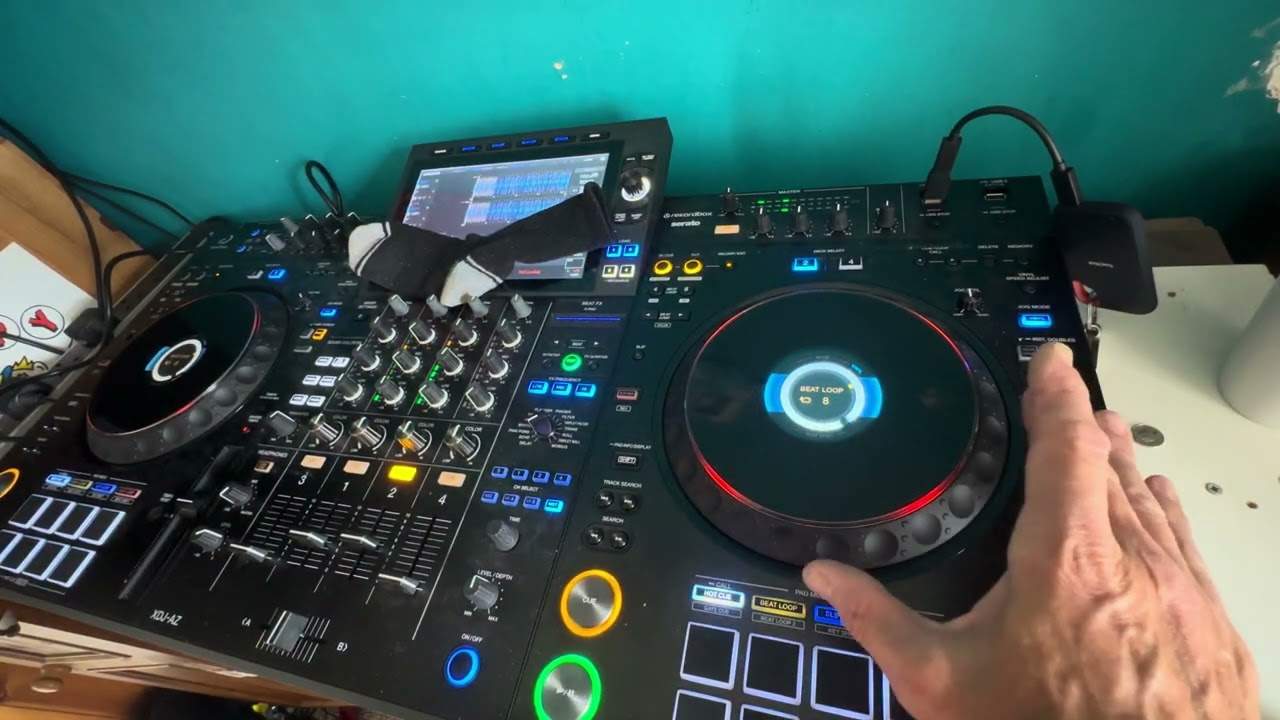
Right guys, short vid on the Pioneer Ergo. First of all, if you cannot afford, let's say, a set of CD players and a mixer, you've got near enough the blueprint of a set of Pioneer CD players and a mixer in this guy here. It's an affordable controller. Very quickly as well, what is a controller? Because there will be some people out there watching this for the first time and think, what is that? Vinyl turntables and a mixer, those are like your vinyl turntables, that's your mixer. Alternatively it's exactly the same near enough as a set of CD players and a mixer. There are your CD players, there's the mixer. What Pioneer have done with the Ergo is they have given you touch sensitive jog wheels so if you do like a bit of cutting and scratching you can touch the top of that and move it back and forwards. There is a slight tiny bit of delay here, a bit of latency.
It's not down to this controller, it's down to the laptop. It's not that fast. So, in other words, that's like using a vinyl turntable. So it's the side of it, that's like using pitch bend to slow it down, going anti-clockwise. Clockwise, that's like using pitch bend to make it go faster. Cut me finger. Alright, we can loop.
1:39 Software and we can set
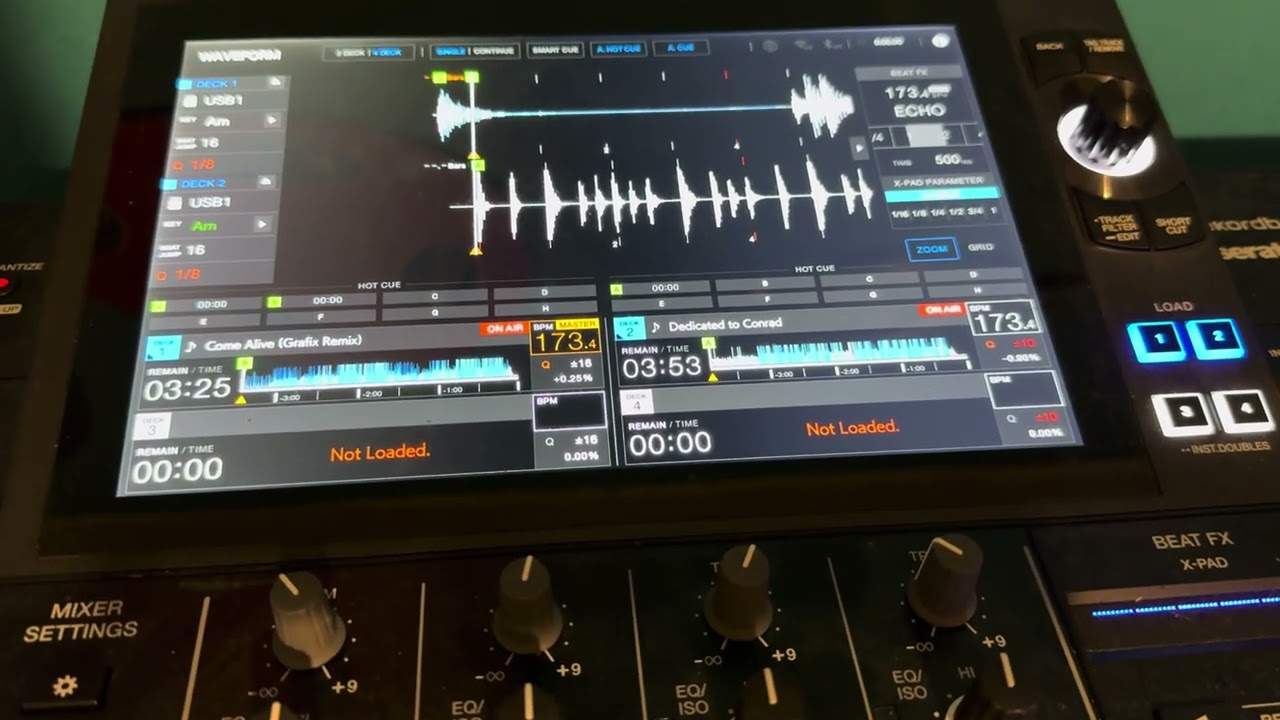
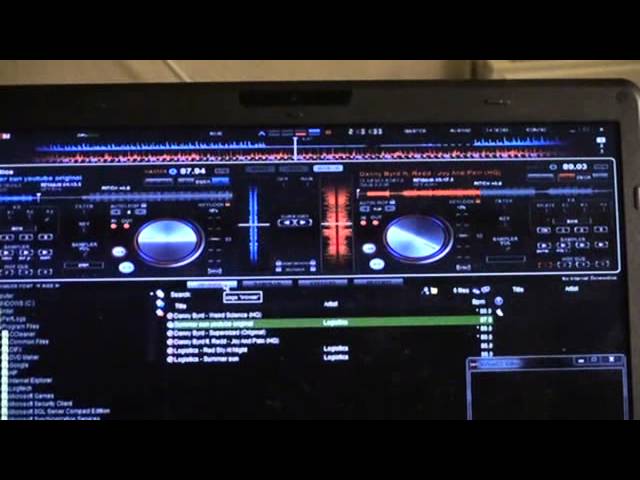
Again, we can do that on the fly if we want to. Alternatively, we can go to the software and we can set in and out loop there. At the moment, I'm using the pro version. This is version 7. And on VirtualDJ, there is a new version out. This, by the way, we're now in April 2012. When I say new version out, I don't believe it's out yet. It will be very shortly. But of course, if you're watching this... during the summer let's say of 2012 then it's probably already out all right again you know you look at it first glance if you're familiar with mixers cd players quite self-explanatory here the mixer area here you can scroll through your tracks see if i just go to the screen and bearing in mind the particular videos i'm going to be doing on the ergo are for beginners so scroll
Scroll and load, press, unload, press and that'll load up there. There you go. So once you have got the software integrated correctly with the hardware, you can do virtually everything on here. We've got effects as well and using the pro version we can do video mixing. The ergo itself does not come with a pro version. If you want to you can update that online. It costs a little bit extra but... It's well worth it if you want to get some more features. More importantly, if you want to do some good video mixing. So, if we just scroll a little bit closer, like there, what I can do, I can do this two ways. I can go to browser, there. I can go to sampler, effects, record, go back to browser. Alternatively, what we can do...
Let's say we want to go to function. So if I press function, which has actually got nothing to do with what I showed you earlier on, but there you go. What we can do now is we can go from your normal 2-deck to video mixing to scratch mode like so. Believe me if you're not that familiar with software and I'll be honest with you, I know a little bit but not much at all. So I'm going to be learning while I'm going to be doing these videos. There is so much you can do with software. A lot of people say that a DJ, a PC DJ, is not a real DJ. Well, I beg to differ because a real DJ plays music correctly, knows exactly what they're doing and I couldn't give a monkey's whether you were using a saucepan, a spanner and a trombone. If you can mix music using those three implements
5:09 Almost like the next skin
This is the Ergo, video number one, very short and sweet to the point. I'm going to start knowing a little bit more about this and while I do, and during the course of the time I do, I'll be putting it on the web as well. So what we'll do, we'll just turn it up a little bit like that and then we'll have a bit of a closer look. What we can do as well, we've got a shift button, so pressing that we go to almost like the next skin or the next amount of features on the player. We can go through here to the effects, we can form loops, we can get to the sampler. This area here, we've got deck A or deck C. Over here, B, which we're on, or we can go to D. You've got usual gain, high, mid and low, volume control mix, similar over here, master output, key lock, vinyl mode, and if I just put that down a second, let's just turn that down a second, what I'm going to do now is go over to one of the possibly the most important parts
The software, right, configure. Now this area here I'm getting used to very slowly and this area here is for you to determine how you want the software and the hardware to be set up so if you do have your what I class as the destruction manual or instruction manual check it out first please very important don't do what a lot of people do just Plug it in and hope for the best because you'll probably be racking your brains wondering what's going on. Alright, so check out that first. So once again, it's top corner and you can see the little icon there, config. Go and check that out first. I do need to dust that laptop. Alright, short video on this guy here from Pioneer. It's the Ergo. I will put a lickable clink, also known as a clickable link in the description.
Take you to this little sucker. Practice and enjoy. Thank you.
This transcript was produced automatically from the audio of the video and may contain mistakes.