 17:49
WHY Buy the DDJ-1000 New Tunes Club CD Pool May 2018
Contents of the video
0:00 Number one is we're using rekordbox
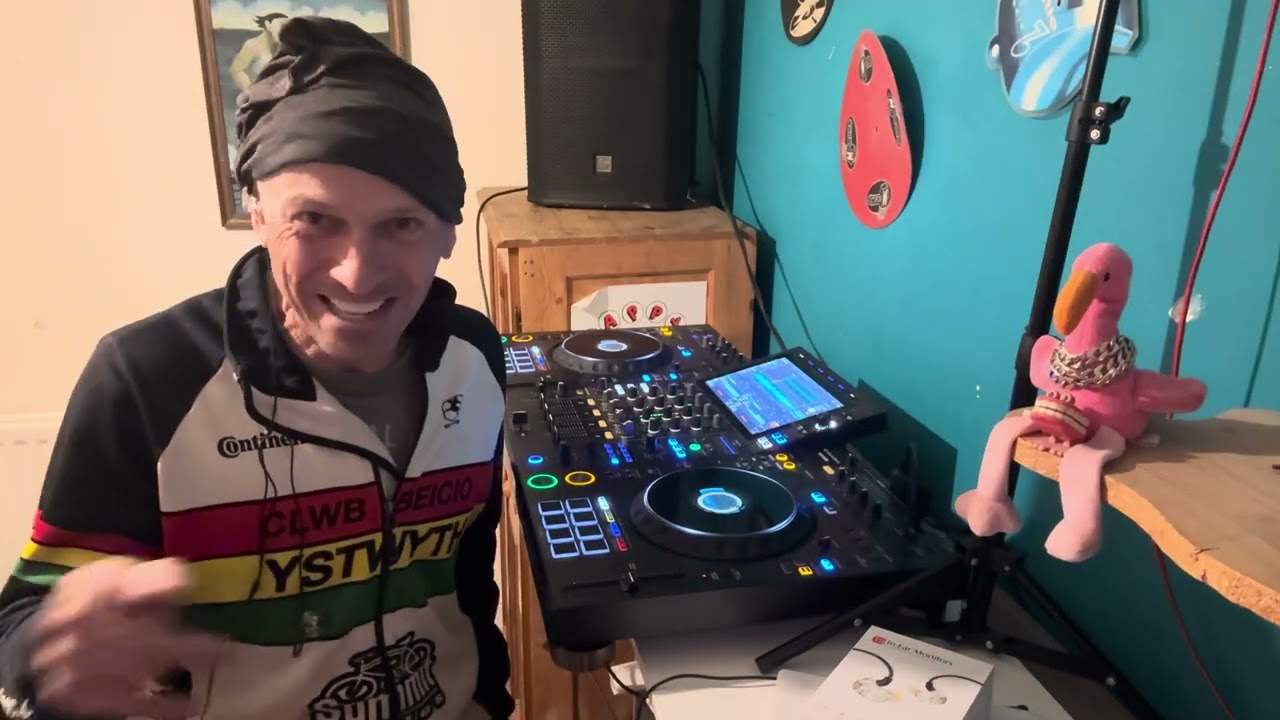
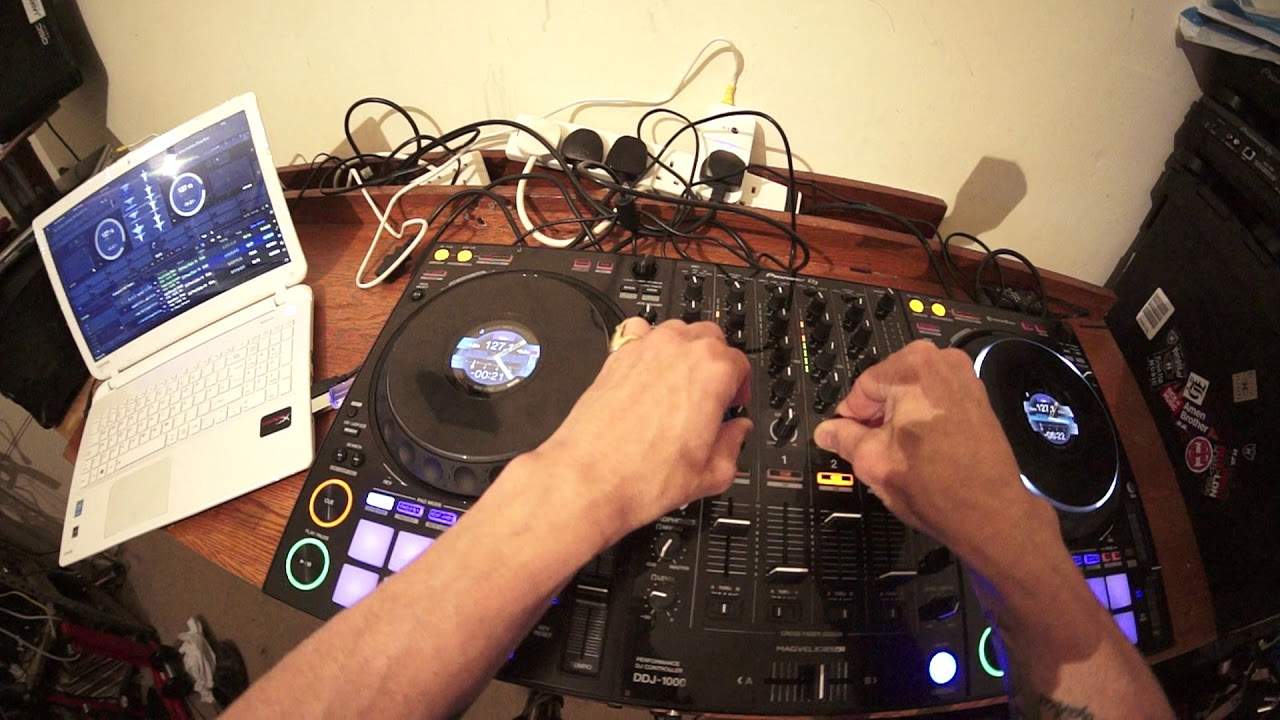
Alright, a few things happening here. Number one is we're using rekordbox. Number two, it's a few top tunes from the club series May 2018 from CDPool and also I've got, yes, this rather nice piece of kit, the DDJ-1000 from Pioneer. This is my second online video on this controller and so far so good. Now, maybe you've been watching a lot of my videos and you should have probably got the gist of... Where I am with controllers, I don't dislike them and I don't like them completely. I'm sort of on the fence here. I think really because I'm always scared about using a controller that relies completely on a laptop. Now that statement there, there's one letter that says everything, a laptop. Alright, so right.
Let's imagine you're halfway through a gig, you've got your laptop plugged into your controller and all of a sudden the laptop does something silly like, I don't know, is unhappy with the weather and wants to go somewhere else. In other words it stops working. Well you're pretty much buggered. Now one of the great features of the DDJ-1000 is you can plug in two laptops so that means if you've got your mate next door and he or she is desperate To mess around with thumb drives in your laptop and loading files left, right and centre and peeing around like that. No, it's just they plug their laptop in. They can use their laptop on a couple of channels. You can use yours. Jobs are good. But, let's get back to Mr or Mrs DJ on the road and you're doing a gig and all of a sudden your laptop stops working. Well, if you've got another laptop plugged in, guess what? You can just switch over to that. You see, so that is one feature I do like about this controller here. Controller stroke player because I think the word controller is getting a little bit old-fashioned now because...
2:37 Turn tables as well, for example
These bits of kit are getting more and more refined, that they are becoming less of a controller and more of a good quality piece of hardware. Because in front of you, you not only have a piece of hardware that can be used via one laptop or two, you've also got something where you can plug in if you want to for CD players. You could plug in... Turn tables as well, for example. So on channel 3 and channel 4 you've got the option of plugging in vinyl turntables. You've also got the option of plugging in, like I said, external CDJs. Now, you've got some great effects here as well. So what they haven't done is thought, oh, it's a controller, it's a media player, we'll just chuck in a whole bunch of effects and let them get on with it. No, they've taken the time to get some good quality effects.
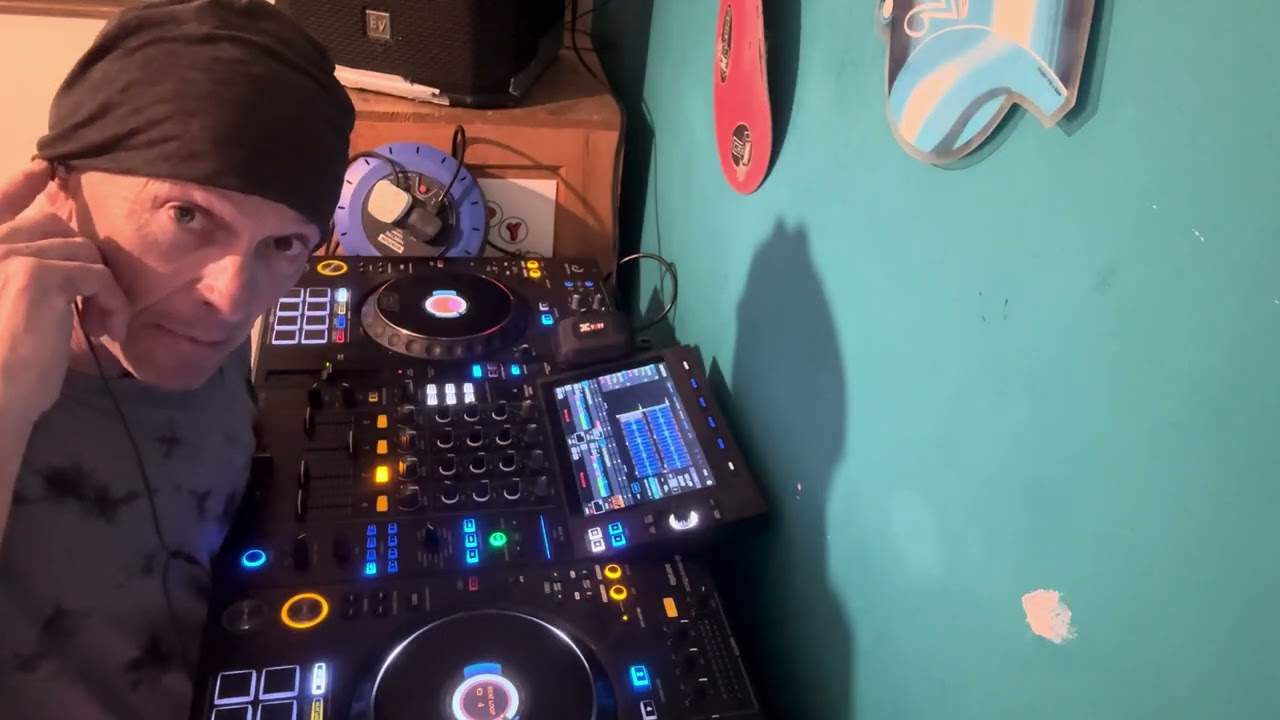
Now also, if we look at the turntables themselves, the jog wheels, whatever you want to call them, you've got those little screens in there as well. Now I'm pretty sure I broached on the subject in the first video I did. There is nothing worse than being a laptop watcher. Now notice I have my laptop to the left-hand side of the player. I haven't got it slap bang in front. Two reasons. One, I bloody hate having laptops in front of me. Number two... I've got any room. But, I mean, the main reason for not having a laptop directly in front of you is simply taking away that element of something in front of you while you're playing in front of a crowd. There's nothing worse than having a barrier in front of you in the crowd. Having it to one side means that it's not obtrusive, it's not in the way. And also...
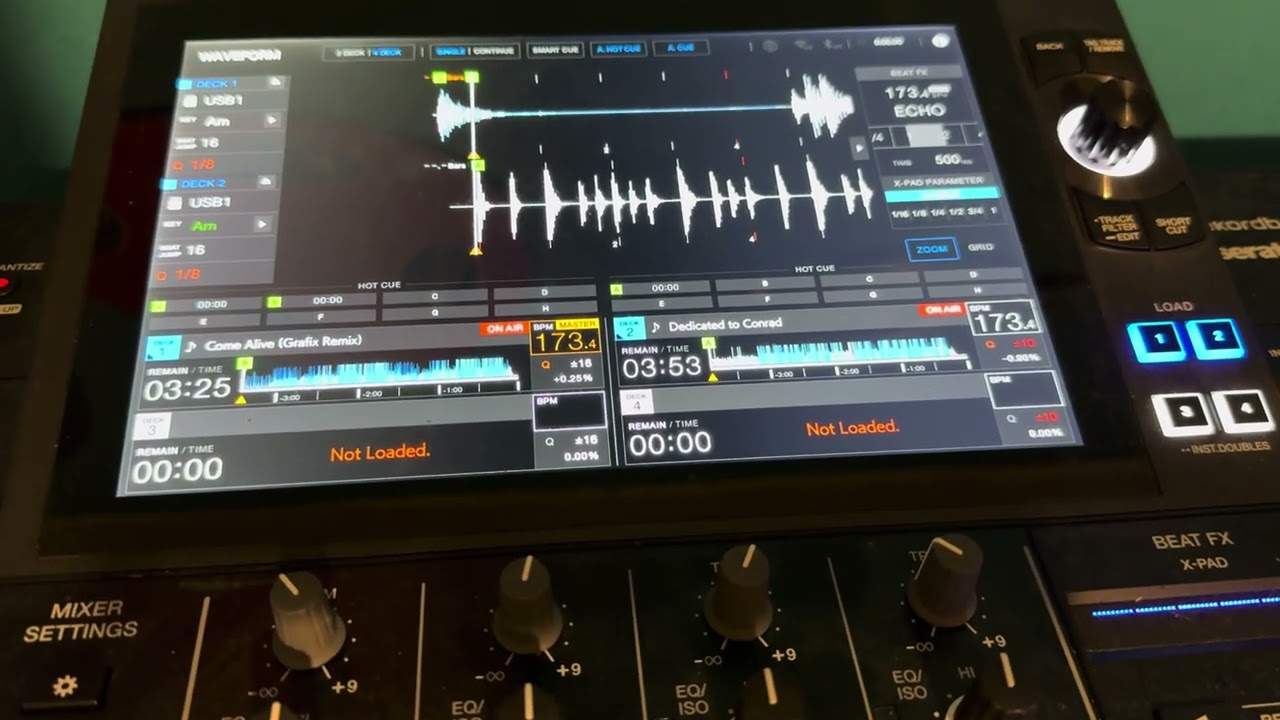
Having the laptop to one side means you're more likely to be paying attention to the people you should be paying attention to is the crowd. Now again a lot of the players out there, you know a couple have got screens left right and center well of course the screens here now are on the center of the turntables themselves which is great it's all the information you need BPM A small little icon there for the track that's playing. You have your wave format, you've got a small, I don't know if you can see that, it's almost like the arms of a clock and that... That will move when the track moves, count down, count up and you can also beat sync as well if you want to. So if I press beat sync that should light up. I've got sync on there or if I press it here I've now got the sync button, oh sorry, sync icon highlighted there as well. Right let's play a few tunes. This one here...
Is a track entitled The Middle. It's the Sammy Porter remix, quite big at the moment and nice kind of housey version of it. Let's skip it forward a bit. Now I'm going to bring in a track entitled Take It Up, the unorthodox club mix. Also again, you know, you've got your booth output as well. So, you know, again, I don't think I've ever seen controllers, players like this All set up in big super clubs, super nightclubs. But, you know, I'd be quite happy and content using this for a mobile gig or, you know, say a bar, a fun bar, that kind of event, or a small nightclub. No problem at all. Again, with booth control, you know, you've got your own little control there for your own little sound system. I thought the headphones were stuck there. Wrong one. Put volume... Channel 4 up and it's on channel 2, beg your pardon.
6:40 Page on CDPool Club May 2018
Okay, this one here is entitled Take It Up. Alright, so don't forget as well, if you want any info on these tunes, then check out the link in the description to cdpool.com. As I always say, but there's always new people who are going to watch these videos, if you want, maybe you want to listen to all of the tracks from the club releases, then if you go to the page on CDPool Club May 2018, All of the tracks will be there, and there'll also be a small little icon where you can get a soundbite of each track, even if I'm not playing them. Alright, let's find something else, let's have a look. Let's take a random guess. Okay, so again what I've done now on the... Looking at the controller itself, the immediate player, or should I say the 1000, above the platter on the left-hand side, on the right-hand side, around about 1 o'clock you have a small dial.
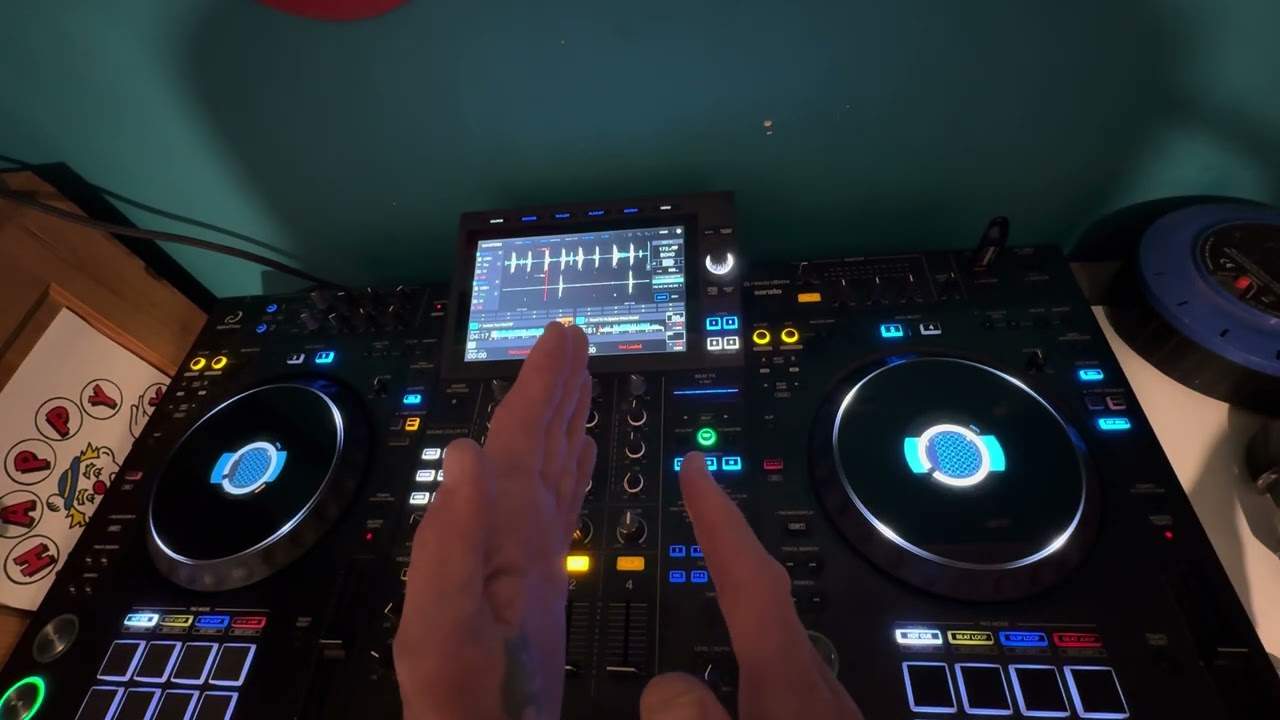
Now, I can turn that and that now is in control of the files on the rekordbox software. So as soon as I find a file I want, just press down and now that's loaded up. Here we go. Alright, let's see what we've got here. Just going to bring this in. A hot cue there. Now again, we have two virtual turntables and I said earlier that we could very easily plug into laptops. The DJ Tutor allows you to use all four channels of the laptop, but if you've only got one laptop, you can still use all the four channels. Very simply by pressing, for example, again I'm going to explain for the partially sighted, looking at the left hand deck, around about half past ten to eleven o'clock we have a small button with deck select. So on the left hand side three and one, on the right hand side two and four.
10:20 The left is for channel 3 and 1
So by pressing that button, I can now load a track into deck one. So let's do that right now. So again, I can now use the dial on the left-hand deck at the one o'clock position, choose a track, press down and now that's loaded up. Let's give that a go. There, there you go. So now I've got three virtual tracks playing. This one here is Touch Me. The extended mix. Let's speed this forward a little bit. Again, the videos with CD Paul, you know, sometimes it's a demonstration, sometimes it's a tutorial, but also it's a way of just showing you what you can expect to find on the new releases. Okay, so let's do exactly the same now with the right-hand side. At the moment now, we are on channel two. Which of course is third along. They haven't put 1, 2, 3, 4. They've put 3, 1, 2, 4. Because the right hand side is for channel 2 and 4. The left is for channel 3 and 1. So, we've got the original Take It Up tune playing. I'm now going to press deck select again. And now that clears up the space on the right hand turntable. And now I can bring in another track.
But of course now I'm going to be using channel 4. So again, I'm going to turn the dial, top right hand corner this time, choose a track, press down, press play, and there we go, I'm now on channel 4. So theoretically now I've got four channels, I've got four different tracks playing. Now just because I've got channel 4 on the right hand side, and I've got, was it channel 1 on the left, Does not mean to say that I can't play 2 and 3, still can. What it does mean though is I'm no longer in control of those tracks via the turntables. I'll have to repress the deck select to get back in control of those channels. So that's 2, and at the moment now if you look, if I move that turntable, the jog wheel, I'm not getting any control on that channel.
12:23 Crossfade, switch, pitch completely
But if I now press deck select, I'm on now on two, now I'm in control of that deck. Press it again, let's get a four, I'm in control of four. Press deck select again, now on two, move the jog wheel and now I'm not in control because that is now in control of number two. It's not rocket science, it's very simple and straightforward once you understand exactly what's going on. Okay, like with the high-end mixers, a great feature is of course the crossfade and what you can and can't and maybe don't need to do with it. So for example, underneath each of the channels we have small switches and each switch has three modes. We have A through and B. So, of course, A is for the left-hand side of the crossfade and B is for the right-hand side of the crossfade. And through is to disengage the crossfade. So if, let's say, you have got the DDJ-1000 and you can't understand why the crossfade isn't working, or for that matter, you've got some of the high-end mixers and you're just thinking, why isn't it working? Or why is it working the wrong way around?
It's probably because you either a have each channel set to the through position which means the crossfade is no longer engaged or possibly you have got these switches switched the wrong way so for example if you let's say have four decks and you have Looking at the 1000 from left to right, channel 3 and 1, let's say you have on the left-hand side, and channel 2 and 4 you have on the right-hand side. But you have the position of the switch on channel 2 and 4 on A, and the position of the switch for channel 3 and 1 on B. When you've got the crossfade over to B, you're not getting channel 2 and 4 up. That's because of course the switches are at A, and vice versa the other side, because you've got channel 3 and 1, the switch is at B, and you've got your crossfade on A. So just for simplicity's sake, switch over to A for 3 and 1, and switch over to B for 2 and 4.
For A, left-hand side on the crossfade. The two channels on the right are for B on the crossfade. Okay, now again, let's have a look at some of the effects. Great filter effects. Another one is pitch. Now, I'll be honest with you here, really, really honest with you. Be careful about using pitch because if you use that in a mad way, it's going to completely wreck. Your mix. That is something that you need to treat with kit gloves. Be very wary. Imagine that's a red hot poker. You do not want that shoved somewhere where the sun doesn't shine because if you're doing a mix and you use the pitch effect, it might just sound terrible because what the pitch does, it completely changes the whole sound of the track playing. Have a listen.
15:45 What's happening, it's keeping exactly the same tempo, but it's dippin
So what's happening, it's keeping exactly the same tempo, but it's dipping the overall... Pitch, the key of the track. And that would be exactly the same, let's say, disengaging the master tempo of the track that's playing, having the pitch parameter on plus or minus 16 or 20 or 50 even and slowing the track down so not only would the track slow down but the overall pitch, the key of the track would dip and it would make it sound very, very bad if you don't know what you're doing. Now we have the noise effect. Which is part, again, of the sound colour effect. A great effect, but again, don't use that too much. D-Echo, short for Dub Echo. Okay, so there you go. This is pretty much sort of video number two on the DDJ-1000 from Pioneer. It is a great controller. Now...
Maybe you watch my videos or you don't. Now, you all should know if you watch my videos, I do like the XDJ-RX1 and the RX2. This is sort of, for me, it's on par with it, mainly because you can plug in your two laptops. And also, you know, if you wanted to, if you're at a big event and you weren't too sure about... Thank you for watching. Don't forget to like and subscribe and I will finish off with practice and enjoy. Thank you.
This transcript was produced automatically from the audio of the video and may contain mistakes.