 13:56
DJ Advise Connecting a Projector to Your VJ Set Up
Contents of the video
0:00 Setup, how to set it up
Alright ladies and gentlemen, first of all in this video the track I'm using is by Mr Lenny Fontana, a track entitled Wait For You. This video is showing you how to go from something like that, a DJ mixer, into a controller, laptop and your projector. So the whole idea here is to show you the setup, how to set it up, what to use, etc. Before we go any further I just want to explain a couple of things. Now you can buy vinyl, you can buy CDs, you can buy MP3s but also you can buy video files. Just think about this for a second, when you buy a piece of vinyl you can play the vinyl, you've got the audio and everyone loves vinyl, I still do. You buy a CD, you can play the CD, you've just got the audio. You buy an MP3, you play the audio.
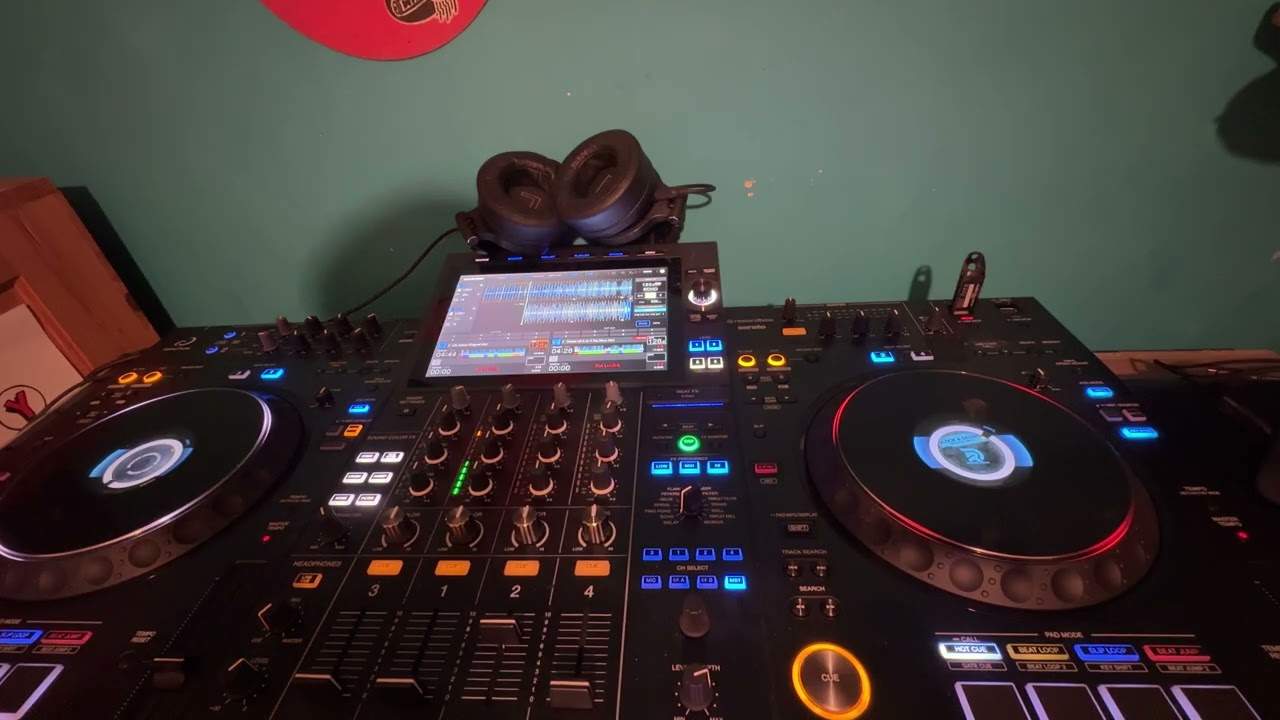
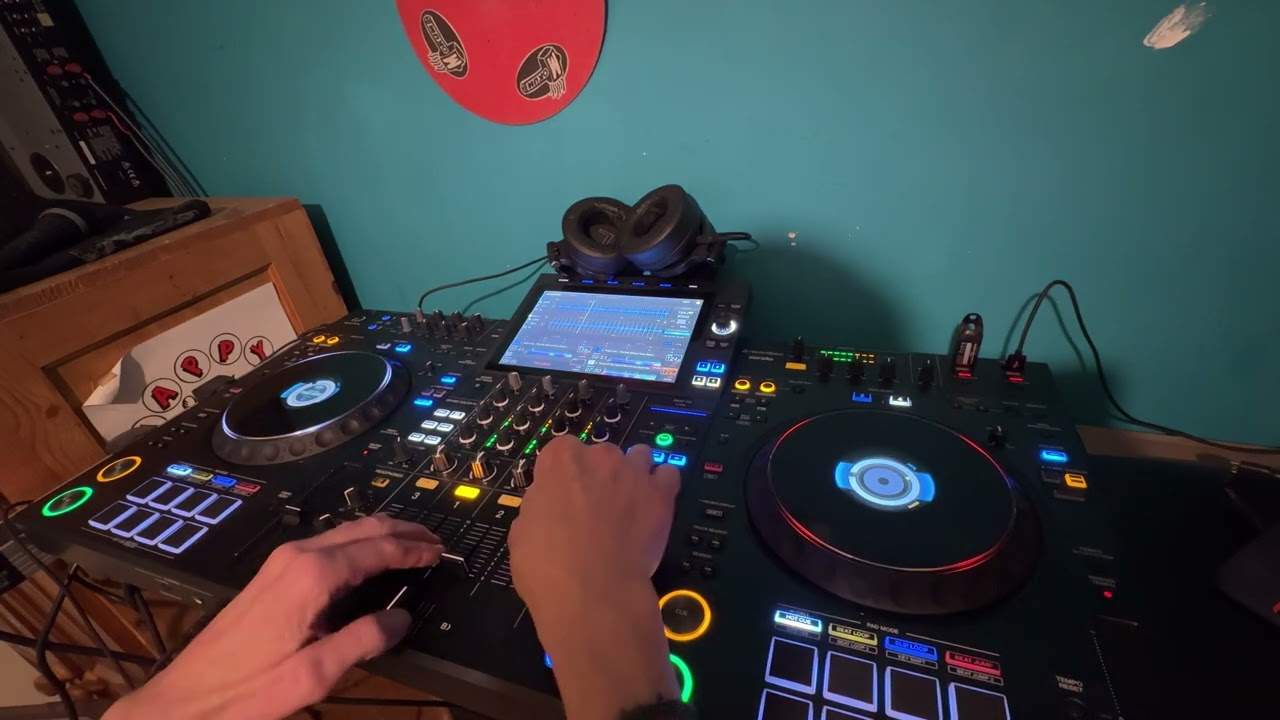
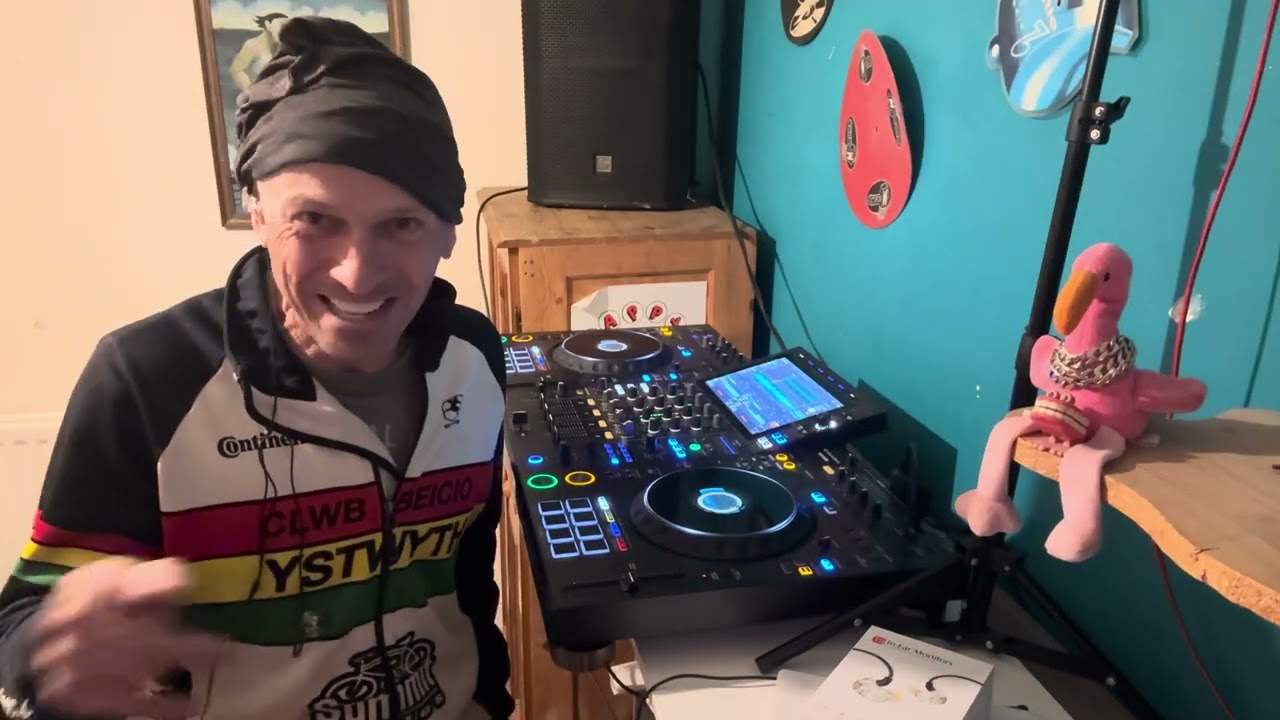
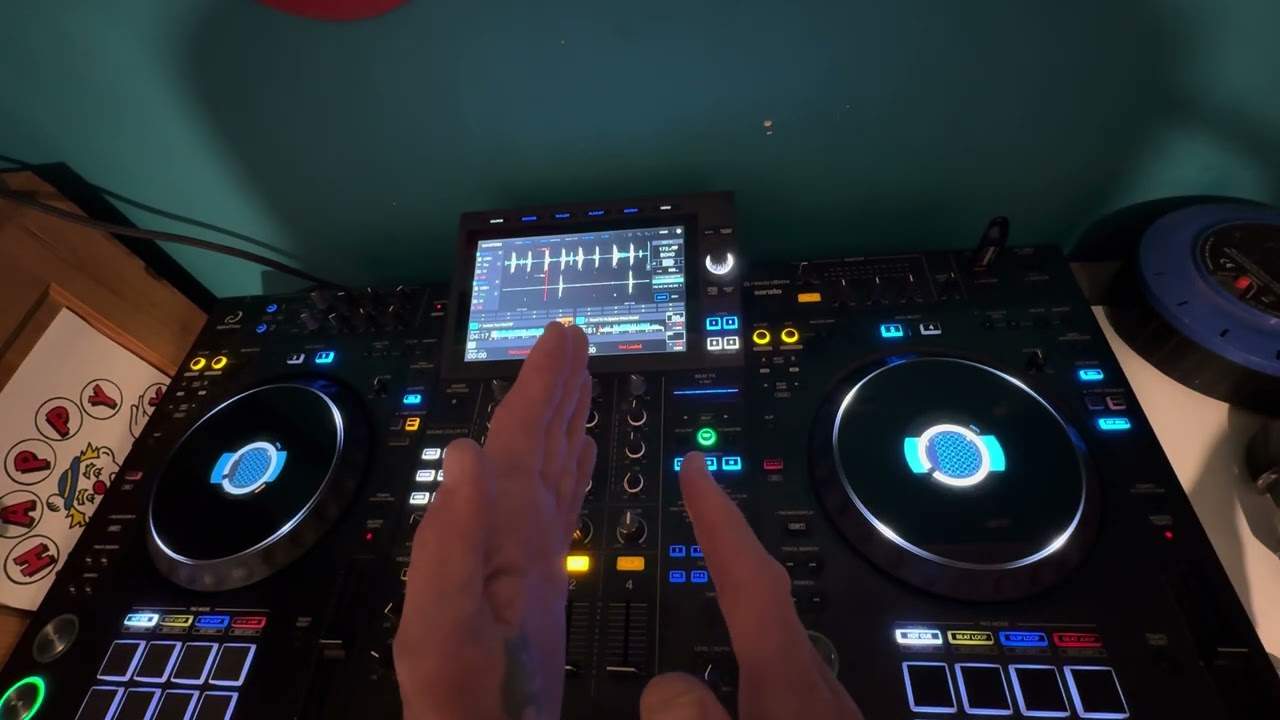
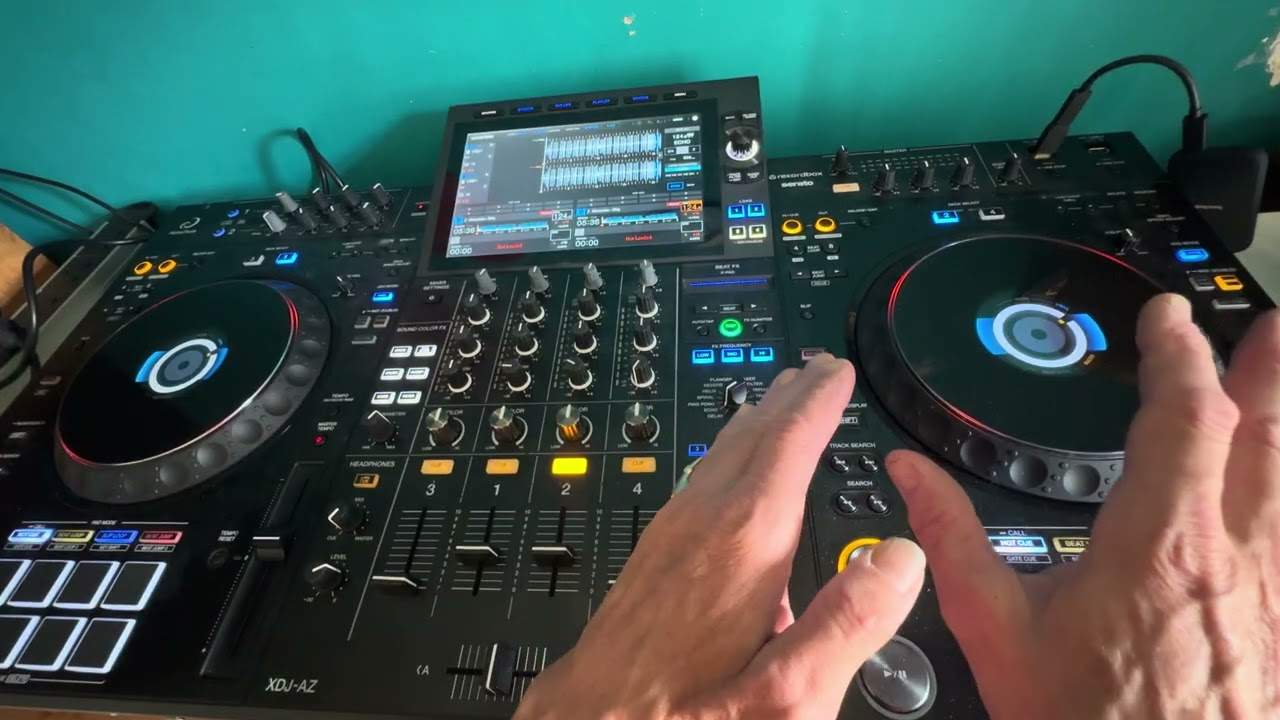
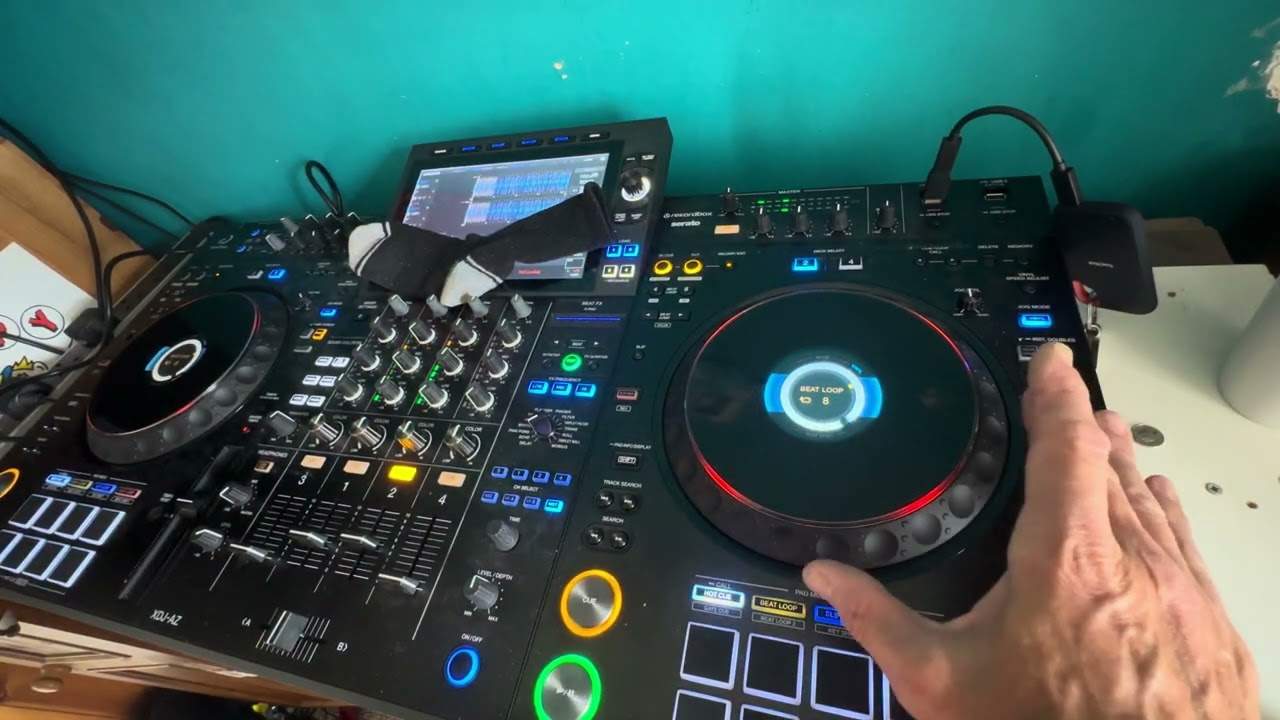
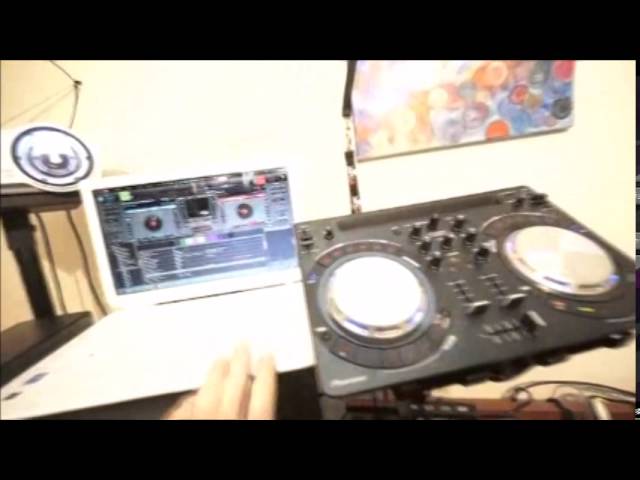
But if you're going to be playing a CD, you've just got the audio. If you've got the correct bits of hardware and you buy a video file, you can use the audio and or you can use the video as well. Now I'm using virtual DJ, I've got Pioneer Wego here, I've connected that into the DJM2000 into powered speaker so pretty much this small setup is exactly the same to if you were in a night club. The only difference is of course is the night club would have a rather large sound system and you'd have monitors as well. So what I'm going to do now is go through how to connect, what to connect and where to connect and what should be connected to what. This is the back of the Wego 3. Now we have master out, these are RCA but on a lot of controllers you will have XLR
So you can use either XLR or RCA. Ideally rule of thumb is this, if you're going a short distance RCA's ok, if you're going
Amplifiers that are the other side of the room, it's always a good idea to use XLR. That is USB so for this demonstration it's literally just the RCA out of the Wego and then what I've done is I've gone from there, if I just move the camera down into the CD-IN of the mixer, not phono, CD line or auxiliary. You can have either either so either CD line or auxiliary of your mixer. So what's happening here? The routing is very simple I've gone from the Wego and then into one of the channels here. So I keep that channel up all the time and I make sure then that I set well I don't have to set actually, that's the important part here making sure you set the audio correct here and then press play here if I press play there.
If I just bring the volume down there what I'm going to do now is I'm just going to bring the levels up here so we are going around about 0dB now you'll notice the gain is quite high there but it doesn't matter because I'm not going in the red or anything like that and I can now use the volume here. On this, on the Wego 3. So I'll just turn that up and this will be exactly the same for any controller you're using alright? It's always a good idea to have the controller if you've got gain is have your gain or your trim at 12 o'clock bass mid and treble at 12 o'clock put your volume all the way up as far as it will go and then you set the levels on this mixer this is the important one. If you turn the one up here if you, not your controller, if you turn your controller up
Too much the gain up say too much then you will be putting or quite possibly you'll be putting a distorted signal into this mixer so it's ideally to keep the gain bass mid and treble at around about sort of 12 o'clock but again that depends on the track alright? There is slightly more into it. But I don't really want to delve too much otherwise we'll be digressing alright? So there we can see now that this is getting up to sort of about 1 to 2 but that's fine just so long as it doesn't start going in the red. Amber is good, red is classed as dead. Ok so just pause the camera. I'm using Virtual DJ, no the laptop. This is very important. This is pretty much the brains of video mixing. We're not just dealing with audio.
5:00 This one here has got an i5 processor so i5 or above
We're dealing with video as well so you will need quite a new PC. This one here has got an i5 processor so i5 or above. RAM is important as well, the readily available memory. 8GB or above is recommended and also the video card is very very important as well HD 4400 or above. And that's the thing. This is the thing that will help give good quality images so I've got the, hold on let's just put that back on there and press play. I've got that up there at the moment it's difficult to see because the camera is set for low light but there that's the video up there anyway. Ok so how do we connect all of this or we've dealt with connecting the Wego to the mixer but how do we connect then the Wego to the mixer?
Ok so that's the thing. You've got to connect the Wego to the PC. Well of course you've got your USB so USB from the Wego into the PC. Now a couple of things here, first of all I would recommend using USB 3. Secondly when you are setting up your PC program for example this one here Virtual DJ always make sure that the controller is on first. And then turn the program on. If you turn the program on and then the controller it's highly likely that the program won't recognize that you've got a controller so you've got to try and make sure that this is on first and then put your program on. So I'll pause the camera again and we'll show you now or show you how to plug in the laptop into the projector. Most laptops should have what's known as VGA which is this plug here.
6:59 Exact plug
And at the end of the video I'll show you the exact plug. So you've got VGA out, also you should have HDMI. Now of course that depends on the projector you're using whether it's HDMI compatible. This one is VGA so I've gone from the out there into the back of the projector here which is VGA in and we can do components as well. We can do HDMI. Okay. here is video in now you'll notice that's RCA so for example let's say you've got a video camera and what you can do is a lot of video cameras have the capability of plugging from the video camera you have three cables you'll have three RCA you'll have red black and yellow red and black are four or red and white for example sorry red and white will be for your audio left
And right and the yellow will be for video so there you go so there's your video so if we look here you've got audio in white and red and then video so you could pretty much directly from your video camera go directly into the projector so for this demonstration here I've gone VGA in all right so what I'll do now is I'll just put the camera on a tripod and I'll show you how to set up the vid sorry the projector to the laptop because there's no point plugging a laptop in and wanting it to play the video you've got to then well you've got to tell the PC that you have plugged in an external source enabling you to project so I'll just do that now hold on okay first off what you're going to want to do is you're going to want to plug in
9:17 Screen, connect projector, projector duplicate
An external source enabling you to project so I'll just do that now hold on you will have to do is you'll have to plug in the projector so there's no point setting this up and then plugging the projector in because what you'll be doing is you'll be asking the computer to do something that isn't there you'll have you'll be pretty much asking the computer to find something that isn't already plugged in so you will need to plug in the projector first it's pretty much the same as plugging in an extended screen there's no point saying boy I want you to project onto another screen you know I'm going to plug it in a projector and then plug it in a full screen so the computer will be thinking well hold on a minute you haven't done anything you need to give me something
First before you tell me to do something so alright there's the virtual DJ program so I'll just reduce that you've got to start and then go to control panel there and you've got appearance and personalization you've got change the theme chain desktop background adjust screen resolution that's what you want to click on there so I'm going to click on that now you notice I've already got this set up so one easy way of doing it you should have an icon which says something like connect to a projector now if you've already connected your projector this should be there anyway so connect to a projector and I've got these little icons here disconnect projector duplicate extend project only sorry projector only so you don't want to duplicate because
What that will mean is everything that's on the PC screen will be exactly the same as the video screen disconnect projector you don't want to do that because you want to connect it projector only you don't want to do that because it means that you will only have one screen so you need to extend so you'll notice that's highlighted so all you pretty much got to do is click on that and then okay that is it so now again this could vary with PCs and you know over time you know that there's all these blinking updates that annoy you isn't it annoying when all of a sudden you turn your laptop on and it says sorry for the next half an hour I'm going to update loads of crap so let's go back to virtual DJ and press play there just bring the
11:58 Mixer example, external mixer, reloop controller
Wego around and that's it it's on now up there but believe me it is there there you go right so that's pretty much it there is there's a little bit more to it if you do want to let's say for example go to two or three projectors what you can do there's a bit of hardware that you can connect to so you'd go for example from your laptop into the hardware and then the hardware then would have two or three ports going to different projectors all right but I'd like to think about this if you are thinking about buying or going into video DJing then highly consider it because if you buy an mp3 file you can just play the sorry the audio but if you play if you buy a video file you can still play the audio but you can also play the video as
Well so for example you can go say to a client will look if you want to I can do video DJing it'll cost you more if they say no then you turn up with exactly the same files and where you go bang and they've got a DJ they've got a disco but if they want to pay a little bit extra then you're doing exactly the same thing you're only taking a couple of different items which is the projector or projectors in a screen and you're playing the same music because it's there anyway just so happens that this time you're using the video as well as the audio okay so in brief from your controller into the mixer but again this is only if for example what I did New Year's Eve I used the controller and I use CDs as well if you're just doing video then all
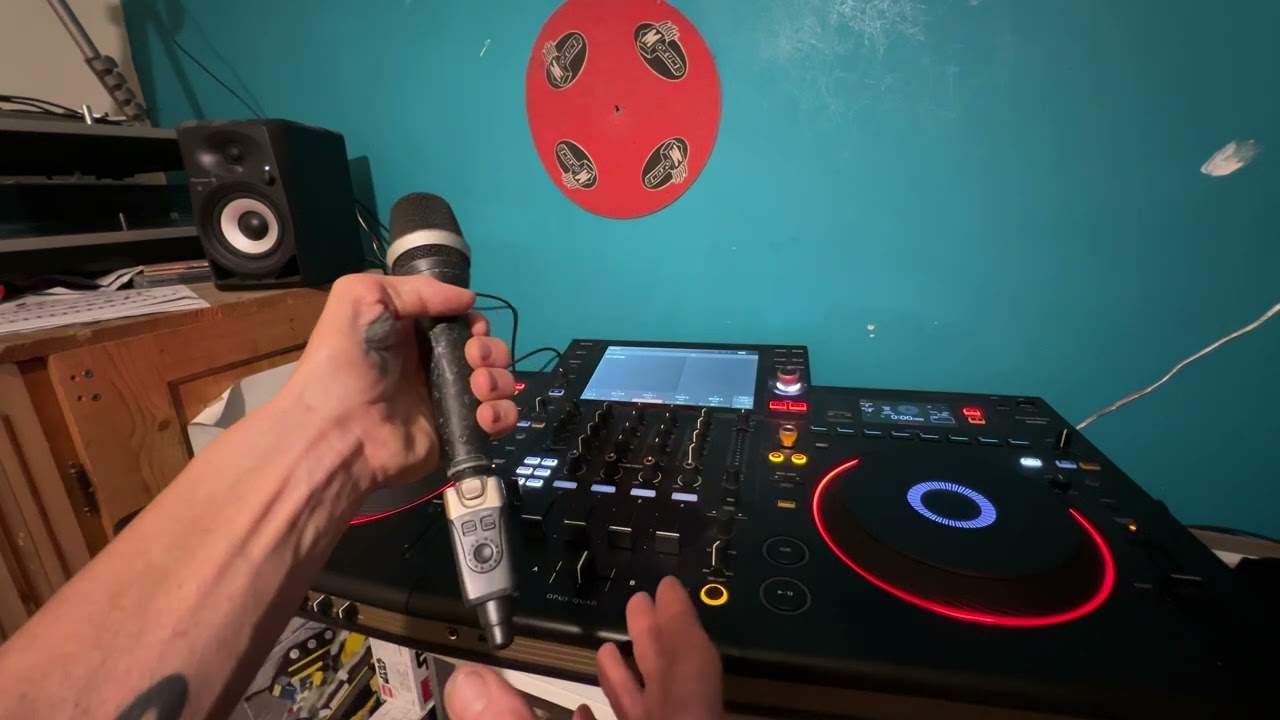
You need is the controller you don't have to have the mixer alright that's quite important as well so for example if you didn't have an external mixer and all you had was for example say that we go to or a reloop controller or something like that then you'd have to have an external mixer if you didn't have an external mixer and all you had was for example say that we go to or a reloop controller or Newmark MV then you would go just from your controller audio out of course then the laptop the brains behind everything would take care of the video alright so I hope that's been a help and go and check out extendermix because they do some wicked deals on videos as well and again like I said use the video
And or use the audio practice and enjoy nice one mr. Lenny Fontana
This transcript was produced automatically from the audio of the video and may contain mistakes.