 9:15
DJ Lesson How to Plug a Controller into a DJ M Ixer at a Live Event
Contents of the video
0:01 Plug in a controller into
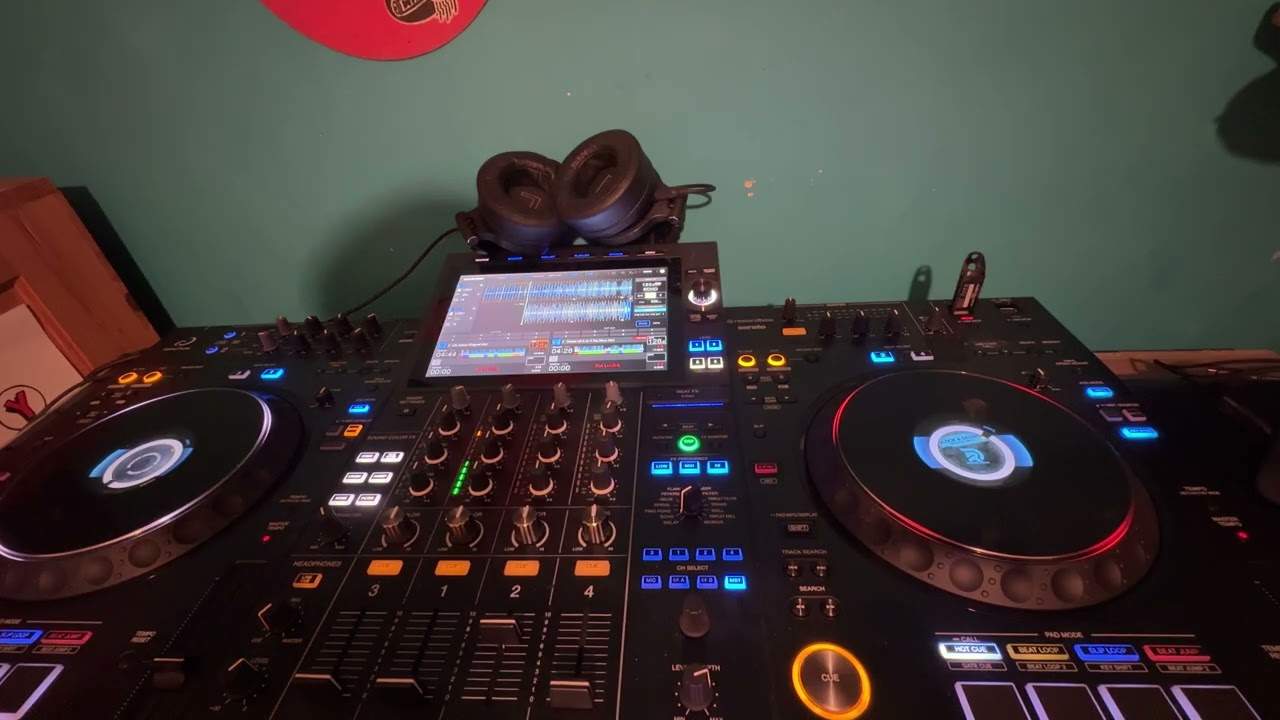
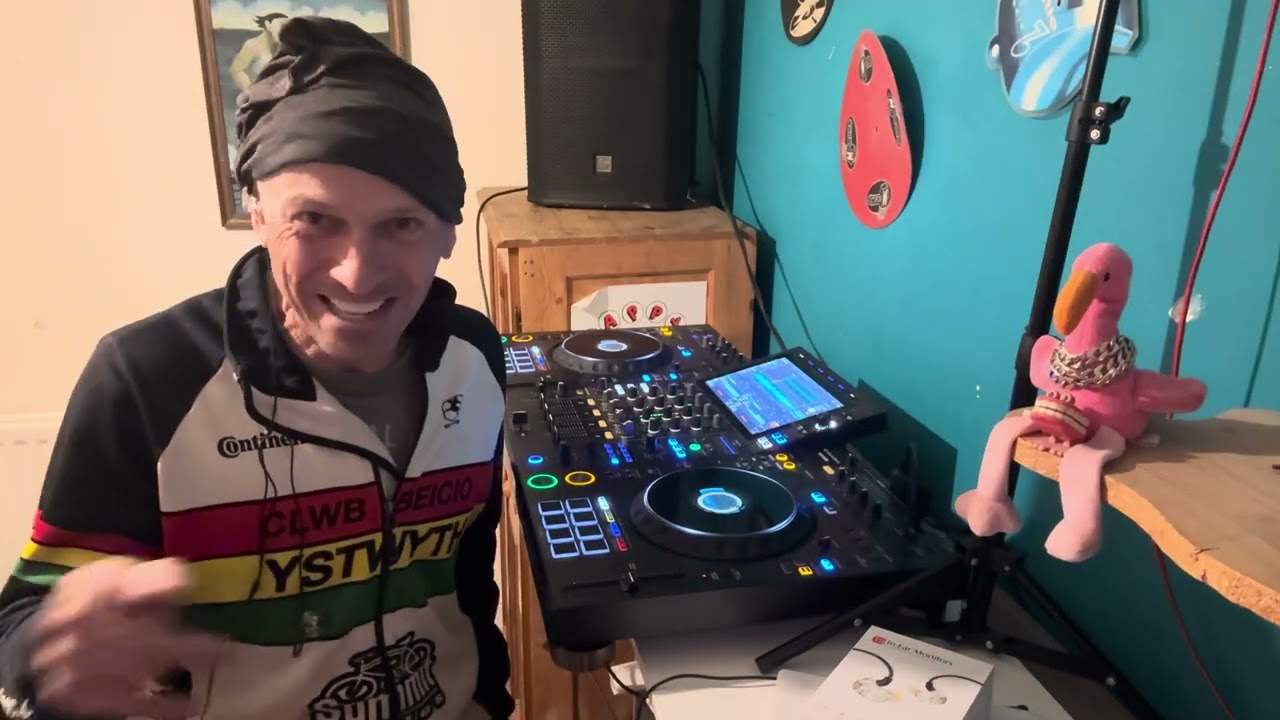
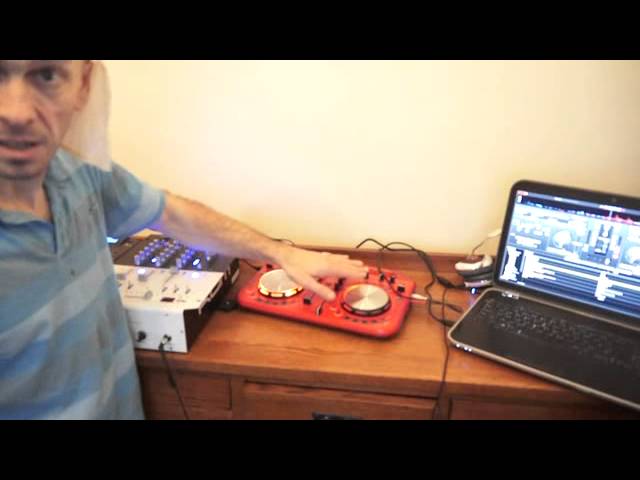
Alright ladies and gentlemen, in this video I'm going to show you how to plug in a controller into a DJ mixer. Sounds pretty simple but let's imagine you're at... by the way if you can hear any strange noises in the background it's because I've got a pussy cat in here and there's nothing worse than having a noisy pussy. Be sensible. I've got to move the screen, I can't look at myself. Alright, how to plug in a mixer... how to plug in a controller into a mixer. Now let's imagine right, come on, concentrate, concentrate. Let's imagine that you turn up at your gig and there's some guy, some lady playing CDs. And you bring your controller along with you and you think, how on earth can I keep the continuity, the flow of the night without having to stop the music because I'm using
A controller and they're using CDs. Well in this video I'll show you so it's going to be clips, I'm going to chop them, start it and what not but we'll have a look. OK, right, so we have at the moment we've got... we have here, we have some music and we have the CD player going into a mixer. Now one thing you probably will need, it's advisable is to have a three channel mixer but it's not imperative. It's not the be all and end all because you can do this with the two channel mixer, you've just got to be a little bit more quicker. I'll explain why you do have to be quicker. Normally with a three channel mixer, you've got two channels for two turntables and then you've got another one, another phono input perhaps or line, line or phono, doesn't matter.
2:43 Let's pause this video actually thinking about it
What you'll have to do then is you'll be able to spend a little bit more time plugging your controller into line 3. Alternatively, what you'll have to do is get your laptop set up, your controller working and then when the DJ has finished playing one track then what you'll have to do is take out the RCA's from the back of the line 2 input and plug in from your controller but I'll show you all of that now, OK. Let's pause this video actually thinking about it. Alright, so what we've done is I've gone into this channel here. You can hear that with the CD player. Now I'm just going to check to make sure that, so I've got my back to you, so I'm just going over to the computer now and let's have a look. Let's make sure
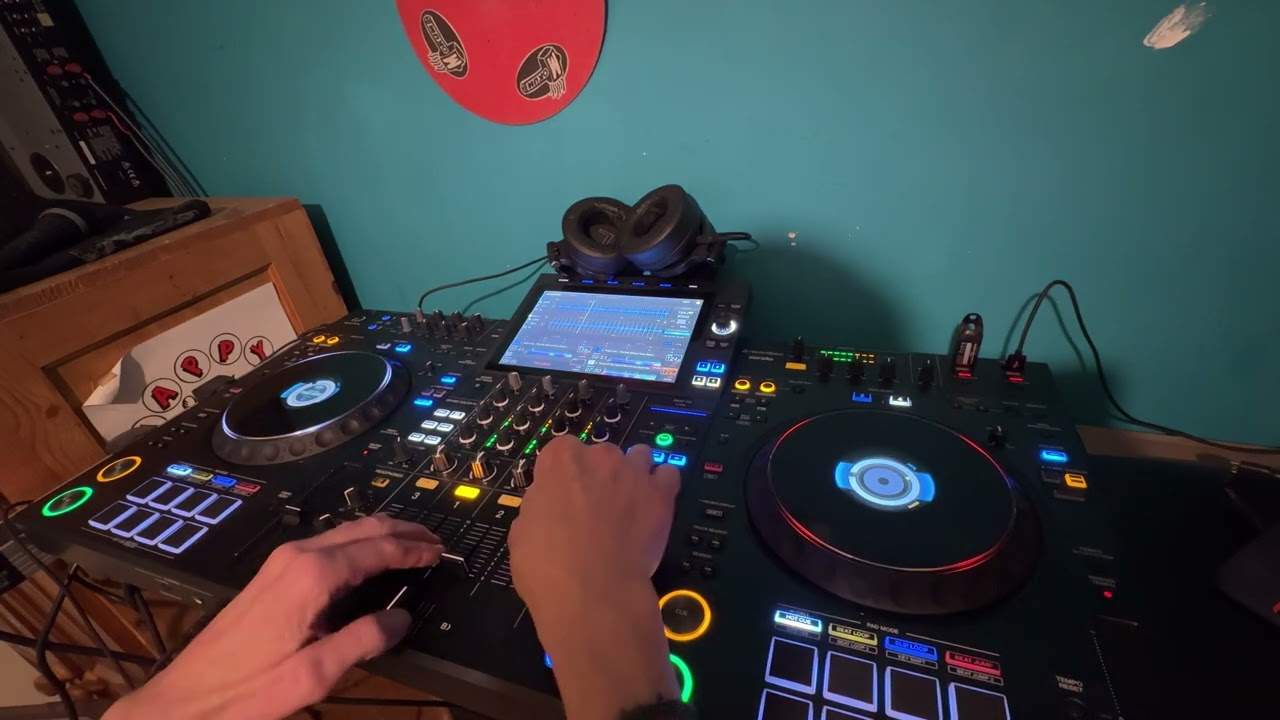
That I've got my back to you. So we've got that, feel free to watch it again. There's me talking about dubstep, demonstration straight tutorial. Alright so I don't know if you can see that now but OK very simple. DJ is playing, they're playing their last track and then you come along, you've got your controller and . Press play and away you go. Let's try and find, hold on, an actual tune. OK so there's our track. I hope you're following this. It is very, very self-explanatory. So what do you do? The first thing of course is to make sure that you have got your laptop
And that it's working. The second thing, and this is the important part, is normally with a controller if you're just, if you just normally turn up at a function and you use your controller you will go from the master output into the main PA. Now your master output could be jack, it's highly unlikely but it could be, more than likely it's XLR or it's
One of those and the XLR is the plug that I haven't got. And I'm really well organised. That's the normal thing that you'd have at the end of a professional microphone. So let's imagine you've got these. Now your output from, if you're using RCA, from your controller is pretty much exactly the same as the output you would normally get from a CD player. There's a slight difference. As a CD player the, the actual signal from a CD player into the mixer is at a constant. The output from your controller can fluctuate depending on how high or low you bring up or down the volume. So this is what you'll need to do. This is the important bit. First of all what you've got to do is instead of going from the output of your controller like
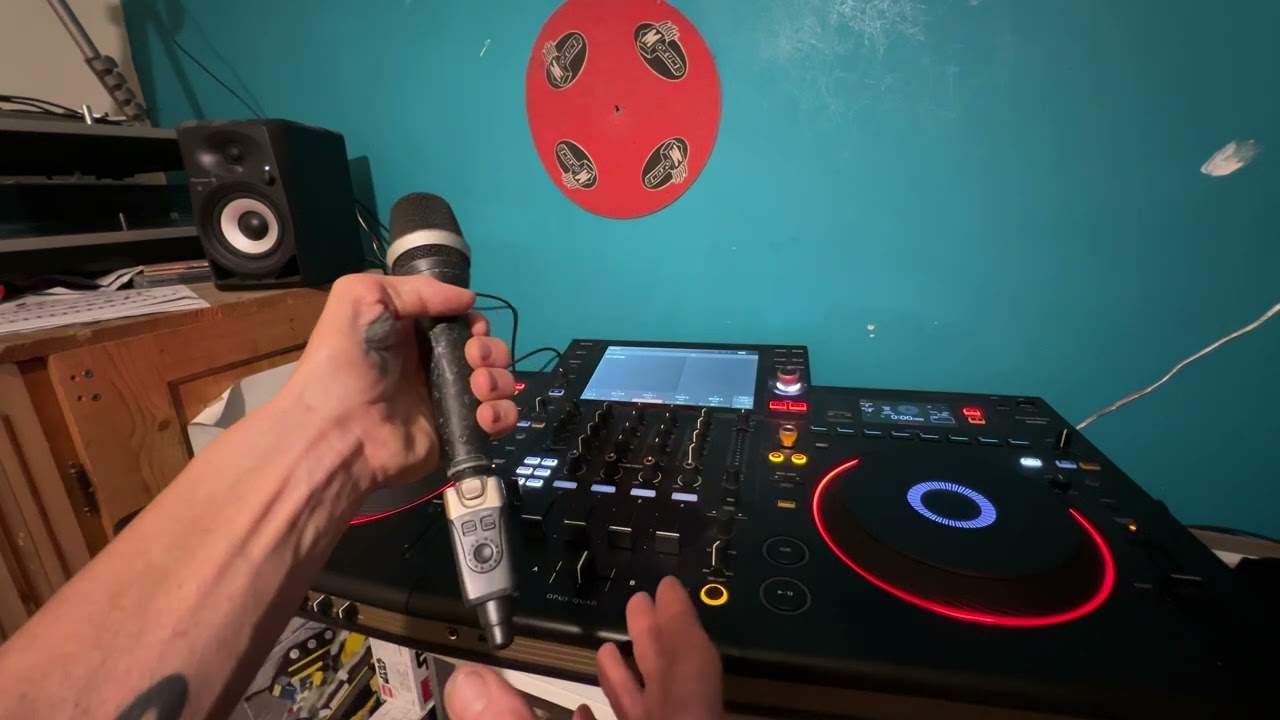
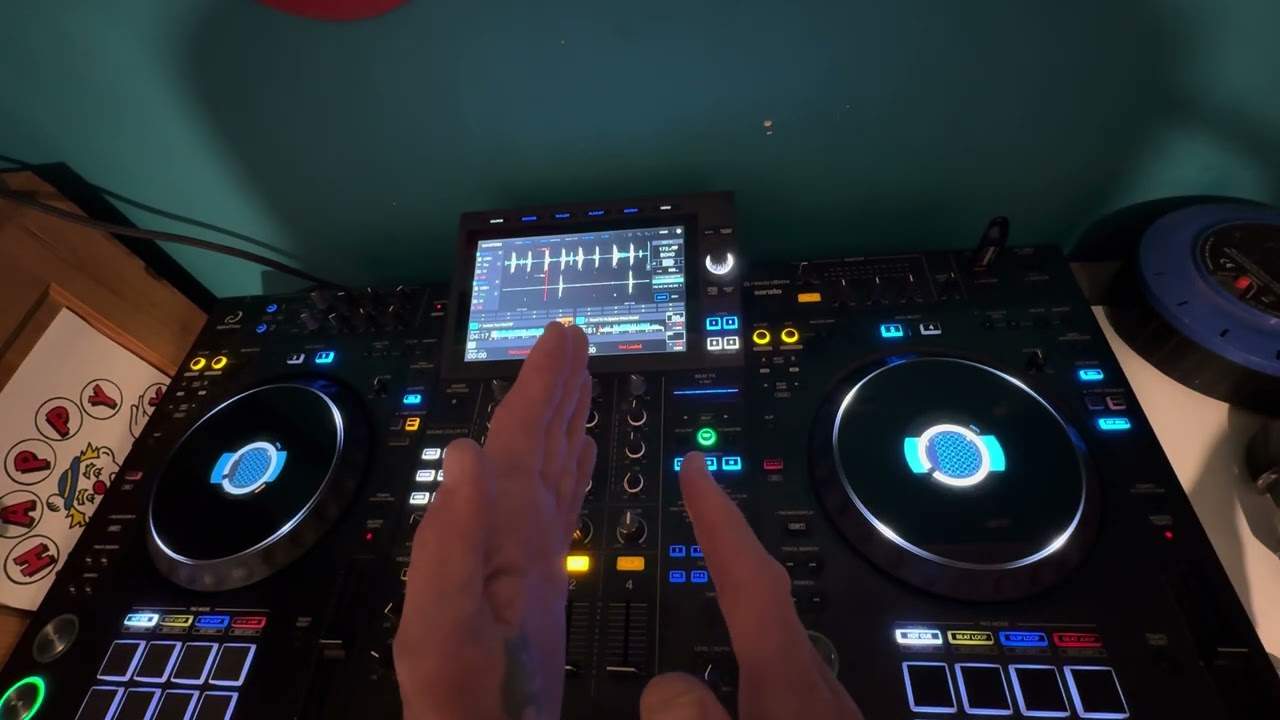
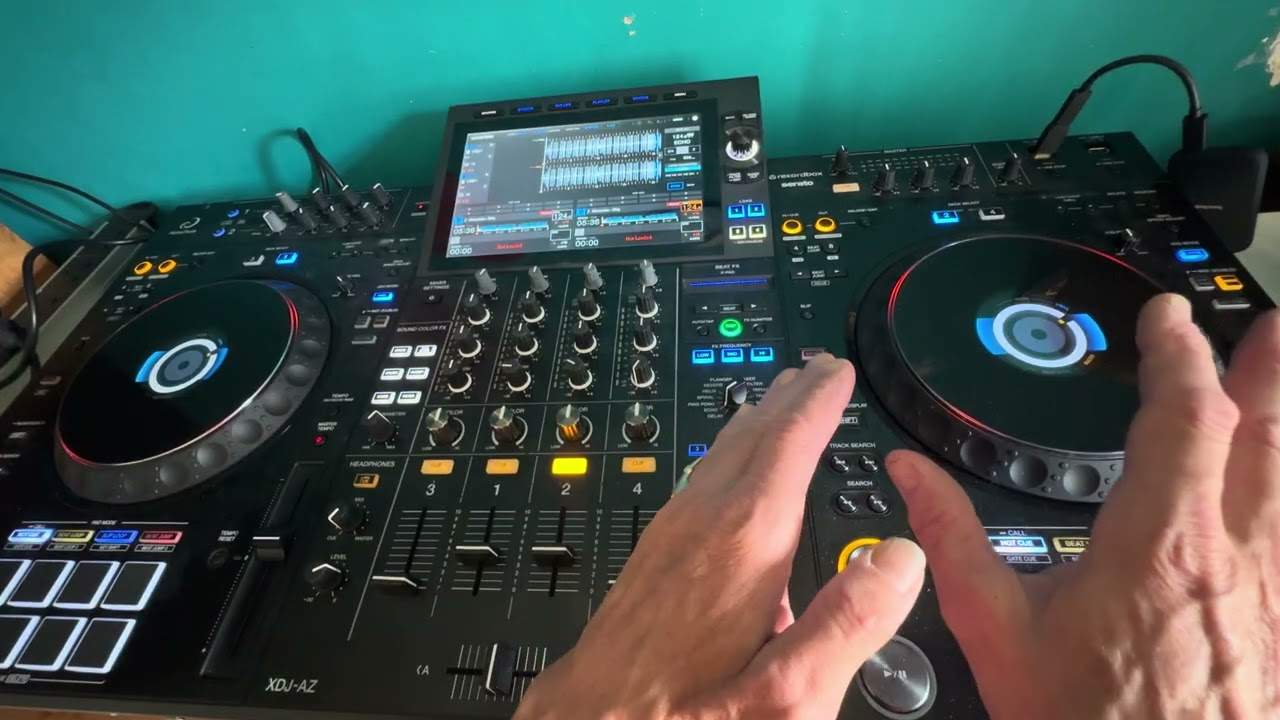
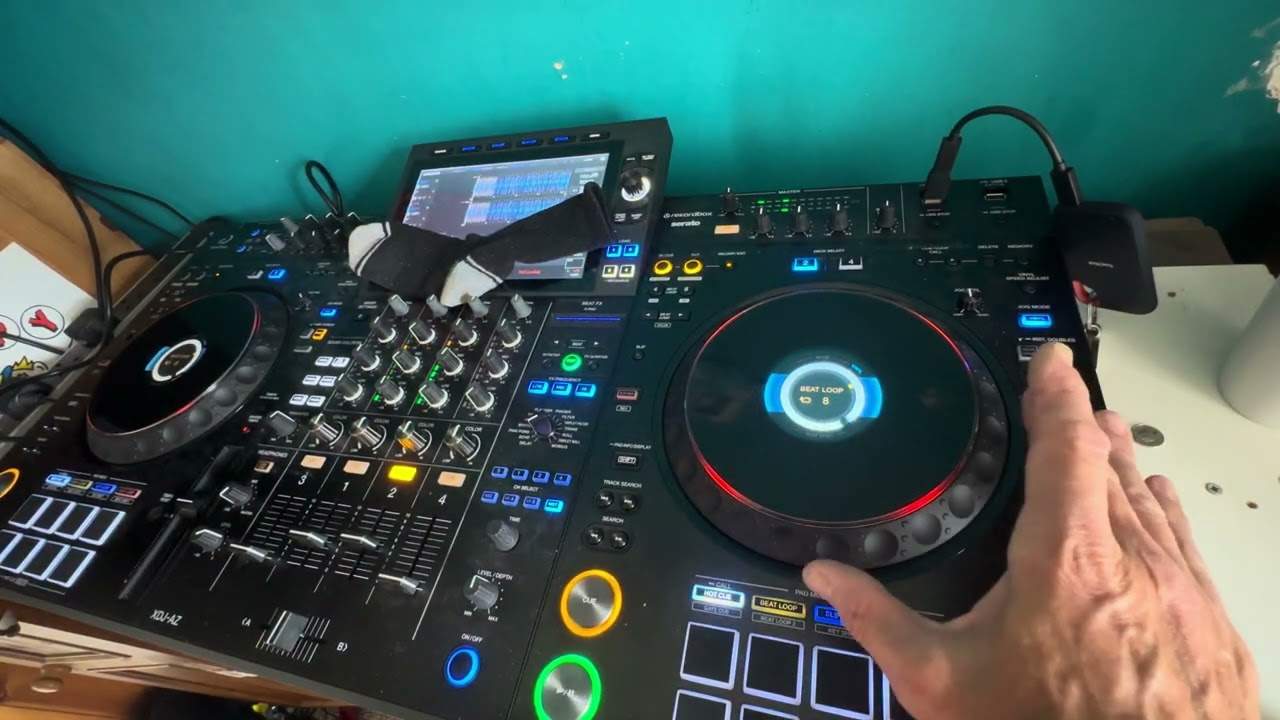
I said into a main PA, you'll go from the output of your controller into the master of the mixer. So you've got to go from the output of your controller into a main PA. Now what I'm going to do is I'm going to take the camera off the stand. Now you'll see here, I'm just going to make that non-blur, there you go, right out there and what I've done I've gone into the back of this mixer. Now at the moment just for this demonstration that I've only got one CD player so CD player into this channel and then I've gone out of the mixer. I've put the controller into this channel. Now this is something that is quite important, what you will have to do before you even put any music on. I'm going to press play there.
Now this is the important bit. Now you'll notice that the LEDs on the CD, the track that's playing there are sort of relatively high but that's the output I'm getting. Now
It's around about the same. So this is the output here, this is the level on the controller so we go to by the way from Pioneer. It's all the way up. Now watch what happens when I start to turn the master volume to the LEDs. I'm turning the master volume now anti-clockwise and the LEDs have disappeared. Turning it clockwise.
There you go. Can you see how I'm now able to increase or decrease the volume just by using the master output? That's because, very important, this is now my volume control, my level for the output. So this is the important bit. I need to make sure by setting the master output on the controller that the LEDs correspond in height. Two. So I'm going to press play there. Now you'll notice that the LEDs are now on the CD, so you will know then that when you start to play on the controller you're not going to overpower any of the other audio. The other thing you'll need to do is once you start your set on the controller the volume on the DJ mixer needs to be left there. You don't touch that. Just leave it alone because
That's now almost like your master volume. So if you want to... You can still use bass, mid and treble here for one side. Bass, mid and treble for the other side. Alternatively you could also use bass, mid and treble here but this would be bass, mid and treble for the master volume for out, for everything that you hear. So when you're in the mix instead of maybe wanting to tweak bass on both sides because you've got... Imagine you've got two channels up, you're in the mix and you think I want to remove the bass off two of these, I want to increase the treble or the mid on two of these. You don't have to. You can actually do it on this here because these three now, bass, mid and treble is exactly the same as bass, mid and treble.
Here the difference is you're using only one set of dials not two. Alright so I hope that's been a help and by the way that was my noisy pussy. Practice and enjoy, thank you.
This transcript was produced automatically from the audio of the video and may contain mistakes.