 5:41
DJAY App for the iPad Video 2, Settings
Contents of the video
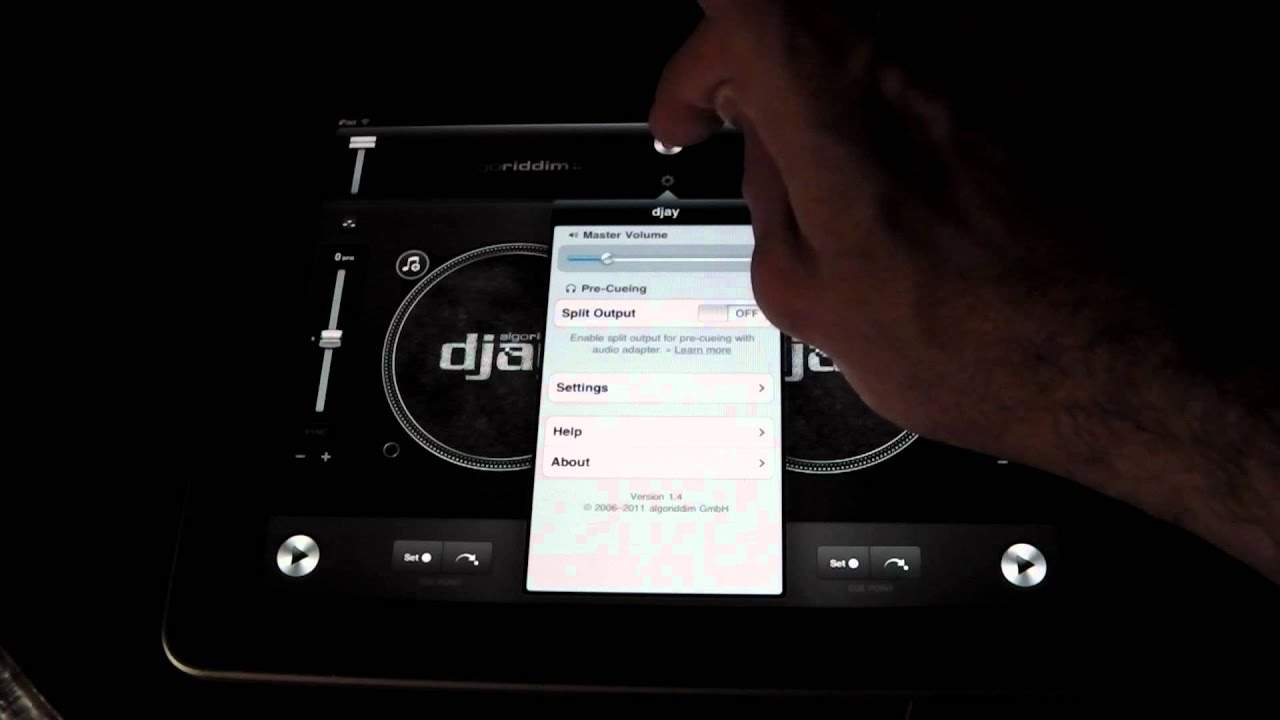
0:01 You can find the settings icon just below the record icon
Alright guys, video number two and in video number two we're going to look at the settings. You can find the settings icon just below the record icon. We'll look at that in a future video. The record icon is top centre, settings is just below. So if we press that, we get this screen here. First one we can see is master volume, split output which I will show you in a future video. Settings help and about. So what I'm going to do is press settings. Transition, speed slider, load song, vinyl library, MIDI and advanced. Transition, if we press that, we can go to style of transition. Standard, backspin, break, reverse or random. Go back again. Duration of that particular style. Anything from nothing at all up to 30 seconds.
1:59 Go back again and we can have load songs
Go back and then also we can auto sync the BPM. If I press this icon that says settings again, I go back a page. Speed slider. The range here is plus or minus 8% up to plus or minus 75%. If you're going to be doing perfect mixing, I highly recommend you use anything from say 8 to 10. Anything above 10 And it's a lot more difficult to make sure the beats are in line. Press that again, invert, on or off. If you're familiar with DJ turntables, it's good to have invert on. What that will do, it will mean that when you move the pitch away from you, it will slow down. Towards you, it will speed up. If you have invert off, then it will be the opposite way around. Towards you... If you are familiar with DJing, it's good to have invert on. Fine adjustment is off at the moment, but then if you do have fine adjustment on, it's a little bit better for getting that perfect mix. Go back again and we can have load songs. We can play the song immediately if we want to. We can jump to a cue point.
And we can reset the EQ. You can have these features on or off, whichever you want. Vinyl. We've got show tap marker. I will explain that in a future video. And show artwork on label. So in other words, if your tracks have got some artwork, we can see the artwork on the turntables. And your library. Full screen on or off. MIDI and advanced. Help.
Here we can have some tips and tricks, we can also go on the web, we can get other information relating to this app. Also for maybe the iPhone and maybe the Mac as well. Also here as well you can become a fan on Facebook or follow on Twitter. Go back again and about. This is information about this application. Okay, so for example, let's have a look at one of the features where we can, let's say, change the settings if we want to. So I'm just going to close that. I'm going to press this icon here that says Auto Mix. So tap that and I've got Start Auto Mix and you'll notice there we're going to get a track ready to go, also a track ready to go on here. That one's playing. I'm just going to turn the volume up a little bit.
4:03 Let's just pause that a second
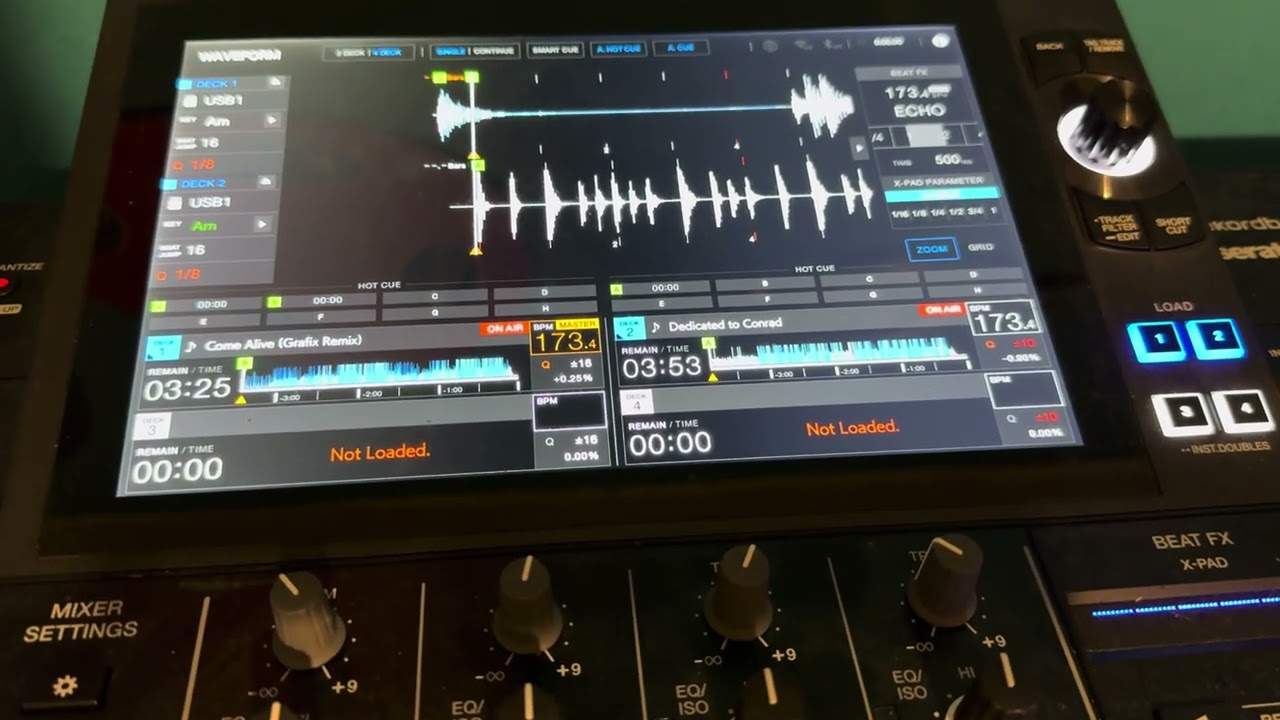
Let's just pause that a second. Right, I'm going to go back to settings. Settings there. Transition. And the style, we've got reverse. So I'm going to keep reverse. I'm going to go back. The duration of that reverse, I'm going to have as 10 seconds. Go back. I'm going to leave it at that. So I'm going to press that guy again. Now what will happen? We've got auto mix on. This guy here will choose its own song because at the moment it's set to random. What will happen is as soon as this track here finishes or is about to finish, you'll hear and see it reverse. You'll also see the crossfade move over and this track will start. At the moment it's at the beginning of the song so what I'm going to do, I'm going to slide this over so we're closer to the end of the track.
We can see now we have 19 seconds left. So if I press play, we'll have a listen. And there you go. You're on to the next song on the other deck. And also you can see we're picking up another track here. Alright, this is video number two on this guy. Watch out for more future videos. Practice and enjoy.
This transcript was produced automatically from the audio of the video and may contain mistakes.