 16:00
Help with Your DJ Mix Live Stream via Obs
Contents of the video
0:00 In fact, I get questions every day
Alright guys, it's March 2020 and there's a lot going on around the world and a lot of people have started to live stream. But there's quite a few people. In fact, I get questions every day. How do I plug it in? What do I do? Everyone wants to live stream which is a good thing. Now this video is about helping you live stream so please share and tell people about it. Now I'm not going to go in depth. What I'm going to do is give you as much detail as possible so you can connect the dots. It's a little bit like dot to dot. There's the picture, there's the pen, you connect the damn thing and bugger off. Right, so first of all what you can do, not telling you you should, is download some software called OBS, Open Broadcast Software.
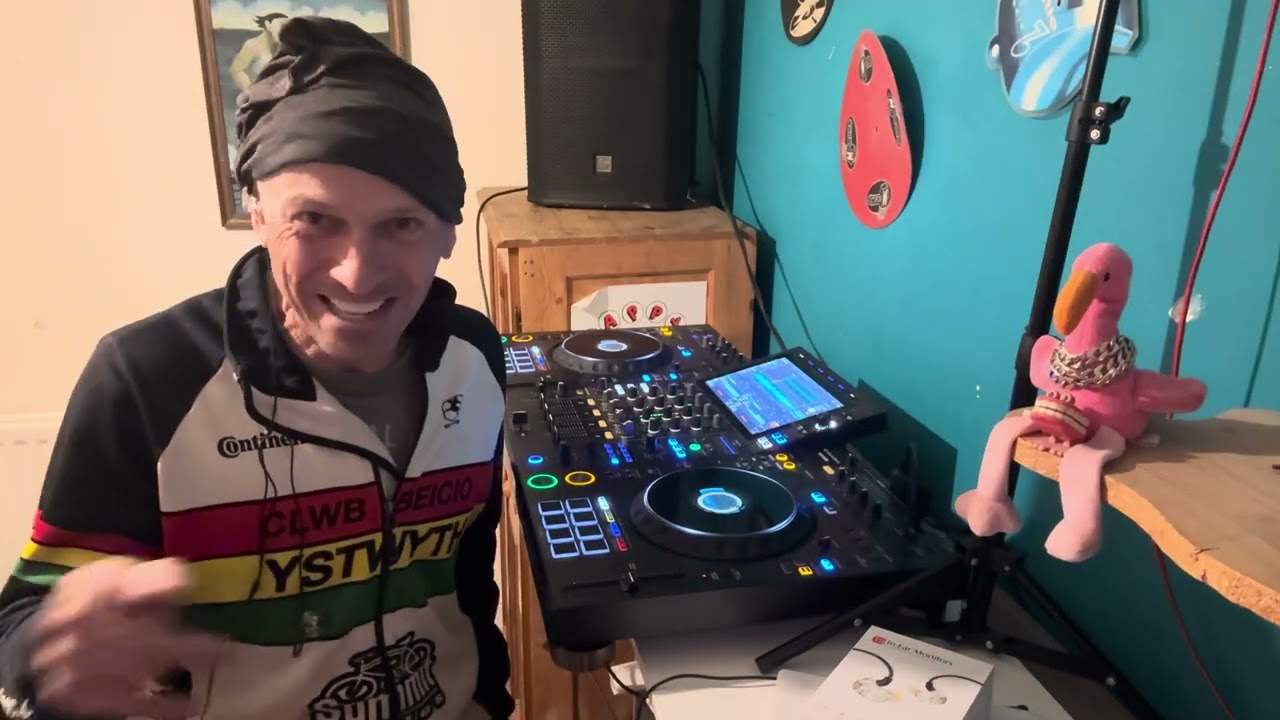
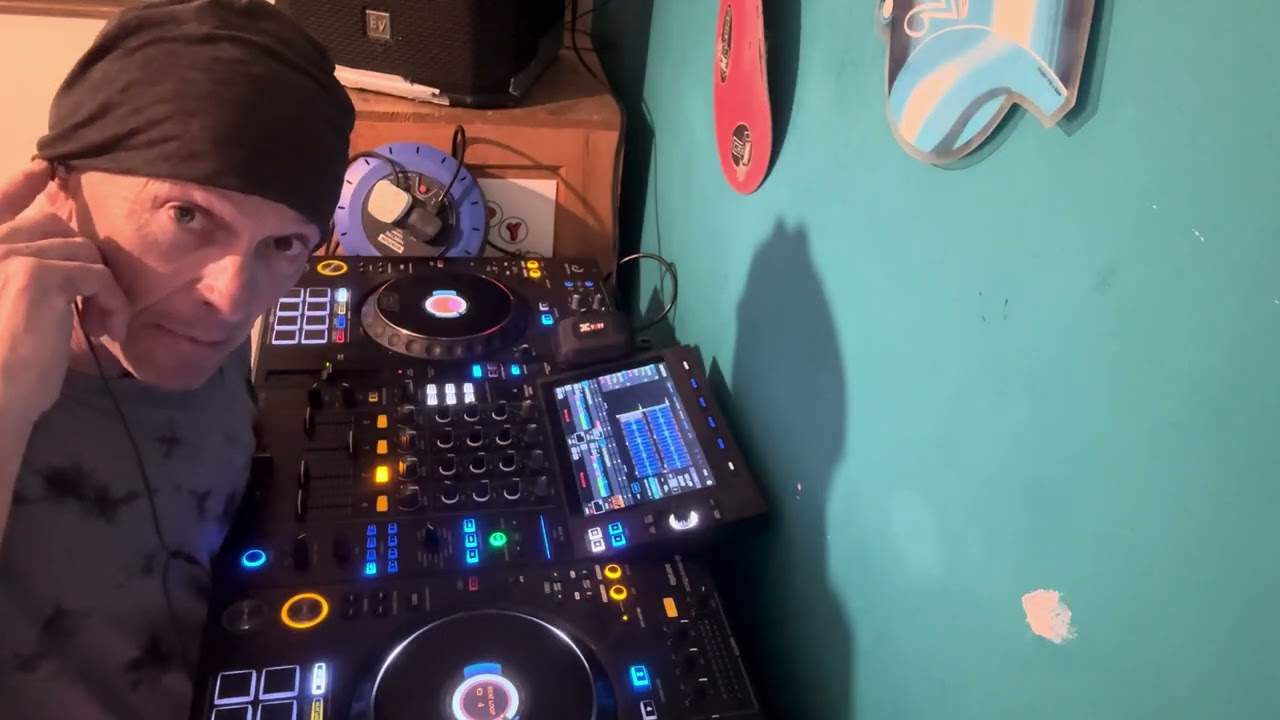
It is free, gratis and for nothing but if you do download it make sure you download it from the correct place because you know what it's like. You download a program from somewhere and you end up getting half a dozen other programs. So just do your own research. Once you've got that on your laptop then we are sort of getting ready to live stream. A lot more to it but in this video I'm going to give you a sort of a basic overview of what you need to do. Right, so let me turn the camera. Now then, that is Open Broadcast Software. Now at the moment, I don't know if you can see but there is a camera view there. And also there's one up here as well. That's because I have two cameras at the moment. I've got a camera over here which I'm probably going to be using tonight if I do live stream.
2:26 Of course there is the screen and over here we have settings
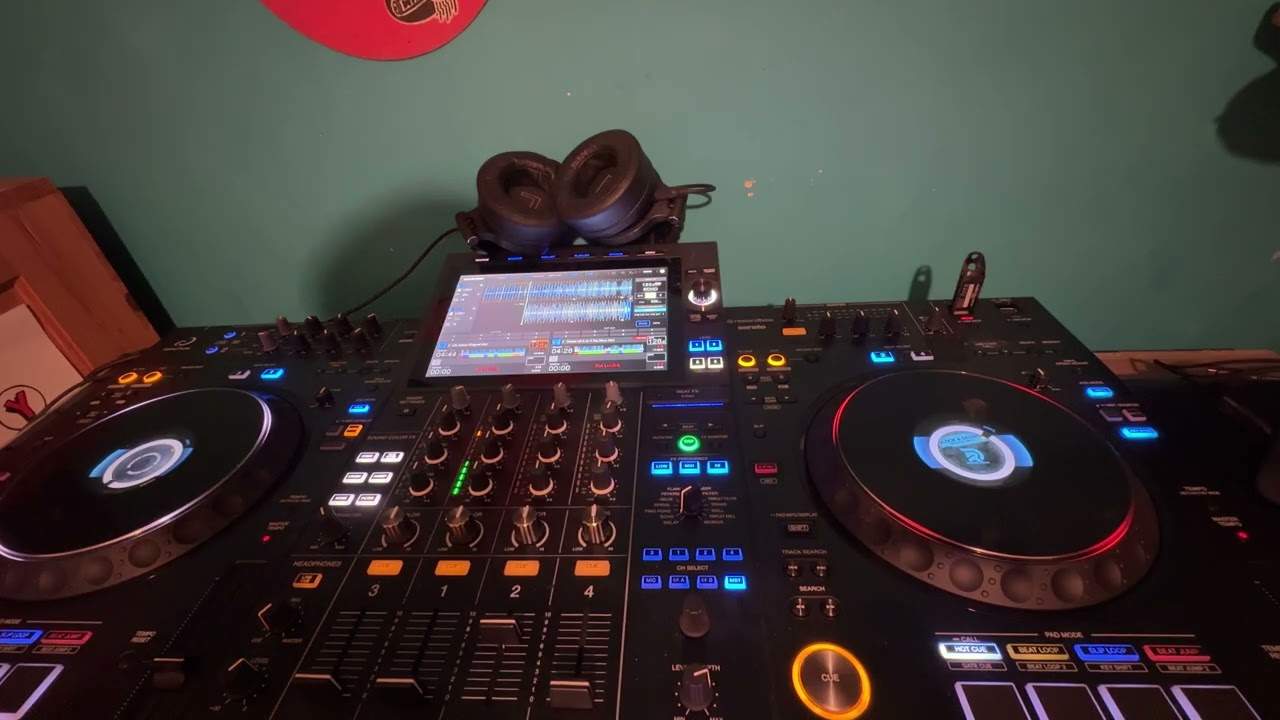
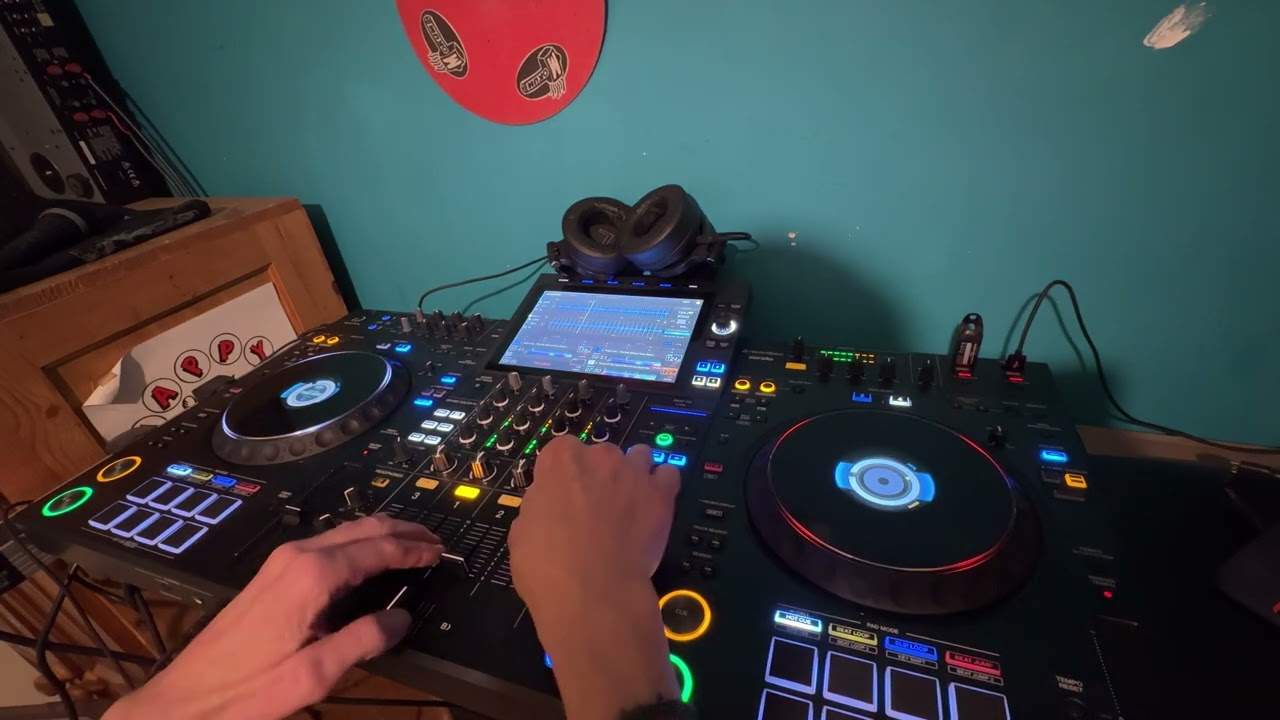
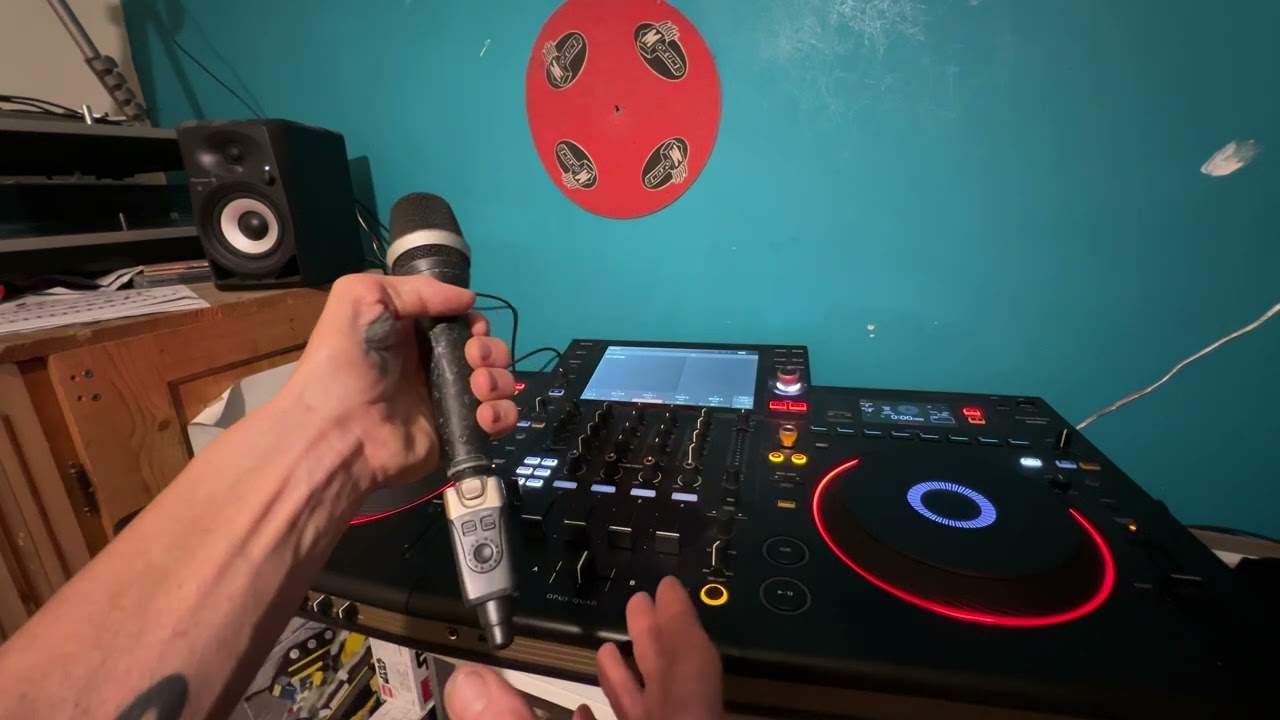
That is over the mixer area and then I've got a camera up here which is facing down on the kit. So I can change the angle of those cameras and do whatever I want really. Now at the moment I've got two but if I wanted to, I could add as many cameras as I wanted to. If I wanted to. But I don't want to, just two. Right, so let's have a look. So right again this is sort of an overview. Now over here we have our services. So for example Twitch, YouTube. Here is our sources. So for example the cameras we're going to use or maybe we want to record the screen on the computer itself. Here we have our mixer. Now this is the audio. Of course there is the screen and over here we have settings. Now then without going into too much detail, if you want to stream on YouTube.
Now let's imagine, and this is I think a really good analogy. You know if everyone had the same key to houses someone could open your house, walk straight in and nick an apple from the fruit bowl or go and stroke the cat, I don't know. But that would be a little bit silly. So of course you have a key for your house and hopefully your next door neighbour has a key for their own house and not yours unless you know them. Anyway, so that is what you need to find first of all. Now practically every site when you log in the likes of Twitch, YouTube and so on will have once you've logged in and you've given your details and you have your own account, you will be able to find something called the stream key.
Now this is your personal code that will let you stream to that said site. So you need to find that key and then put it in the software. So if I put the camera back over here right now, I'm going to go to settings. Where are we now? Settings here. Now we've got general OK, we've got the stream output audio video hotkeys and so on. But I'm going to go to. Stream now here we can see I'm on the service YouTube. The primary service is YouTube and there is my stream key. Now, I'm not showing that for good reason because that is my own personal key. So what you would do is and again, like I said with this video, it's giving you an overview, but you need to do your own research and understand a little bit more.
OK, so you get your key and you put it in that box. You, of course, OK and apply. I don't need to do that because I'm already on anyway. All right. So once you've done that, basically what that means is that with the camera, the software on your laptop is now talking to the program stroke website. So when you do finally go live, you will automatically go live there. All right. I hope that makes sense now. On the right hand side, we have start streaming, start recording studio mode, exit settings and so on. So the great feature with OBS is that you don't have to go to YouTube or go to the other site and mess around, start streaming. All of the action is here. So for example, I can start streaming now and it would automatically start on YouTube.
Even though I haven't done anything. But of course, we need to do a few things there. So what I'm going to do is go down here. I believe I'm uploading at the moment, so I'm going to close that. I'm just going to go to Studio Classic just other just for the time being submit because it's just hold on.
5:49 Live control room, we can watch
Studio Classic. Go there. Yeah, please. Thank you. Want to go there? Just for now. Let me get rid of that and that and that. And hopefully it will do it very soon. Just talk amongst yourself, please. Thank you. There it is. Cool. Okay, so here we go live streaming. So I'm going to click on the icon there and we've got a few options here. We can go to live control room, we can watch video now at the moment. You can see I'm actually offline now that if I scroll down, we have the options monetization if I want to cards and so on. But again, I don't want to go along that line. I want to try and concentrate on the job at hand. So if you're going to live stream, of course, a couple of things you need to do is make sure that you do put a correct heading.
For example, there's no point doing a live mix and calling it watching ducks very obvious. And then exactly the same with the description. Fill all that in. You can put your personal details, your Facebook links to your other social. Media portals and so on. Also, we have here some analytics. We can see who's watching now. And if we go a little bit further up, this is where we will get the live stream comments. Now during the comments, if you want to, you can click on a small icon and you can add administrator. You can boot them out or whatever you want. Also, if someone gives a very strange comment like you're a twat or something like that, if you've got keywords in YouTube, then that comment will not be seen publicly and you can either show or ignore.
7:57 What I've done, I've gone from my booth out
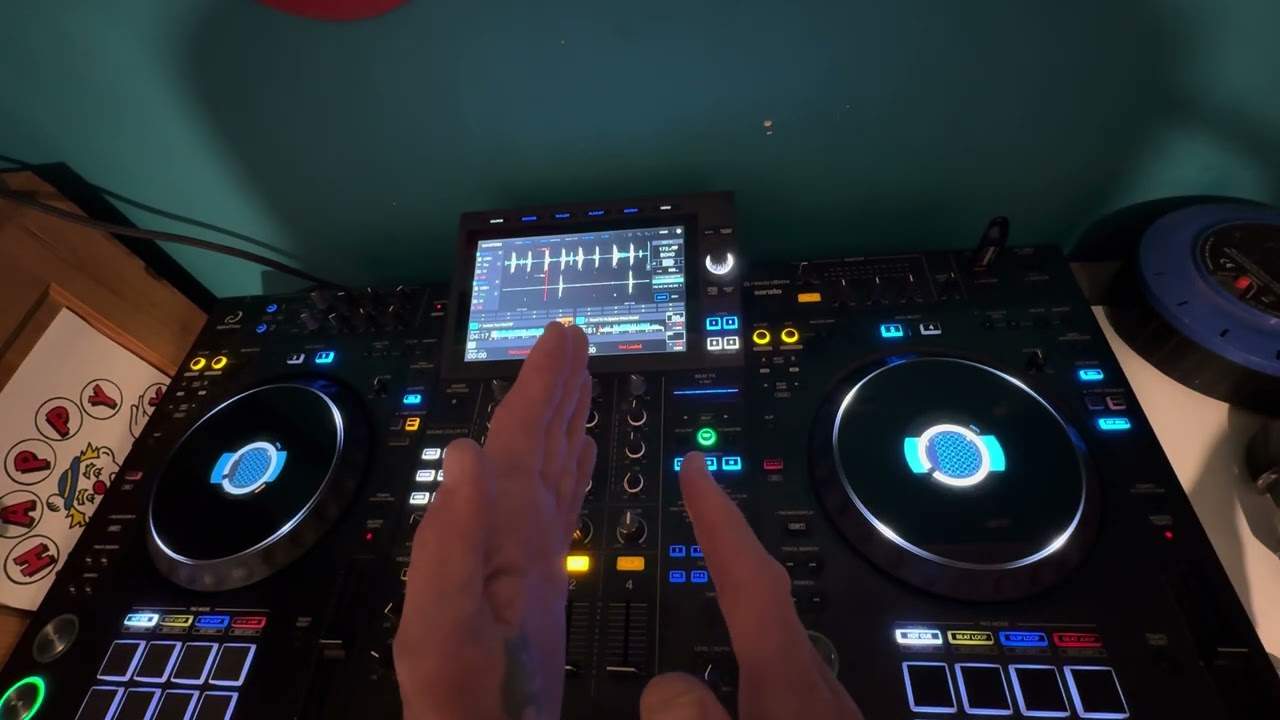
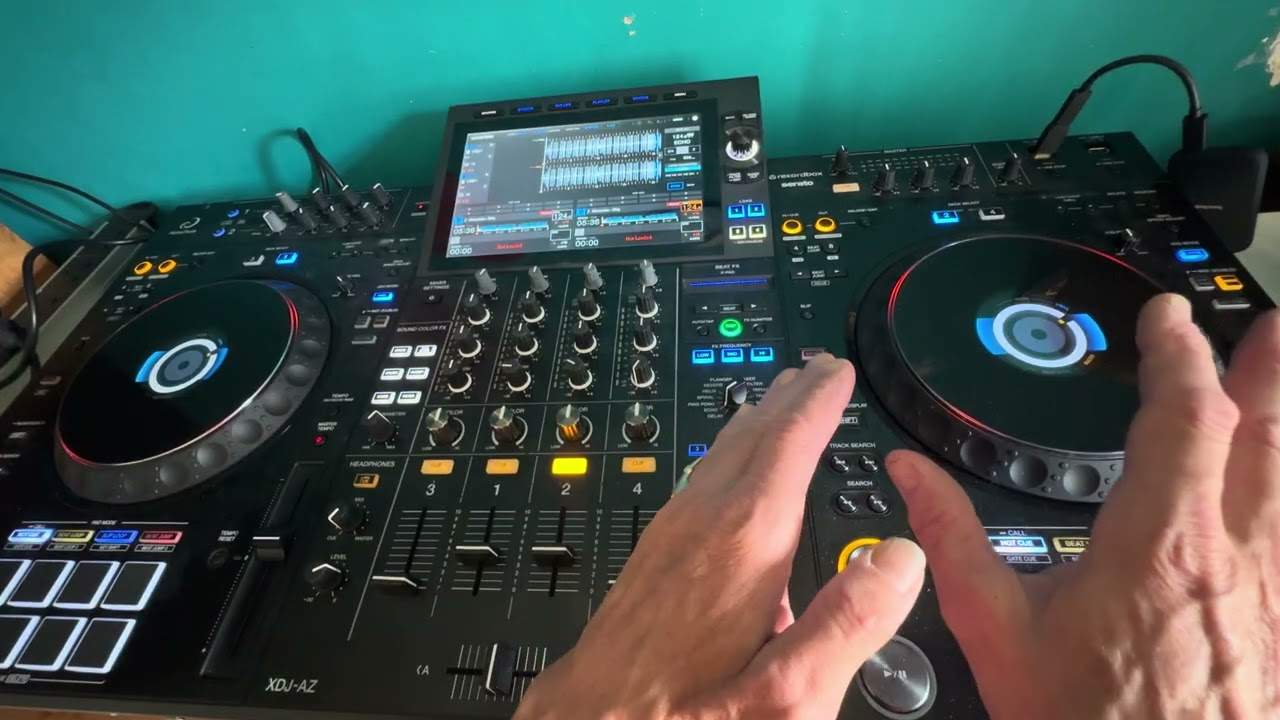
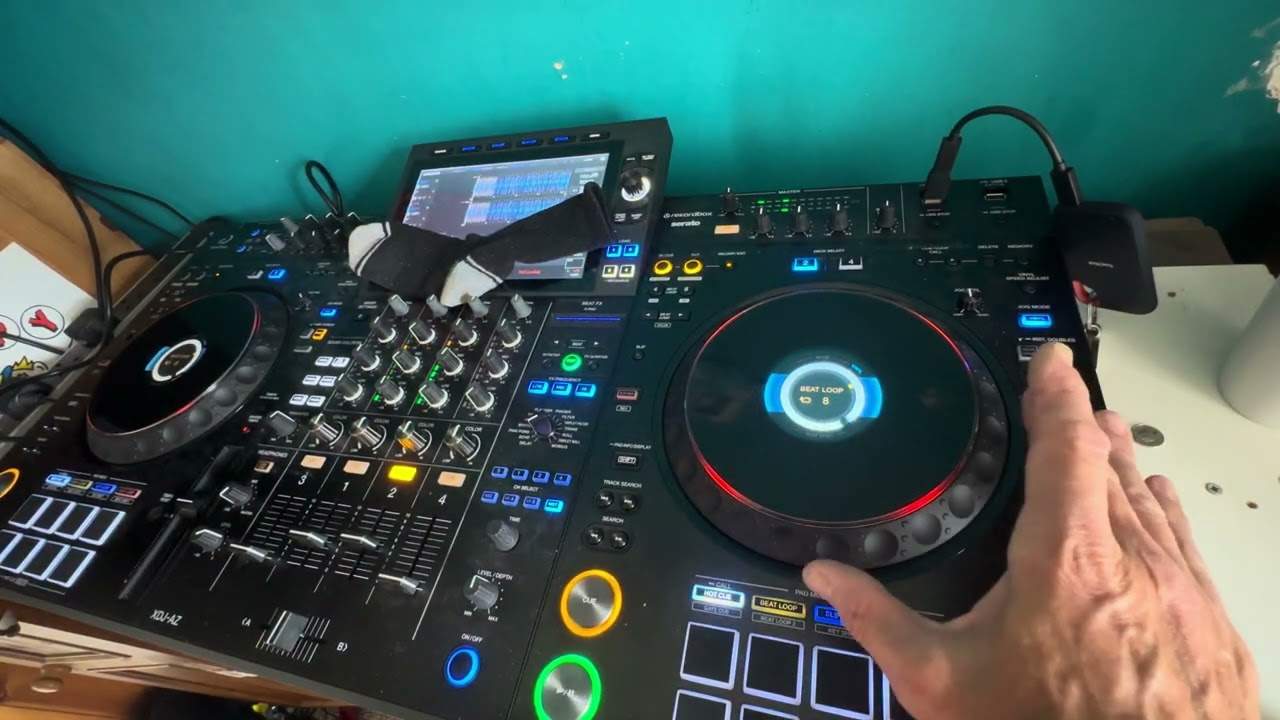
Great feature. All right, so how have I now connected up my player to my laptop to get good audio? Now a lot of people are thinking you need this, this and that and this and that. Well, actually, you don't. Now first of all, if you've got some high end kit you should have on your player or on your mixer or on your controller, what's known as a boot. Okay. Okay. So if you're using your player in a big environment, you would have master out for the main PA and your booth out would be like here for some small monitors next to you. But because I don't have to have a main PA, my main out is here and my booth out is free. So what I've done, I've gone from my booth out. So what I've done, I've gone from my booth out.
Into the line in on my laptop and when I plug that in, I have a small icon come up microphone or line in and I've chosen mic in now again, we need to go to the settings of OBS. So if I go to OBS here now, hopefully you can see this. If you can't, I do apologize. Um, let me just bring that in a little bit, but for example, now, if I go say. Here and I click on that wheel, hold on. Where are we? Uh, click on the wheel, right? Click beg your pardon. So right click taking a bit of time. All right. I'll tell you what, actually, if I go here, I can go to properties. Here's a better one. Okay. So what I can do is, um, I can change the settings of the mic auxiliary in, and that's what I've done. That's what I did earlier.
So for example, um, this will let you change the. Settings along with the area in here to determine if you want the microphone on the laptop to be picked up, or of course the mic or the input line in from the mixer that you're using. And that's exactly what I've done. So for example, if I just press, I'll just do a very quick loop there now. Hopefully you can't see anything on. The audio input. That's because I'm going via booth now turn the volume down, and if I turn this up here, we can now see that we've got a signal coming here. That's because I'm now in control of the audio, um, input into the laptop via the booth out. Now, the great feature there is very simple. What it means is that you can have it very quiet in your room or pumping loud.
10:57 I can reduce it, increase it, but that is my primary capture device
And at the same time, you can eat you the sound completely separately with the stream by using the booth output. Okay, so let's have a look at the capture devices now again, I have got two capture devices to webcams. Now, if I highlight over one of them, for example here, uh, hopefully now you can see that we've got some red lines around. That box now that now is going to give me the option of moving that around so I can have that down there. I can enlarge if I want to see, I can have it pretty much take over the entire screen. Um, and I can do the same with this one. I can reduce it, increase it, but that is my primary capture device. So I'm going to put that back up there, maybe have that a little bit bigger.
But then, of course. I need to make sure that this camera here is set correctly. So again, this is all about a little bit of studio work to make sure you know that the camera angles are correct so I can maybe bring this camera up. So if I bring that one up like so, I can have that camera now almost facing down on the kit and that looks a lot better. Now, maybe people don't want to see my ugly mug, don't answer that. So I can put the other angle at the top there or maybe even just. Just have that quite tiny in the corner. So whatever I have got on this screen, that is what the people will be seeing in the stream itself. All right now, this is actually a very, very big, a very small overview really of OBS because there is a lot more to it.
All right, a lot more to it. And I do believe as well, you know, wrong one. I do believe as well, you can live stream simultaneously to different platforms. Um. And the way things are going, I think that's what a lot of people are going to be doing. So I hope this is a help. And again, OBS as far as I know still is free. Okay, so don't think that you need external this external that you don't now one last point here. Let's imagine you do not have a high end piece of kit and you do not have a booth out now. Don't worry about it. All right, because there are ways around it now. This here. Is a plug. It is, if you look, that is a male RCA into two female RCAs. Okay, now you can get a couple of these. Now, for example, let's say you've got the Pioneer DDJ 400 that I believe only got one output.
13:21 Your speakers in your room
Of course, what do you do? One output when really you need two. You need one for your PA and one for your laptop. What you can do is this. If you buy a couple of these, you plug them in. To the output of your controller that maybe only has one output. That means if you've got two, you've now got four outputs or you've got two lots of stereo out. So then what you need to do is get two cables. The one set of cables will go to your speakers in your room. The other set of cables will go from RCA then into a mini jack input into your laptop. Now, the only disadvantage here. It means that the volume you set on your controller will be the same volume that you have through your PA and also the same volume you've got on your stream.
So you do have to be a little bit more careful. But again, if you look at the stream, just make sure you are in the amber and not in the red. Red is dead. Amber is okay. And green is trees, grass and stuff like that. I suppose anyway. All right. Hope that's been a help. Thank you very much. For watching and have fun streaming. And don't forget as well, there's always copyright issues going on. So be wary and be careful. And if you are concerned about what tracks you're going to play on YouTube, do a bit of research and I will try and dig it out. But I know there is a link via YouTube where you can, for example, you have your set. You can put the tracks into a part in YouTube and it will tell you whether you can play it or you can't play it or you'll get blocked or suspended or whatever.
So generally, though, what's happening now with a lot of people who are streaming is the streams may get stopped or you may find once you've finished your stream, you'll have adverts over it. And I honestly think that's the way forward because if we are playing music produced made by other producers and that music is being heard by other people, potentially they may, A, buy that music. And B, if adverts are put on that stream, of course the producers are getting money instead of someone taking it away and the people not knowing what the music was and the artist or artists not getting any money. Because if there are 1000 streams out there and 1000 adverts on there, then it's very possible that someone in the world will be
Getting some money instead of like nothing. What would you prefer? Right. I hope this has been a. Help check it out. OBS practice and enjoy. Thank you.
This transcript was produced automatically from the audio of the video and may contain mistakes.