 3:01
How to set audio feed direct from mixer to PC for live streaming
Contents of the video
0:00 A couple of people have asked how to get decent audio on blog TV
Alright guys, a couple of people have asked how to get decent audio on blog TV. Now this may apply to other sharing sites as well where you can do live streaming. You'll see once you've logged in, you'll see this icon here, broadcast now. I'm going to click on that like so. Then you come to this page. Here you can fill in information about your show, when you're on, what time. You can also email, contact people. And click that icon to update. Alternatively, if you don't want to do any of that, you can just go down to here and it says skip this step. Then you'll come to this page. Logically, make sure you've got a webcam plugged in. So you have two options. One is you can start high quality broadcast but you need to download a bit of software for that. So if I click start broadcast...
0:50 You just need to press allow
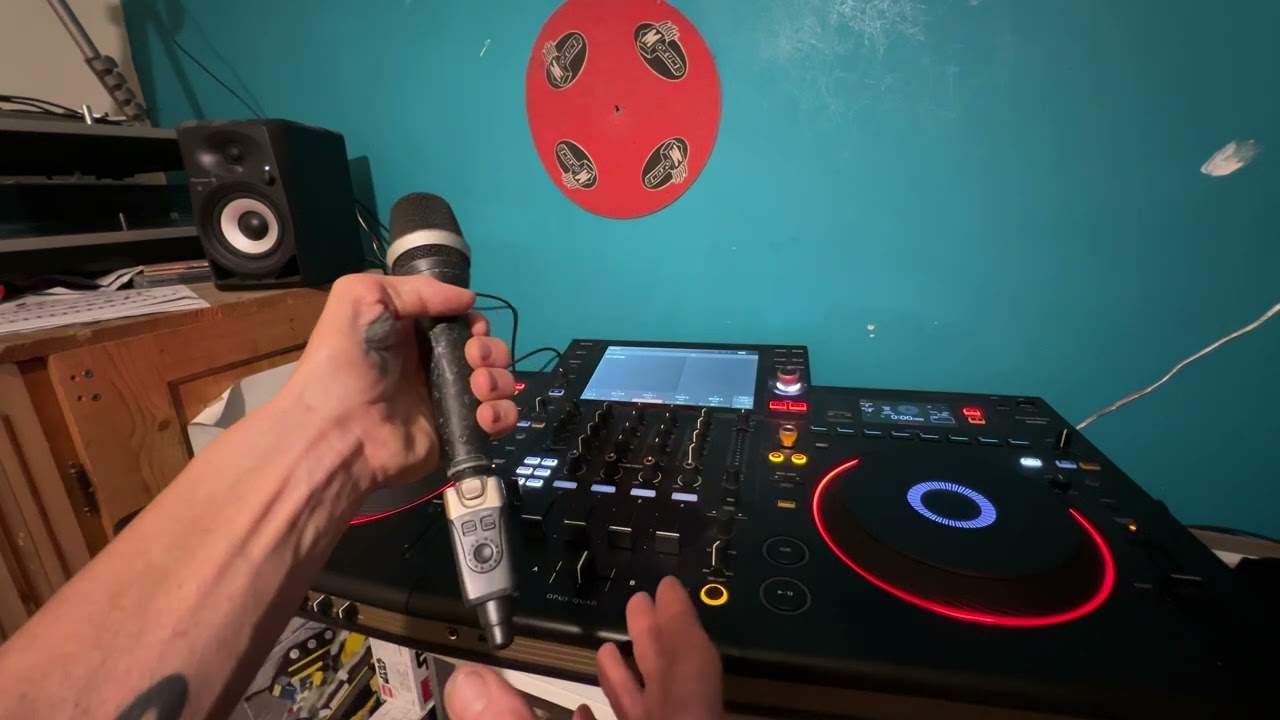
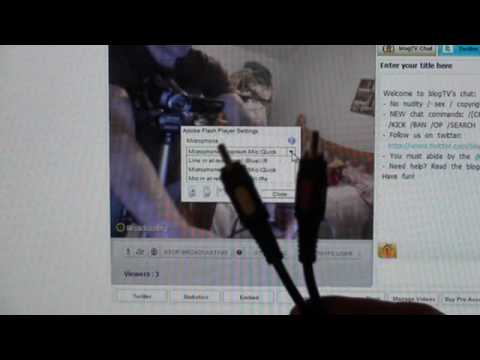
You'll see this box come up. You just need to press allow. That will allow the program, or should I say it will allow BlogTV to use your webcam. And then you can click there. It says click here to start broadcast now. Click. A couple of factors here, very important. What I'm going to do is just draw your attention to the bottom left-hand corner. This icon here looks like an old microphone. Now, you've got a couple of options. If you click on that microphone there, You will see this box and if you click to the right of that, you have a choice then of either using the microphone on the webcam or alternatively the rear line in. Now by using the rear line in, you can go directly from your mixer into the input of your PC. So what you'll need is one of these guys here.
1:51 Click line, line rear
If you want to go direct audio feed from your mixer, then logically you will click in line in at rear full stop. Alternatively, you can sometimes use the microphone input as well, but ideally you need a good stereo sound card. So before I do that, if I just click the Logitech, you can see this icon there. If I just go a little bit closer. One, two, one, two. You can see that that now is moving in relation to me talking but if I now click into the line in at rear, nothing at all. What's happening now is the PC is ready to take the sound from the mixer and then that in turn will go directly into the Interblog TV and all you have to do then All you need to do is close and you're good to go. Practice and enjoy.
This transcript was produced automatically from the audio of the video and may contain mistakes.