 6:58
Setting the EQ to kill in the utility menu
On YouTube this video is called Menu Utility Screen on the XDJ-RX2 Setting Kill on the EQ
What this lesson teaches
This exists because he got something wrong. In an earlier video he said the RX2's EQ could only reduce a band by 26 dB; it turns out the behaviour is a setting, and he came back to say so.
Worth noting in its own right - a tutor who returns to correct himself on camera is a tutor you can trust the rest of the time.
Equalizer curve: EQ or isolator
The important setting, and it changes what kind of mixing the machine will let you do.
EQ mode gives each band a limited range - a modest boost or cut either side of centre. Gentle, forgiving, hard to ruin anything with.
Isolator mode means turning a band fully down removes that frequency range entirely. Full kill.
Which you want depends on how you mix. If you do bass swaps - pulling the bass out of one track as the other's comes in - you need the bass actually gone, not reduced, because a bassline at a quarter volume is still a bassline fighting the new one. Isolator is the mode for that, and for anything resembling the EQ mixing in this course.
EQ mode is the safer setting for tone shaping and for anyone still learning where the bands are.
The rest of the menu, briefly
Quantize beat value. Snaps loops and cue points to the beat grid. His example is the one everybody recognises: pressing loop-in slightly early and loop-out slightly late gives you a loop that limps. Quantize fixes both ends to the grid and the loop comes out in time.
Autoplay: off. He is emphatic and he is right. With autoplay on, the next track starts by itself the moment one finishes - so while you are searching for something, the machine makes the decision for you. Off means a track you have cued waits until you start it.
Master attenuator: 0 dB. The meters are calibrated around this point, which is why the colours change where they do: green, amber, then red, and red means you have gone past the point the designers set. Raise it only if a particular PA genuinely needs more drive, and otherwise leave it.
Channel fader curve. His preference is an even rise across the travel rather than a slow start and a sudden jump near the top - which makes a long blend controllable.
Screensaver on, to spare the display when you walk away. Touch calibration and standby are housekeeping.
The firmware habit
His last point is a good one and almost nobody does it.
Once a month, look up your player on the manufacturer's site and compare the firmware version with the one in this menu. If theirs is higher, read what changed. These updates are usually small bug fixes, they take a few minutes, and the time to discover that a known fault was fixed a year ago is not the middle of a gig.
Contents of the video
0:00 Menu utility function and also
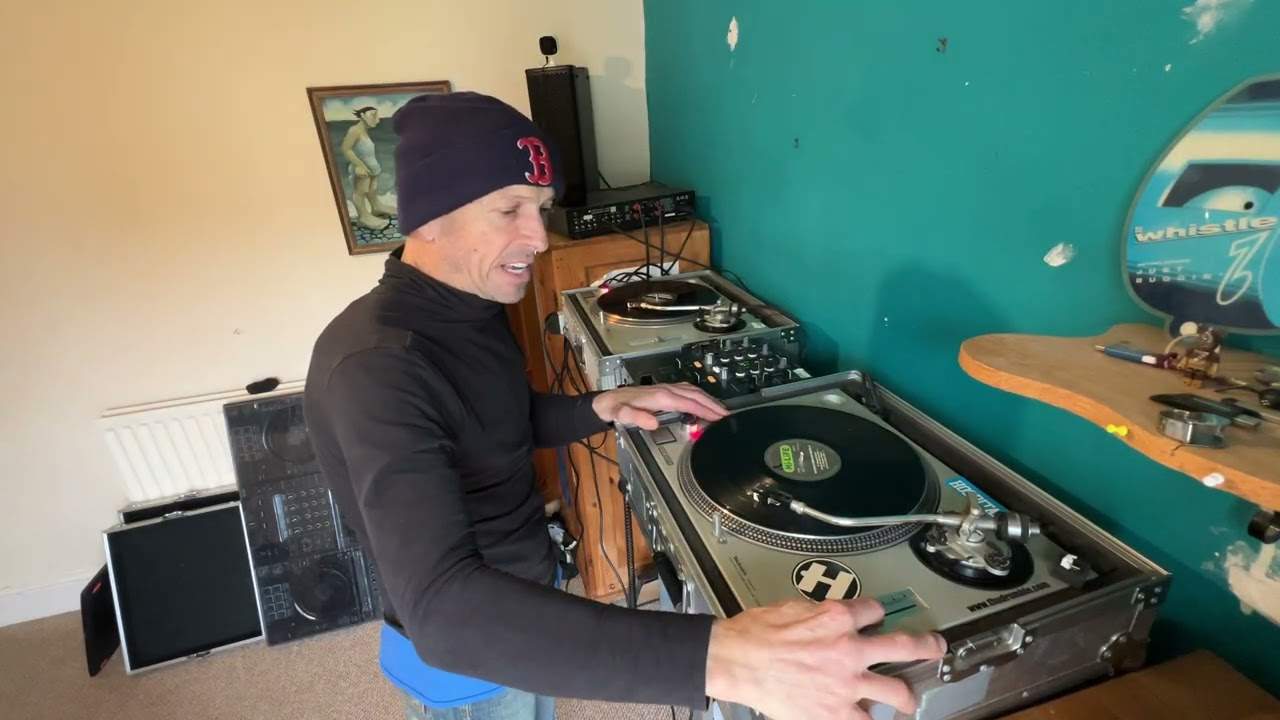
Alright guys, in this video I'm using the XDJ-RX2, making this video for two reasons. One is to look at the menu utility function and also in a video I've done recently, I can't remember exactly when it will be online, but I was using a Karmic Power Records track and I was mixing using the low, mid and high, just showing you EQ. In that video I did say that the RX2, when you use the RX2 by itself without an external player, you can only reduce the bass mid or high by 26dB. Well that was incorrect because if you go into utilities, you can set it to either do complete kill or minus 26dB. So in a way this video is covering two areas. One is looking at some of the features in menu utility and also showing you
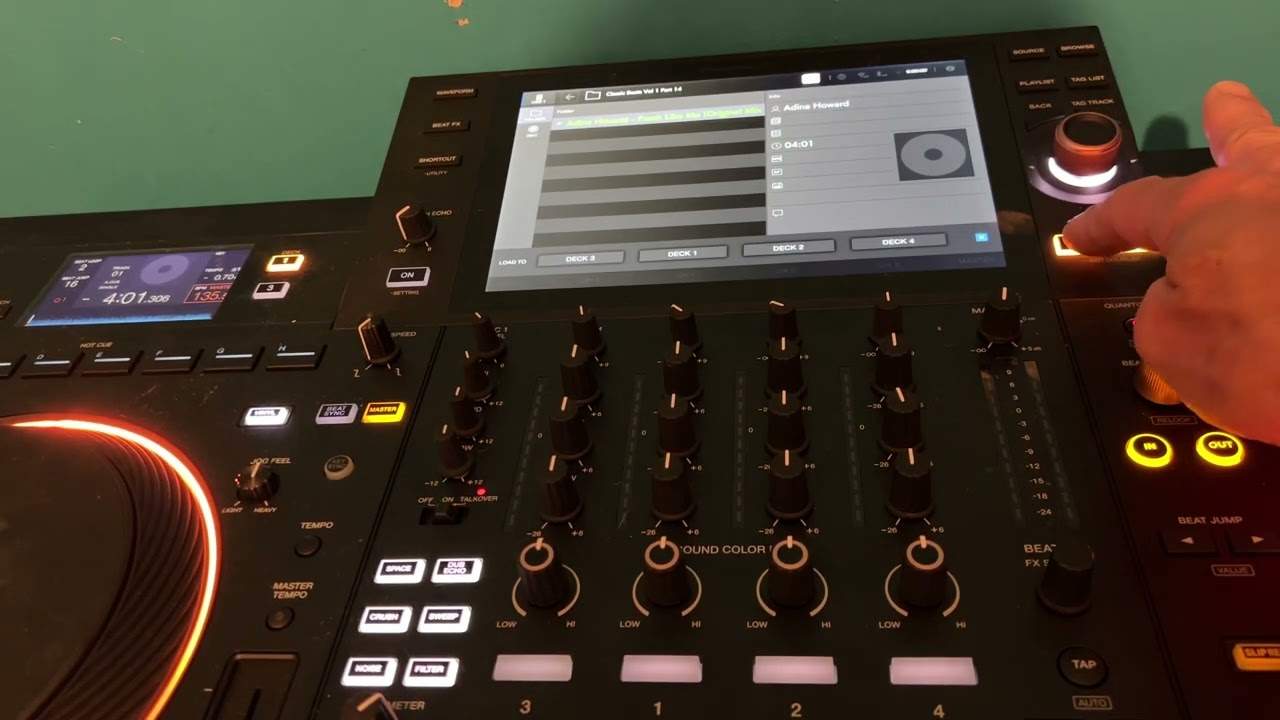
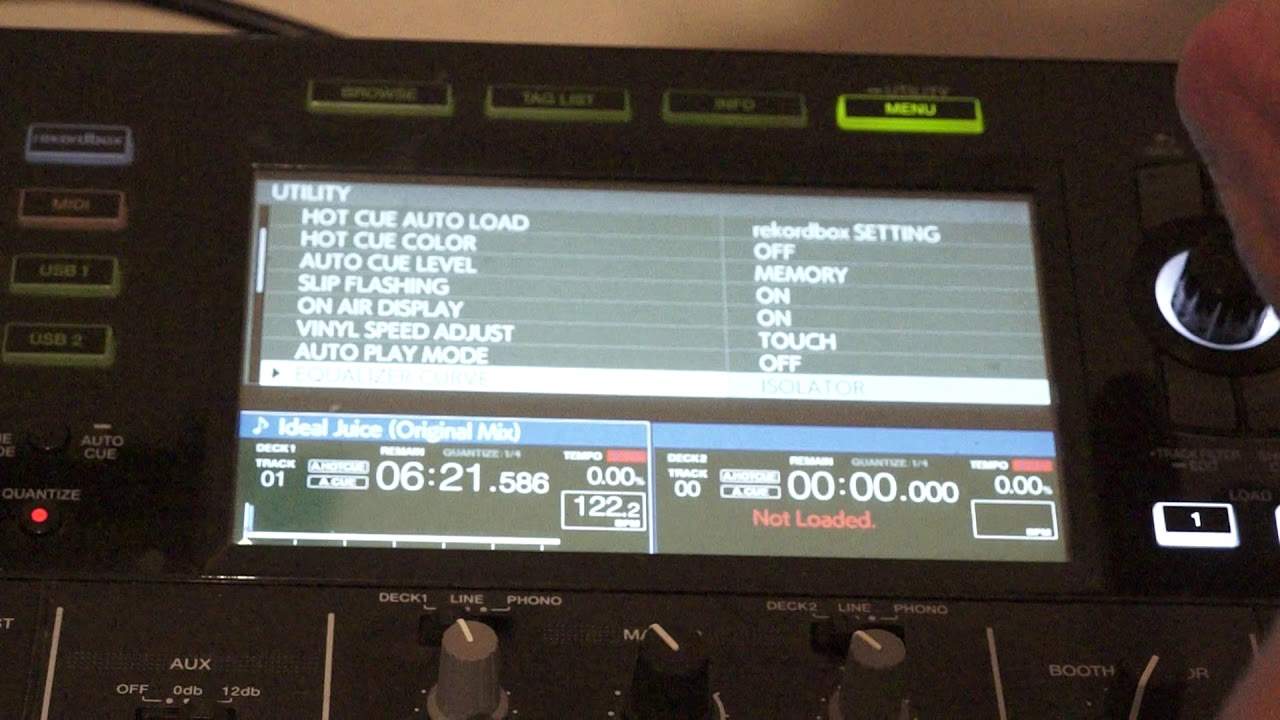
How you can select from minus 26dB on low, mid or high or complete kill. So what I'm going to do is press down on the menu utility button and now we get to the utility screen. So this is almost letting you decide how you want the player to work. Now something here, we've got quantize beat value. So quantize, let me talk a little bit generally about it. Now when quantize is engaged, let's imagine you're not brilliant at forming a loop and maybe you press the in button slightly before the beat and the out button slightly after. Well of course that loop is going to be out of time using quantize. It will snap it in time for you. Now the hot cue color again, this is really mainly to do with the likes of Rekordbox.
2:18 Equalizer curve, we're on isolator now
If we go, for example, to let's have a look on it. Nightmare display, pretty obvious. Vinyl speed adjust, we're on touch there. Autoplay mode is off. Now ideally you want that because if you have autoplay mode on, it means that as soon as one track's finished the next track will start and it's a nightmare because you know you're trying to select a track and all of a sudden it starts automatically. So it's always a good idea to have autoplay mode off. What that means is that when you find a track and you cue it up, it's ready and it will start when you want it to start, not start by itself. Equalizer curve, we're on isolator now. This is the key here. Okay, this is what we're on about. So I'm on equalizer curve.
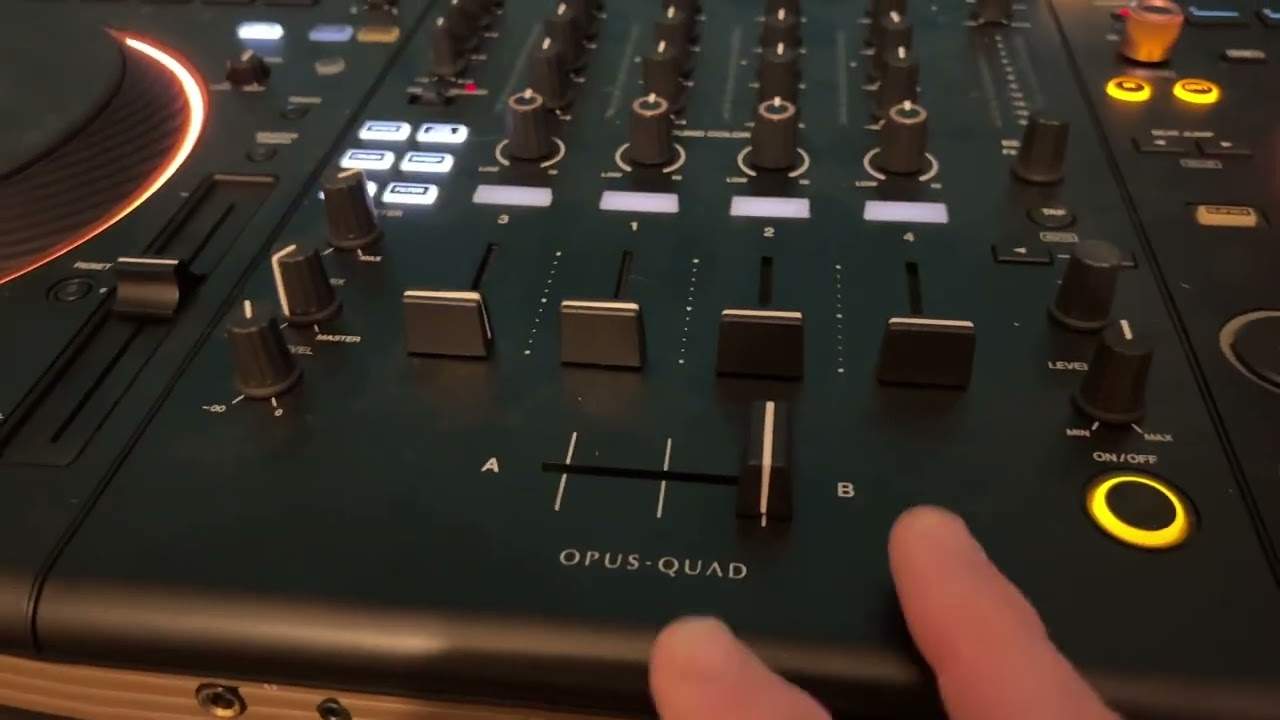
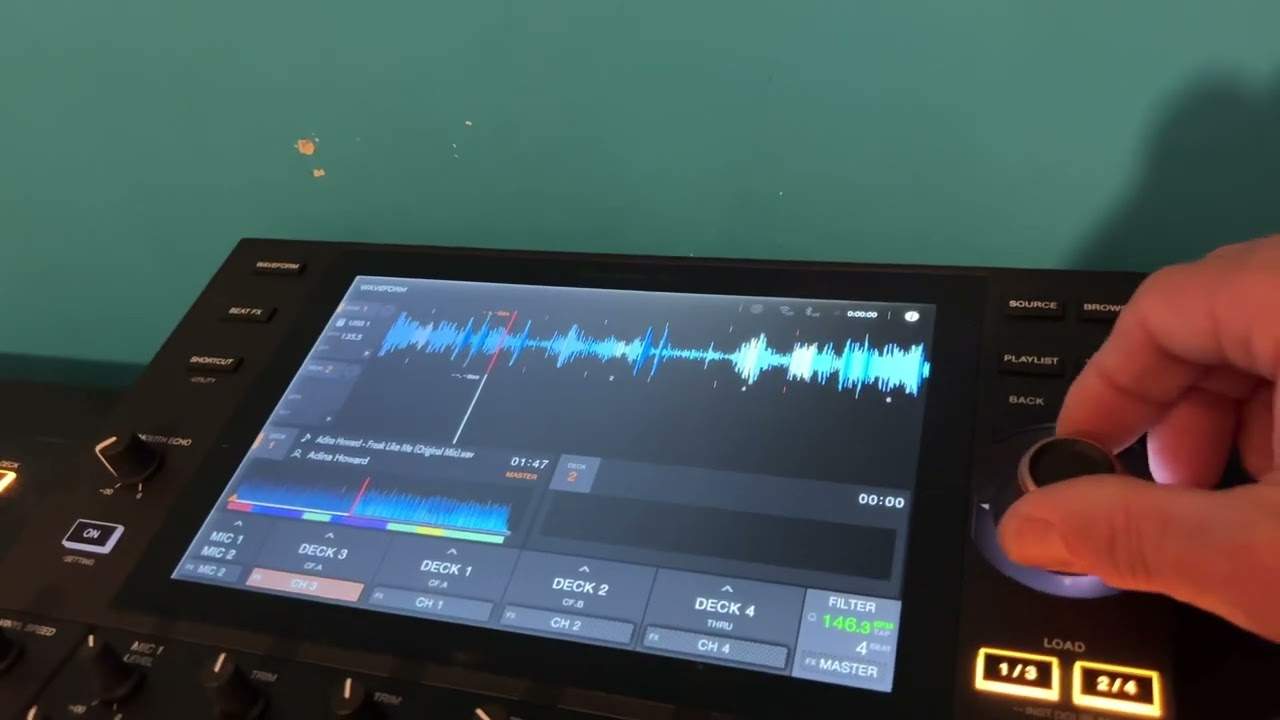
If I press down now, the isolator is highlighted and I can turn the dial to equalizer. Now what that means is that now I will be able to use low mid or high and increase or decrease, increase by plus six percent, decrease by minus six. Press on that again and turn and go to isolator. Now what that means now is that when I turn the low mid or high to the seven o'clock position, it will completely cut that EQ so you won't hear any of the sound. So if I just press play, there we go. It's completely gone. All I've done is I have turned the low mid or high, listen to the bass, mid and high. There it is. So if I just turn the low, in fact what I'll do, I'll put the EQ now to the center position so you can see now full view
And click on there again and let's move that to equalizer and now there we can now hear a little bit of the volume. All right, so that's relatively important if you're the sort of DJ who wants to have complete kill on low mid or high. Channel fader curve, that's not so important but generally what you find a good setting is a natural increase in volume instead of like a slow increase than a sharp increase in the volume. Master attenuator, we've got that to zero DB. So what that is is that, you know, the output is zero DB exactly the same with the booth monitor. The only time it's a good idea, to turn those up. If let's say for example, the speakers you're using or you know that the maybe the PA system needs a little bit more of a push out.
4:36 A good way of explaining that is your LEDs
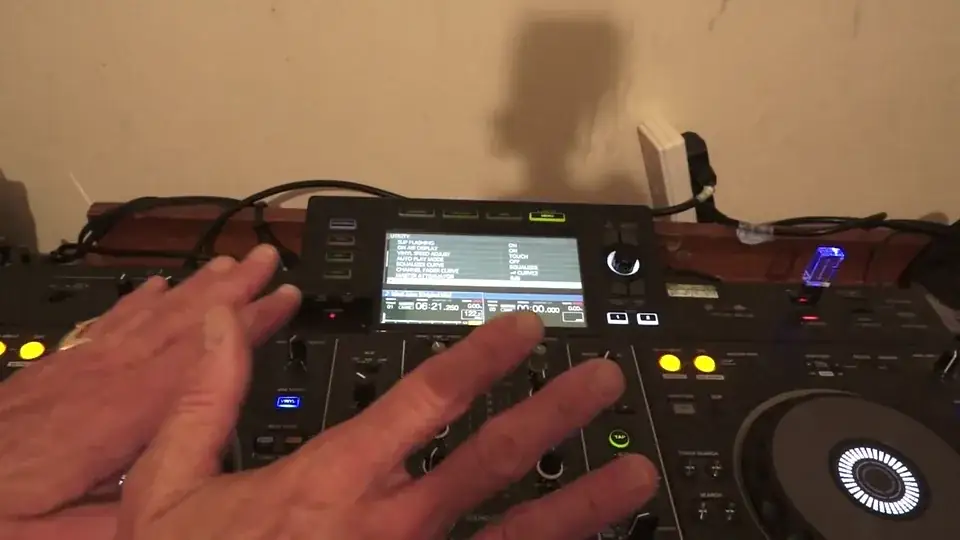
So in other words, you've got to like maybe have the volume of your player giving more sort of push of an output, but I would highly recommend you keep it at zero DB. A good way of explaining that is your LEDs. There's a reason for it being zero DB. For example, you have Amber then you have green and then you have red as soon as you get to red your dead and you do not really want to go over zero DB. That's why it set there in the beginning. So probably best just to leave it unless of course, you're a professional, you know what you're doing headphone mono split stereo that set to stereo probably a good maybe just leave it like that. Okay, so at least, when you plug in your headphones, you know, you're going to get a stereo output.
What else have we got with mixer mode MIDI control language again? You can choose your language LCD brightness is the brightness of the screen itself. What else have we got on here screensaver is on always a good idea to have that on because if you move away from the RX and you leave it there for a while after a certain amount of time, it will just go dim and it will just save the screen. It'll give it a bit more life. Touch display calibration Auto. Standby is of course on and your version now the version again is very important. What you need to do is maybe once a month or so go to the Pioneer DJ website and go to firmware update and just have a look and see if there are any updates if there are check the version on the website
If it matches the one you've got on your player, you're good to go if it's a number that slightly higher then check it out because it might mean that you need to just change the firmware update. The firmware on the player, you know sometimes there's a few bugs and it could be something very simple and it doesn't take long at all right now. Hope this has been a help again. We're using the xdjrx2 but what I've shown you is very similar with a lot of just the basic CD CDJ players as well. All right. Hope that's been a help practice and enjoy. Thank you.
This transcript was produced automatically from the audio of the video and may contain mistakes.
This video is part of
Related videos
-
Complete Beginner DJ Lessons Tags Key BPM Etc
A more advanced lesson folded in early, and worth doing once rather than putting off, because everything it sets up gets used for years…
-
Complete Beginner DJ Mixing Lessons Video 19 Getting Your Kit Ready for an Easy Mix
A whole lesson on getting ready, which is the right call - the exercise in the next video only teaches anything if the two decks are…