 8:28
MEP-7000 New Firmware up date Version 2.02
Contents of the video
0:00 Now people are always asking me what is my favourite piece of kit
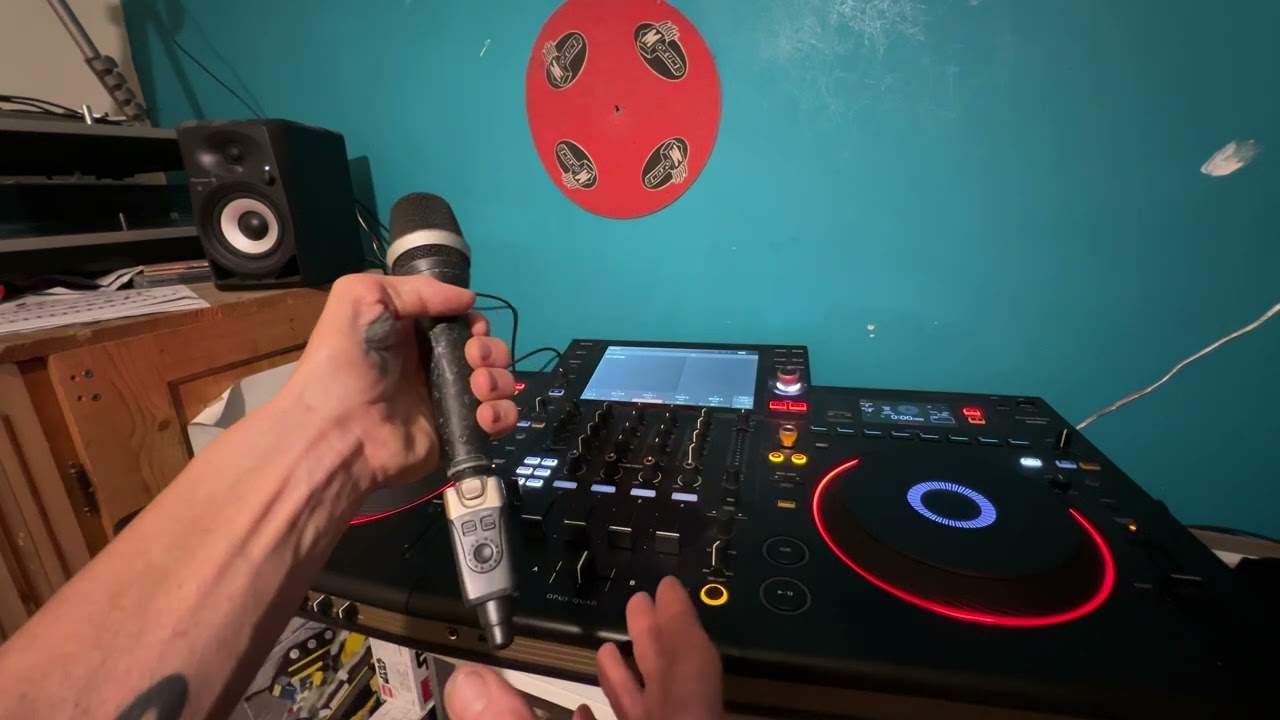
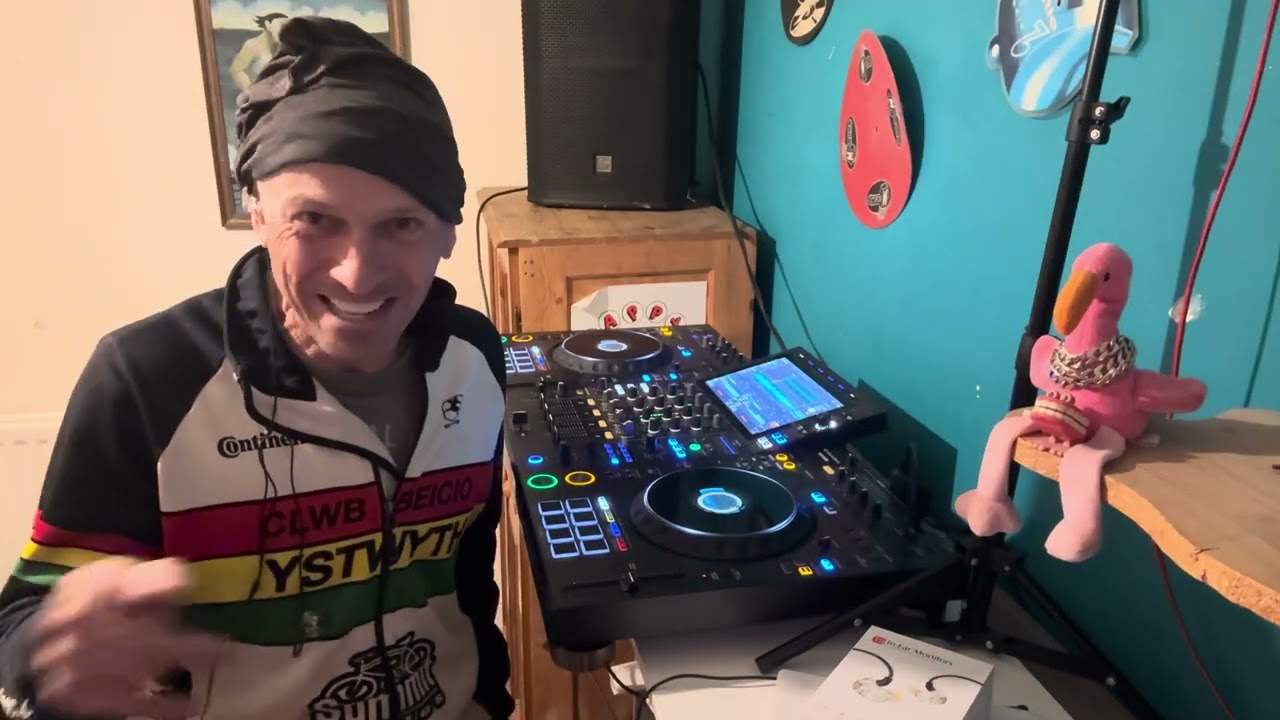
Alright folks, now people are always asking me what is my favourite piece of kit. Now the trouble is it's a really difficult question to answer because I originally started using vinyl, went on eventually to CD and reluctantly started using flash drives and hard drives etc. But because I'm predominantly a mobile DJ, I've gone from the vinyl, the twin turntable to separate turntables and a mixer. And then eventually it was like, all right, yeah, I'm going to do CDs. But because when I started using CDs, there weren't tabletop CDs, literally you had a choice of getting a hi-fi CD player or a 19 inch rack mount CD player. So that's what I ended up using and very basic, but it did the job. And this is fact, because if you look at the last half a dozen gig logs I've done, most of them I've used the MEP. The reason being it's 19-inch, it's got all the functionalities of tabletop CD players, it's got your USBs and it does exactly what it says on the tin. Now in this video I'm going to show you the latest firmware for it, because basically what...
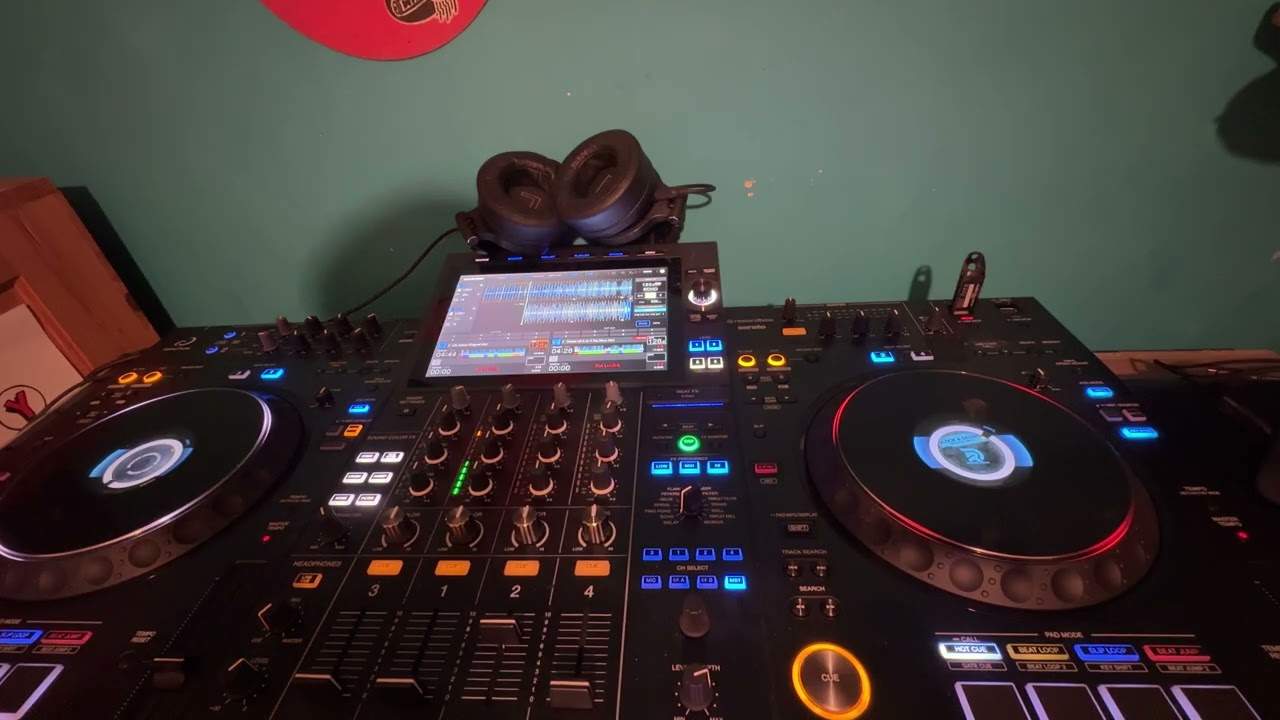
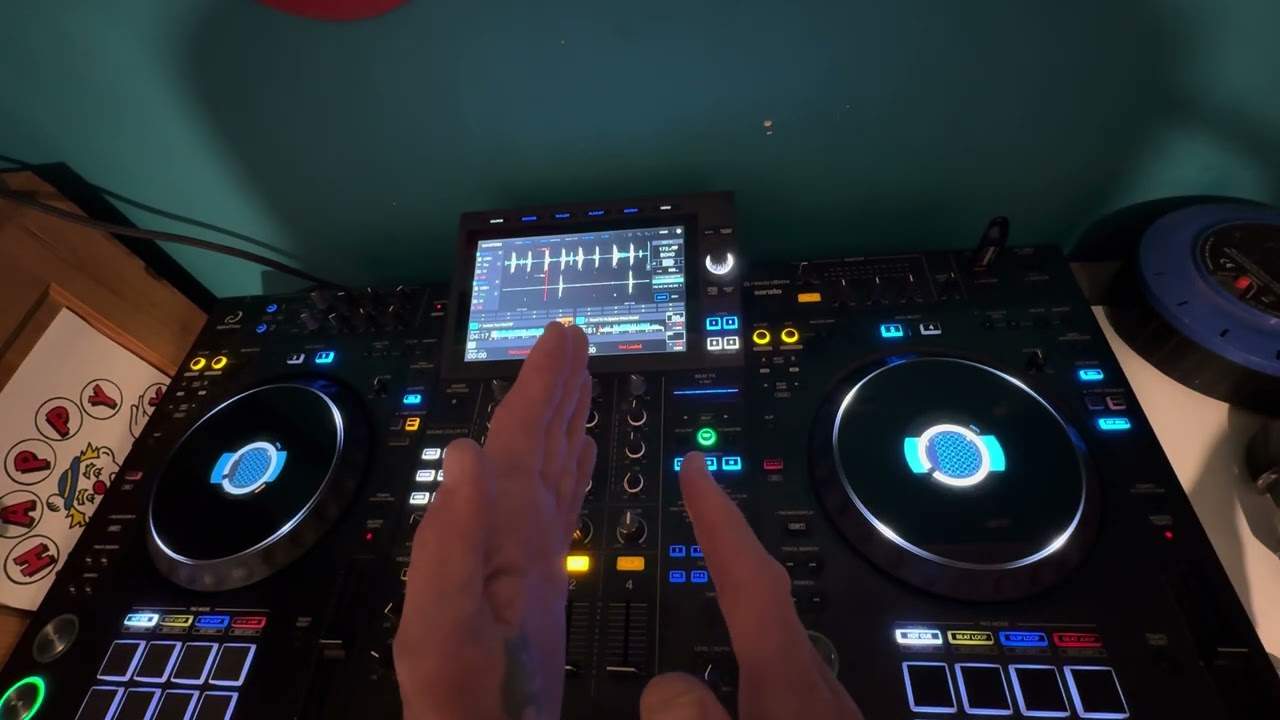
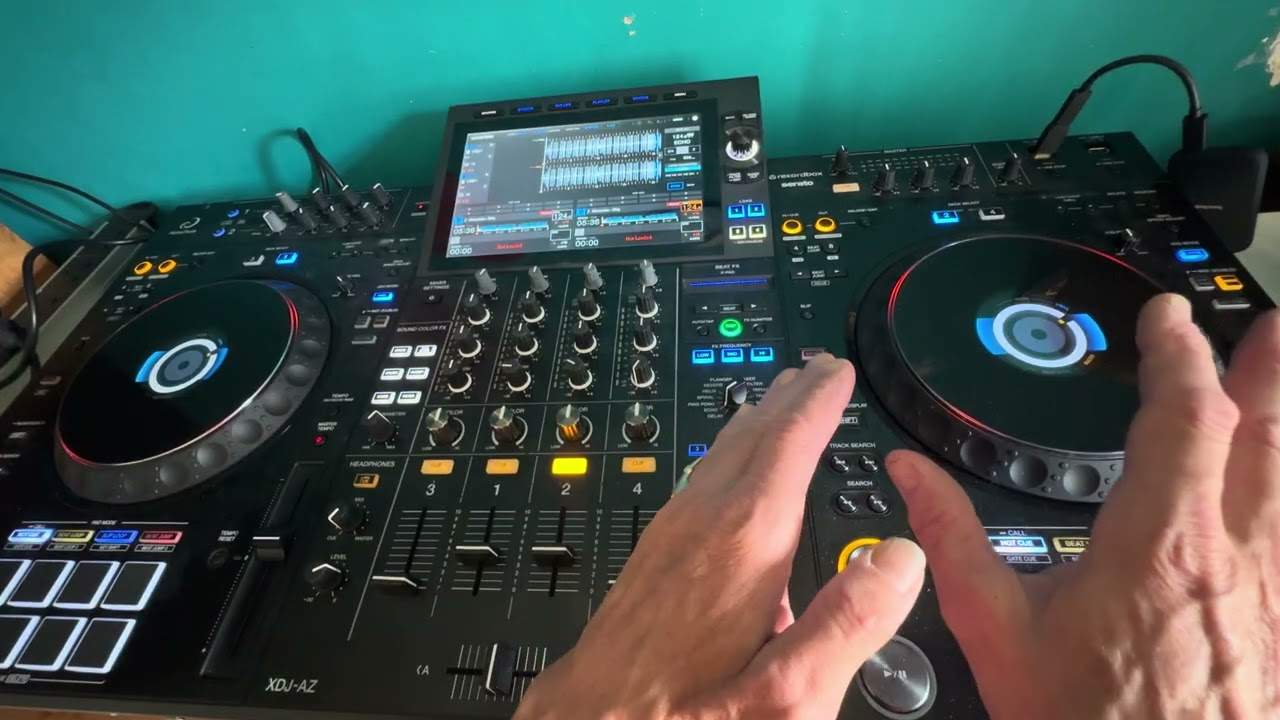
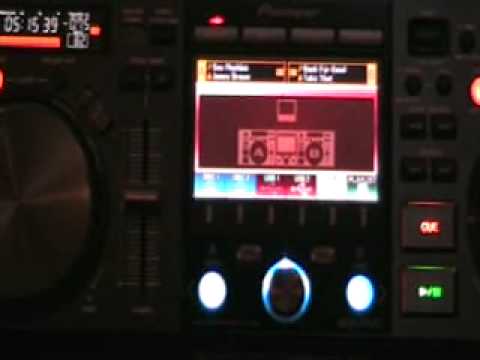
What's happened now, it's gone from this level, which is fantastic, up to sort of a level sky high. It's just gone to that completely extraordinary next level. It's pretty good actually. So what I'm going to do, I'm going to pause the camera and we'll have a closer look and I'll give you a brief idea of what it can do. In future videos I will show you how to, I suppose in a sense, upload the latest firmware. And also how you can use this without having to use a keyboard. So I'll pause the camera and we'll have a closer look, hold on. Right there it is. That is the MEP and underneath there that's the trays where you put the CDs. By the way very quickly as well because some people watch these videos are not familiar with the pieces of kit. Well basically you can use the MEP in conjunction with a laptop and just
2:43 I'm just going to scroll a little bit closer
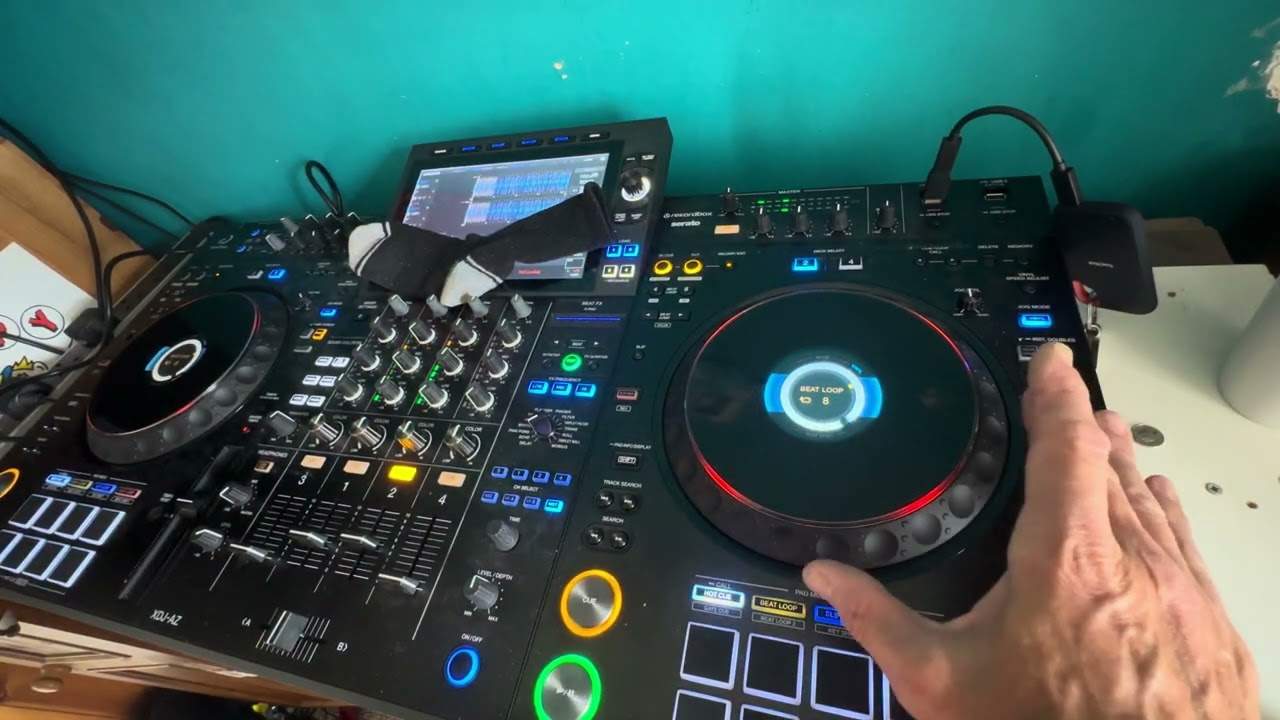
You can also use the tray, CDs and USB ports as well. Very quickly I've got the pacemaker plugged into the front there and I've got a keyboard plugged into the back. Now a few people will be thinking, scratching their heads, well two USB ports that means you've only got one music source. Agreed, yes at the moment only one music source but you can get an external boxy thing I forget what they're called please tell me so you go let's say from the other music source into that and then from that into the back or alternatively into the front and of course then because you've got more USB ports on that item you can use the keypad as well so don't worry you can still have your two USB ports. So I'm just going to scroll a little bit closer. This is Punk TV so if it goes slightly blurred, I do apologise. Right, so if I press USB number one, nothing on there at all. The reason being, like I said, that's because we've got the keyboard in. Press USB 2, that is the pacemaker. Right, if I click through, now basically if I can show you these buttony-dily things here. In a nutshell, the easiest way to describe them
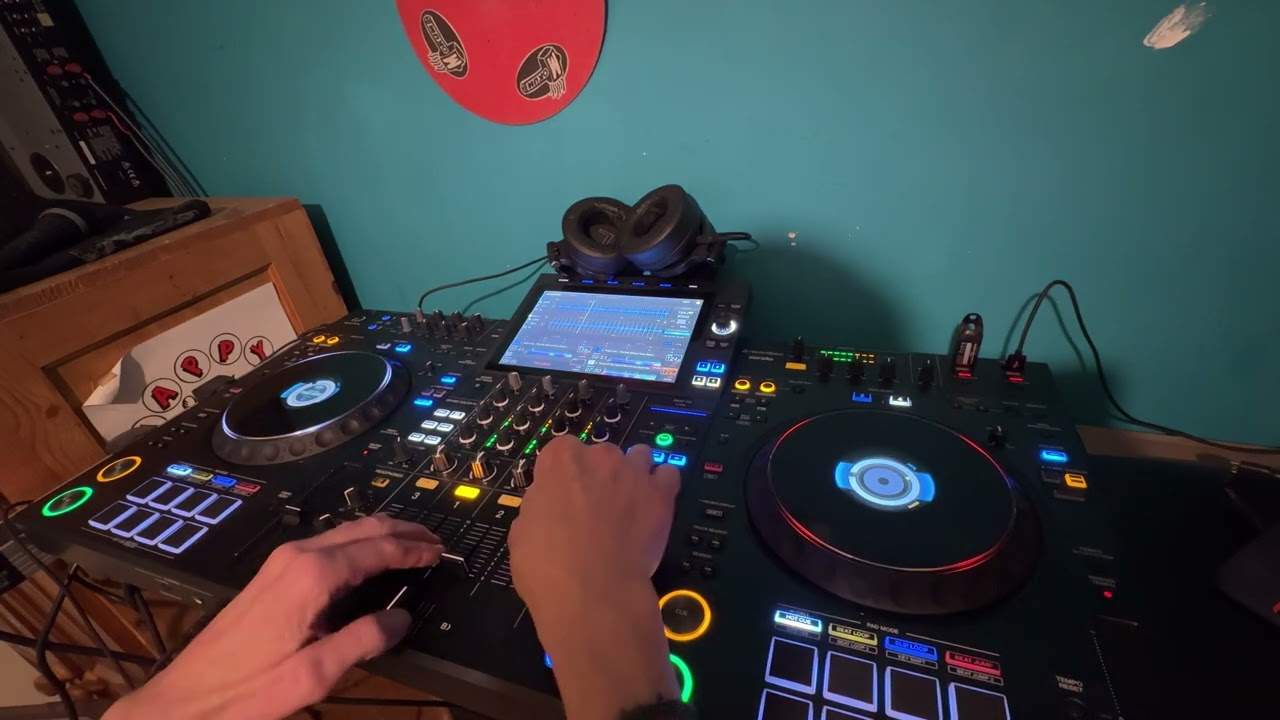
This here will scroll through. That's almost the equivalent of, if you imagine a mobile phone and you've got one dial that will take you to certain places. That's what that does. Then these two here will flick through those certain places. These two here will flick the tracks to your deck. So that one will take it to this side, that one will take it to that side. That's in a sense the basic easiest way of explaining what Those do, alright. Here very quickly, that is disc 1, nothing there, disc 2, USB 1, keyboard, USB 2, pacemaker, PC if you're plugged into a laptop or your PC and that is your playlists and again, if you want to know about any of these dials sorry, these buttons, I have done a couple of basic tutorials in the past so go and check them out on DJTutor.com
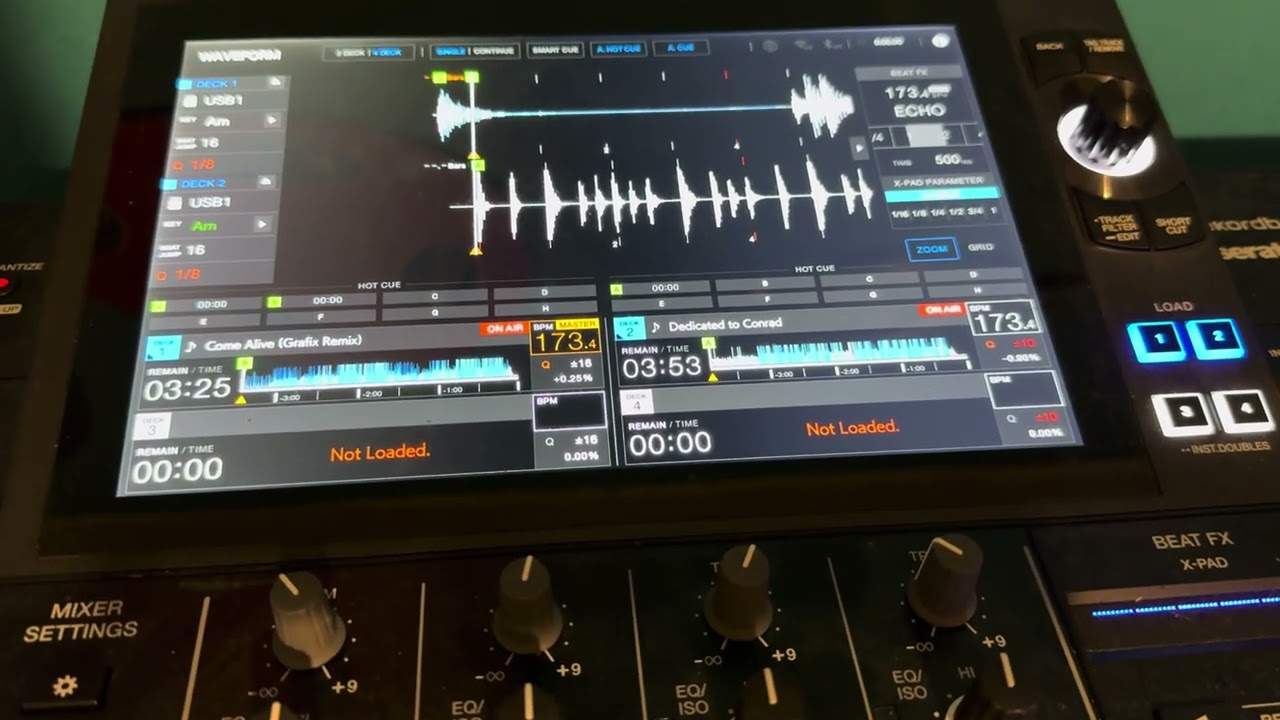
Click USB 2. Alright, if we can see we can search by genre, title, album, track but this is where it gets really interesting. We can search here by track or artist but we can use a keyboard. Now again you can just use this, you do not have to have a keyboard and in a future video very soon I'll show you how you can just use these dials Without having to plug in a keyboard. Alright, so for example, at the moment now I have got this on, let me just pause the camera a second. There you go, that's better. Right, I've got it on artist search and if we can see up here, USB 2. Now what I'm going to do, I'm going to click over here and now we've got J-A-M-E because I was looking for James Brown. So let's have a look, what should we look for? Let's look for say Madonna. So what I'm going to do now, I'm going to type into the keypad M-A-D, Mad. That's all I'm going to put, Mad. So I've pressed, where are we now? I've done Mad like so. Now what I can do is using the keyboard as you would normally, let's say if you're on the PC, just press Enter.
6:00 I just put J-A-M-E-S, James, and press enter
Now if we go back over, we're going to have everything with Mad in, including me. So what I can do is I can start to scroll down, Madness, Madness and there you go, we've got Madonna. Now again, if you think about it logically, if I'd have actually put Madonna then I would only get everything with Madonna in but because I've just put MAD, I've got Madness, Madison Avenue etc. In a sense, I don't really have to go back at all. I can stay there and I can go back to my keyboard and we'll try James Brown again. So I just put J-A-M-E-S, James, and press enter. So if we go over here, look a little bit closer, we've got James Brown. We've also got James, Etta James, but again,
That's what happens. If I'd have put James Brown, I would have got just James Brown. So we've got the Boss, Papa's got a brand new bag, I've got that feeling, get up off that good thing. Okay, let's have a look. So what I'm going to do, I'm going to do the Boss and then all I need to do, zoom out, hit here and guess what? That is ready to go there. So basically with the new firmware it's taken it to the next level. So, with the use of a keypad or, like I said in a future video, just using the functionality on the unit itself, you can go through all of your tracks and basically just drag and drop. So, very simple, very straightforward and you will be seeing me using this one heck of a lot in the near future. Practice and enjoy.
This transcript was produced automatically from the audio of the video and may contain mistakes.