 3:58
Traktor Kontrol Z2 How to Use the FX
Contents of the video
0:00 Effects, button, left hand
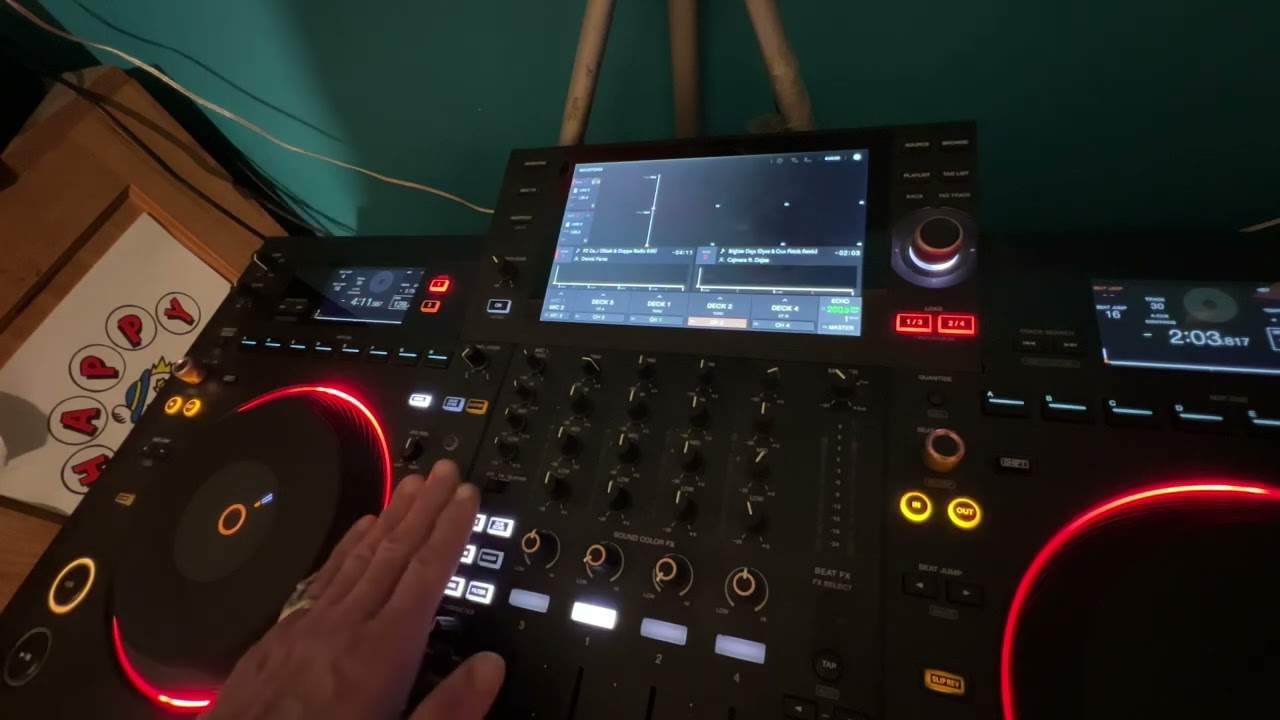
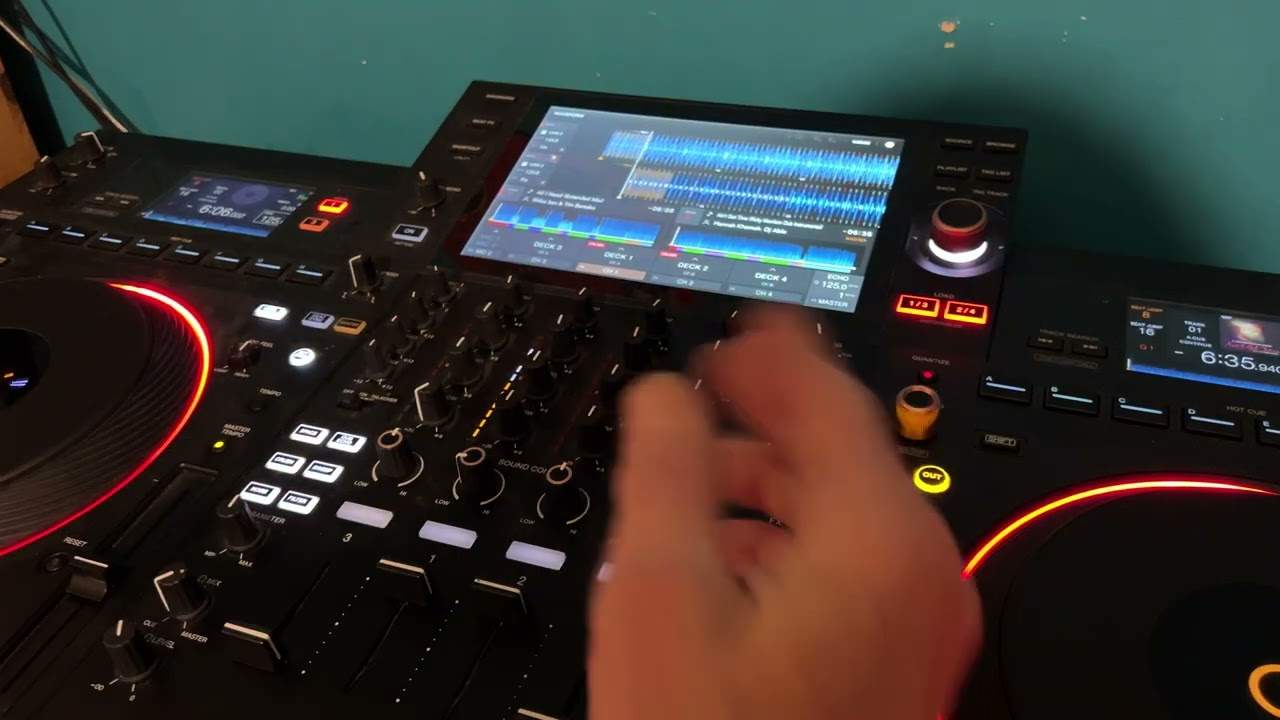
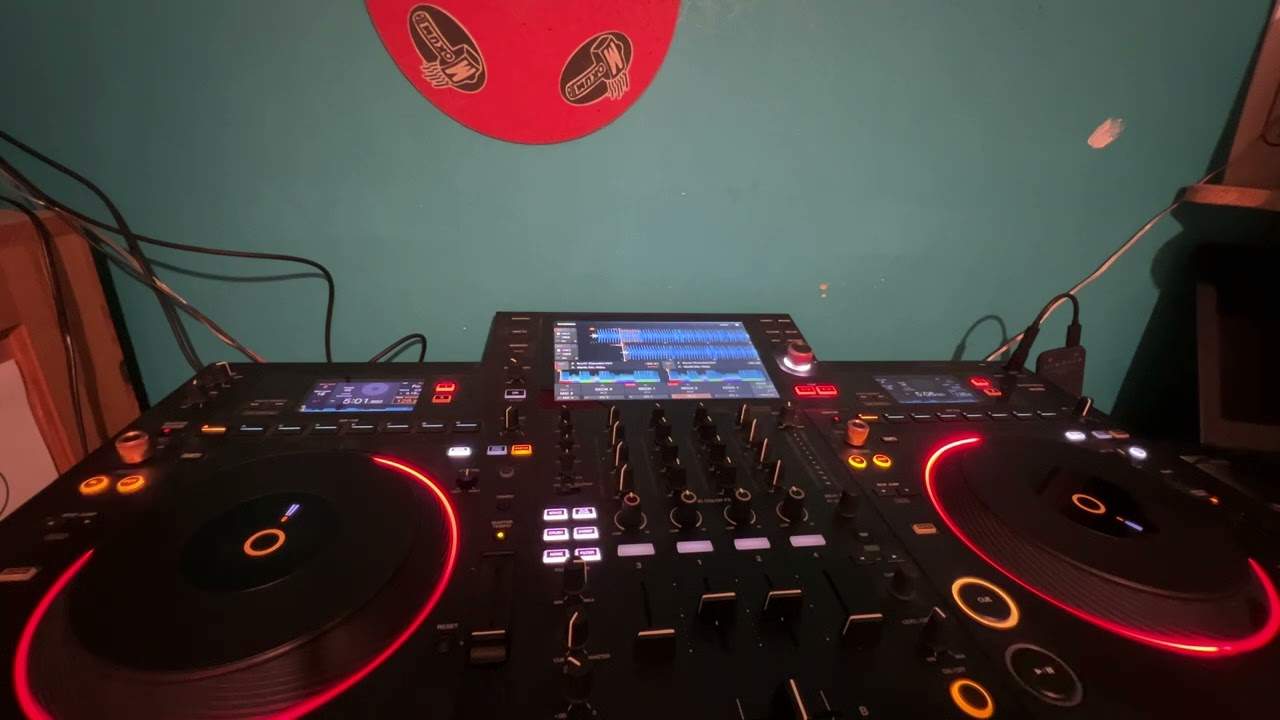
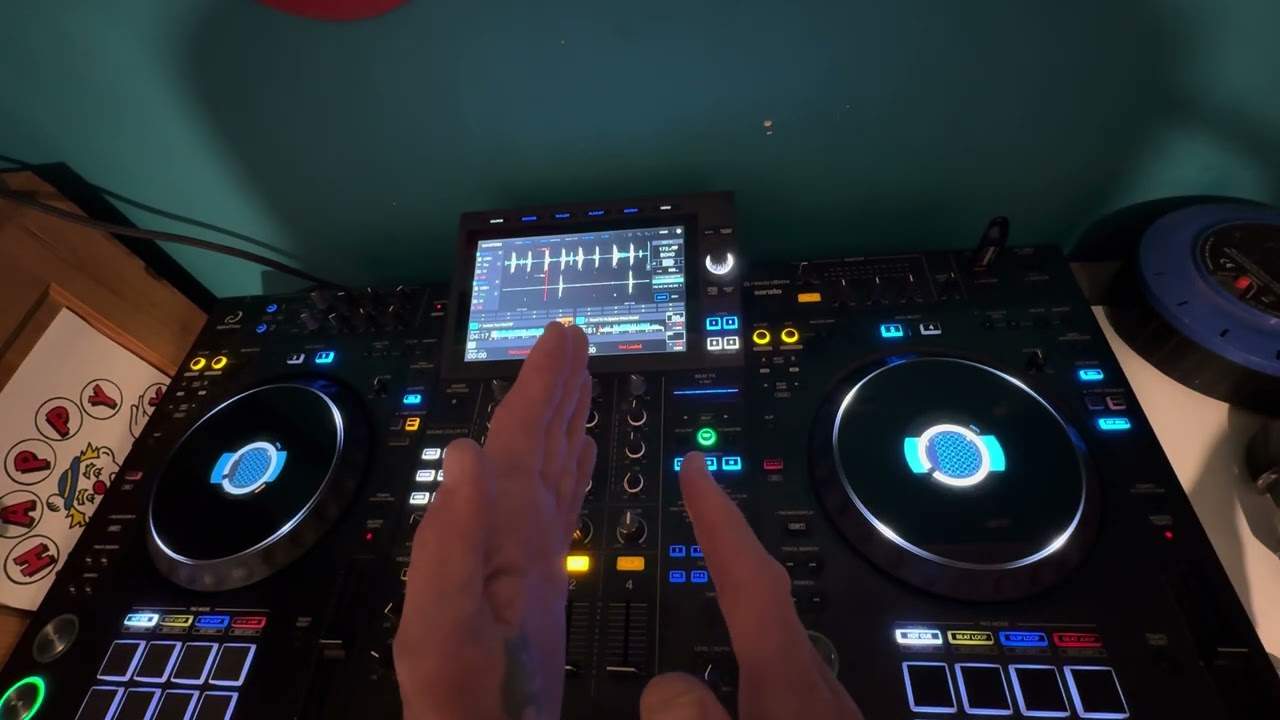
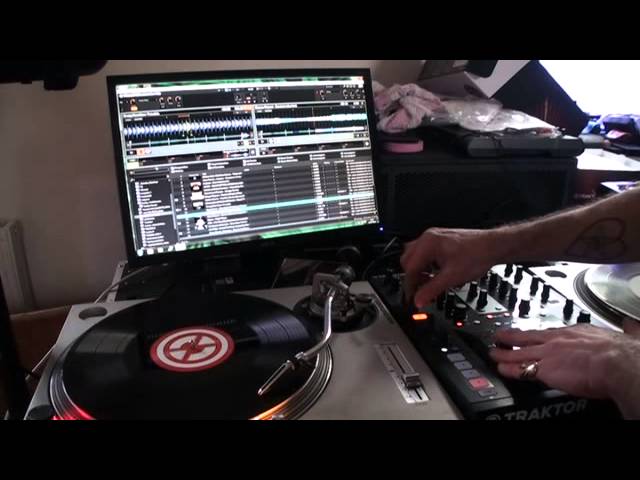
Alright ladies and gentlemen, another lesson on how to use the Traktor Kontrol Z2 two-channel mixer from Native Instruments. In this video we're going to be looking at how to use the effects on the hardware, which is the mixer, and also how by using the effects on the mixer you're also manipulating the software, which is the Traktor Scratch Pro software. So we're going to be looking at the top left hand part of the screen and we're going to be using the effects on the left hand side. You'll find the two dials for the effects on the left hand side of the mixer for the left deck and the right hand side of the mixer for the right deck. And you'll find them just above halfway up, you have a button there with pre and post. By pressing that you will then highlight that button with orange and you can see on, on.
1:25 At the moment I've got peak filter
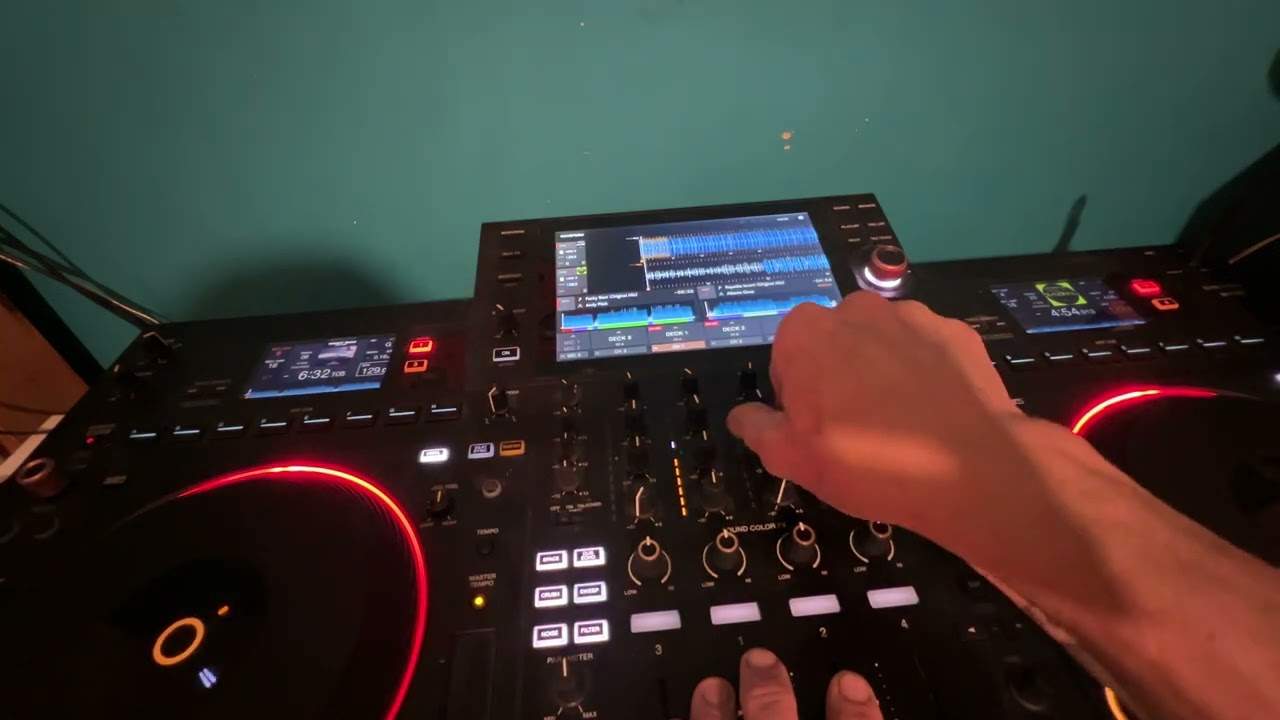
On the button. Above that we have a dial with effects and above that we have another dial with D and W, which is short for dry and wet. The dial below that with F and X is short for effects. So first of all we need to make sure that we can get the effects and we need to press the button and again that will be highlighted in orange. I've got a loop going here to the demonstration. So at the moment now I've got the effects dial set. To 12 o'clock. By turning the dry and wet, what that will do, that will either increase or decrease the amount of the effect we want to have. By turning the effects dial, that will increase or decrease the actual effect we're using. At the moment I've got peak filter. At the same time if I want to, I can also use the filter dial above that one channel to add more of an effect over the effect we're using.
2:39 Program, just
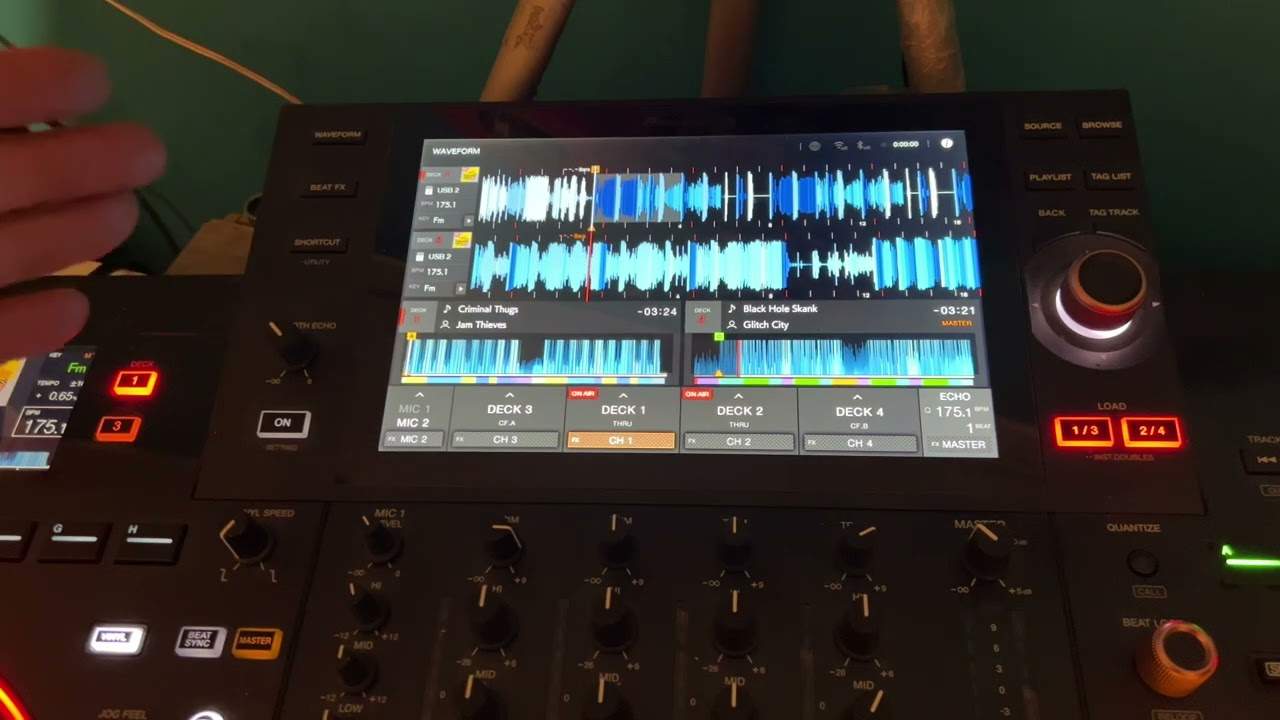
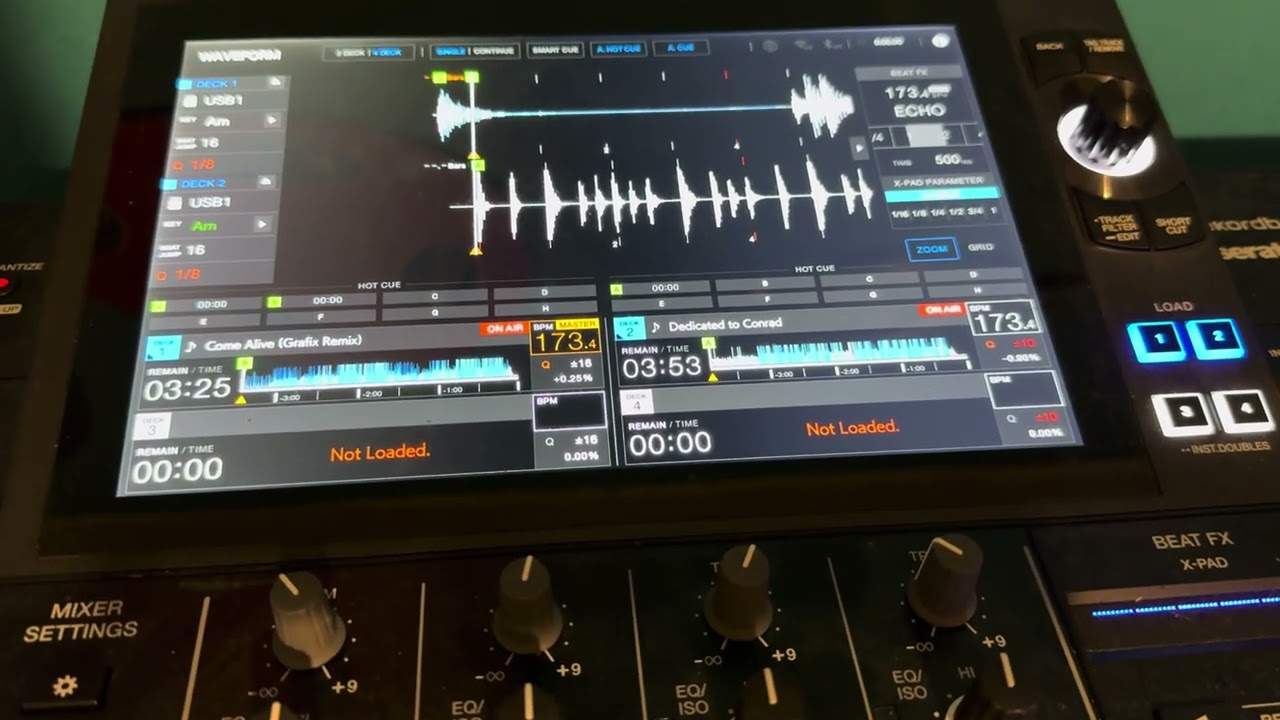
At the moment I've got peak filter. At the same time if I want to, I can also use the filter dial above that one channel to add more of an effect over the effect we're using. Okay just turn the volume down. If we have a look at the program now, we have peak filter and we've got a small arrow. If I go up to that icon and I press the arrow, we have all these different effects. So what I'm going to do now is just click on phaser. So we'll put the music back up. Press on. Now I'm going to use the filter dial above the channel and we can filter that effect. So I'll just give you a closer. So I'll just give you a closer. Of the mixer itself now. Okay so this is our filter dial above the channel. Off and on. The effect and dry and wet.
If we have a look at the program, just there. And dry and wet. There. So what I've shown you now on the left hand side is exactly the same on the right hand side of the mixer which is the hardware and the program which is the software. Practice and enjoy.
This transcript was produced automatically from the audio of the video and may contain mistakes.