 2:09
Traktor scratch pro video 16 Import music from your pc
Contents of the video
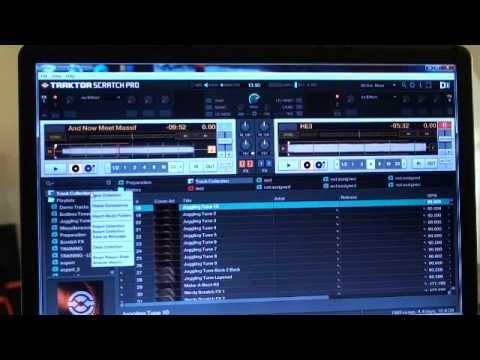
Alright folks, another video on Traktor Scratch Pro. In this one I'm going to show you how you can start to import your music from your PC. So in other words, you've just started the program, you've got a whole bunch of music on your PC and you want to put it onto the Traktor program itself. Okay, top right hand corner we've got that small icon, it's a gear but to me it looks a bit like a sun actually. So what I'm going to do, I'm going to click on that. Now we've got data location here. Now what I can do, two things, I can go to the default setting which is iTunes Music Library. Alternatively, let's say you've got a whole bunch of tracks somewhere else on the PC. This is what you need to do. I'm going to just put the mouse down to this area that says Add. I'm going to click there and all of a sudden now you should be familiar with something like this. This is your PC. What you can do then, I'm not going to do this but...
All you need to do is find your music on your PC. Once you've found it, you can click OK. So as soon as you've clicked OK, you will get that area there. In other words, wherever your music is, it will be up here. So I'm going to close that now because what we need to do then is go to Track Collection. So if I right-click on Track Collection, all I need to do is... I've got to import the music, so import music folders. If I click there, then all of those music folders will be imported to here, to the particular program, Traktor Scratch Pro, of course. But let's say we've got them on iTunes. Well, exactly the same. I go down here and we've got iTunes. So I go over highlight iTunes and I can right-click.
And all I need to do there is import to playlist. So bang, press import to playlist and now all of the tracks that are from my iTunes collection will be imported into this program. Hope that's been a help. Practice and enjoy.
This transcript was produced automatically from the audio of the video and may contain mistakes.