 2:08
Traktor Scratch Pro video 17 Set Deck details
Contents of the video
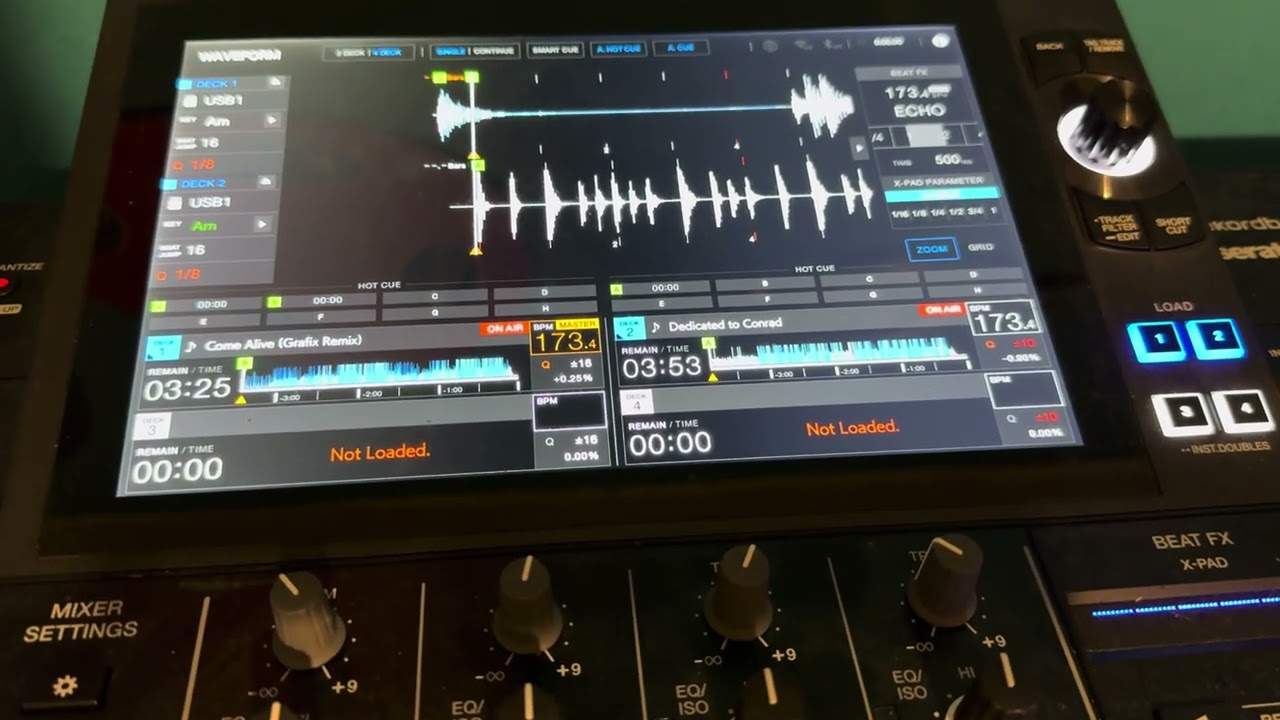
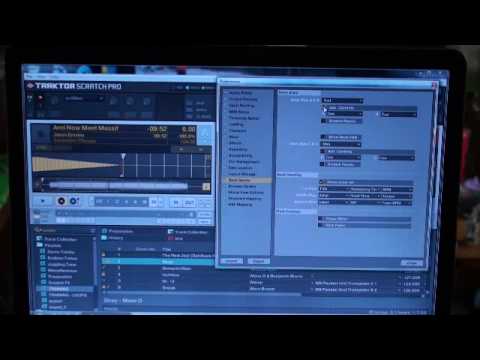
Alright folks, another video on Traktor Scratch Pro. In this one I'm going to show you how to set the preferences for your decks. So at the moment it looks like that but of course everyone wants something slightly different and in a sense even though your mate down the road could have Traktor Scratch Pro by following a couple of these steps you can have the layout of the look of your PC completely different to his or hers. What I'm going to do is go to top right hand corner and beats. We have the scratch panels. If I click here, we can show deck C and D. And again, mini or full. Straight away we can see one heck of a difference. So let's just go back for now to mini. And let's have a look. Scratch panels, we've done that. Alright, now down here we've got deck headings. Now we've got nine areas we can do. So if I click here...
If you can just see, I've got title. So if I click there, all of a sudden we've got that area there which is the title. Now I can change that to go to maybe artist, release, mix, label, catalogue number etc. Now I can do that to any of those nine areas so I can set it exactly how I want it to be. Also here we have the phase meter and if I click here we have the pitch fader as well. Alright, so basically just by following a few of these steps you can set your preferences exactly how you want it. Another video here, practice and enjoy. Thank you very much.
This transcript was produced automatically from the audio of the video and may contain mistakes.